


By default, your Chromebook saves downloads to a local storage area on your device. While this works fine for quick access, you might want your files automatically backed up to the cloud. You can redirect your Downloads folder to Google Drive for automatic cloud storage and cross-device access.
This setup keeps files available both locally on your Chromebook and online through Google Drive. It’s useful when you need access to those same files on another computer or want an automatic backup solution without manually uploading each file.
How to change a Chromebook Downloads folder to Google Drive?
Create or select a folder in Google Drive
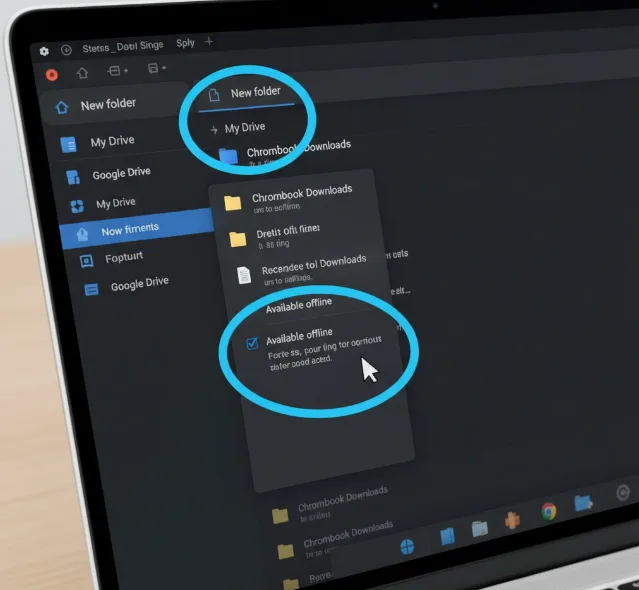
Open the Files app on your Chromebook and navigate to Google Drive. Create a new folder or choose an existing one for your downloads.
Right-click the folder and select “Available offline” to ensure files sync automatically to other devices. This option makes your downloads accessible even without an internet connection.
Open Chrome browser Settings
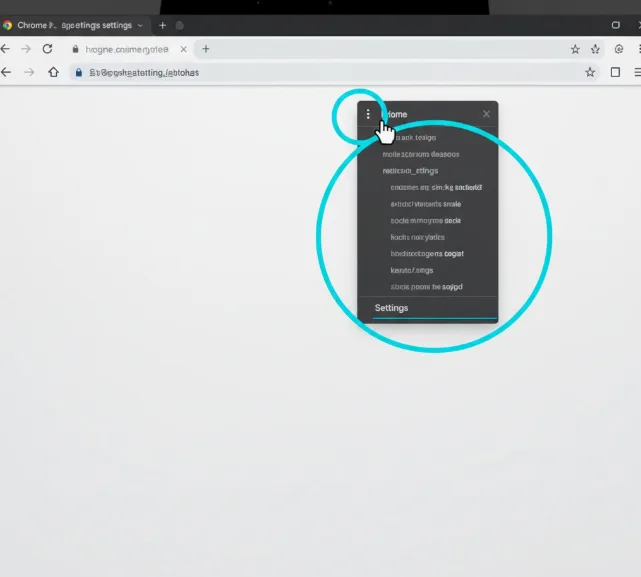
Click the three-dot menu button in the top right corner of your Chrome browser. Select Settings from the dropdown menu.
You can also type chrome://settings directly in your browser address bar. Google moved the Downloads folder settings from ChromeOS to the Chrome browser a while back.
Navigate to Downloads settings
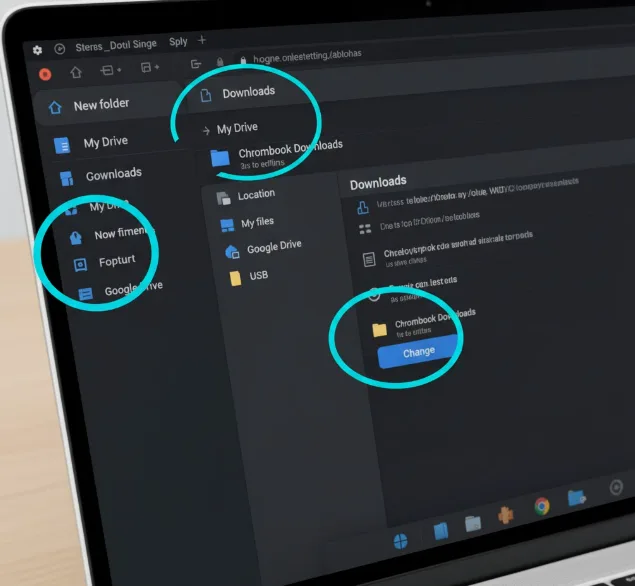
Scroll down the Settings page and look for the Downloads option in the left sidebar. Click it to view your current download location.
By default, you’ll see it’s set to the local Downloads folder on your Chromebook. This is where you’ll make the change to redirect downloads.
Change the download location
Click the Change button next to your current download location. A file picker window will appear showing your available storage options.
Navigate to Google Drive in the file picker. Select the folder you created or designated earlier for your downloads.
Verify the new download location
Test the setup by downloading any file from the web. Right-click an image on a website and select “Save image” to check where it saves.
Open your Files app and navigate to your designated Google Drive folder. The downloaded file should appear there, confirming your new download location works correctly.
Turn off your WiFi to verify offline access works properly. Open the Google Drive folder and check if your recently downloaded files appear. They should be accessible without an internet connection if you enabled the offline option.
You can add a shortcut to your custom Downloads folder for quicker access. Right-click the folder in the Files app and select “Add to sidebar” or “Pin to shelf” depending on your preference.
FAQs
Will downloads still work offline with this setup?
Yes, if you enabled the “Available offline” option for your Google Drive folder. Files download to both your Chromebook and Google Drive simultaneously.
Can I change the download location back to local storage?
Yes, open Chrome Settings, go to Downloads, click Change, and select the local Downloads folder instead of the Google Drive location.
Do all file types save to Google Drive with this method?
Yes, any file you download through the Chrome browser or save via apps will automatically save to your designated Google Drive folder.
Will this use my Google Drive storage quota?
Yes, all files saved to Google Drive count toward your storage limit. Consider your available space before redirecting all downloads to Drive.
Can I use a subfolder within Google Drive?
Yes, you can create any folder structure you want. Just navigate to that specific subfolder when changing your download location in Chrome Settings.
