


ChromeOS 111 includes an experimental feature called Read Anything that transforms web pages into distilled text in the side panel. This accessibility tool helps users with learning differences like dyslexia and ADHD by removing visual clutter from web content.
Unlike the existing Reader Mode that converts entire browser tabs, Read Anything works in the side panel. This gives you a side-by-side view with the original page on the left and clean text on the right.
The feature won’t officially launch until ChromeOS 114, but you can enable it early using an experimental flag. It’s designed to make reading easier by simplifying page layouts while keeping links functional.
Google created Read Anything because one in five children in the U.S. has a learning difference. The tool provides customizable reading options including font changes, line spacing adjustments, and color themes to support different reading needs.
How to use Read Anything in the ChromeOS 111 side panel
Enable the experimental flag
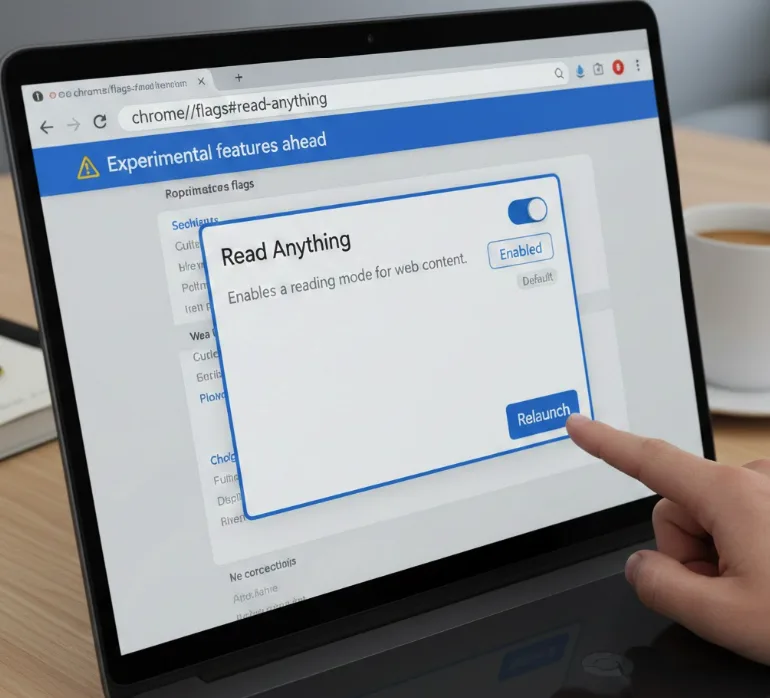
Point your Chromebook browser to chrome://flags#read-anything. This takes you directly to the Read Anything experimental feature.
Toggle the flag to “Enabled” from the dropdown menu. Click the “Relaunch” button that appears at the bottom of your screen to restart the browser.
If you’re new to using Chrome flags, they provide access to experimental features not yet available in standard ChromeOS.
Access the side panel
After your browser restarts, navigate to any web page you want to read. Look for the side panel button at the top left of your browser, next to the three-dot menu.
Click the side panel button. A dropdown menu appears with several options.
Open Read Anything
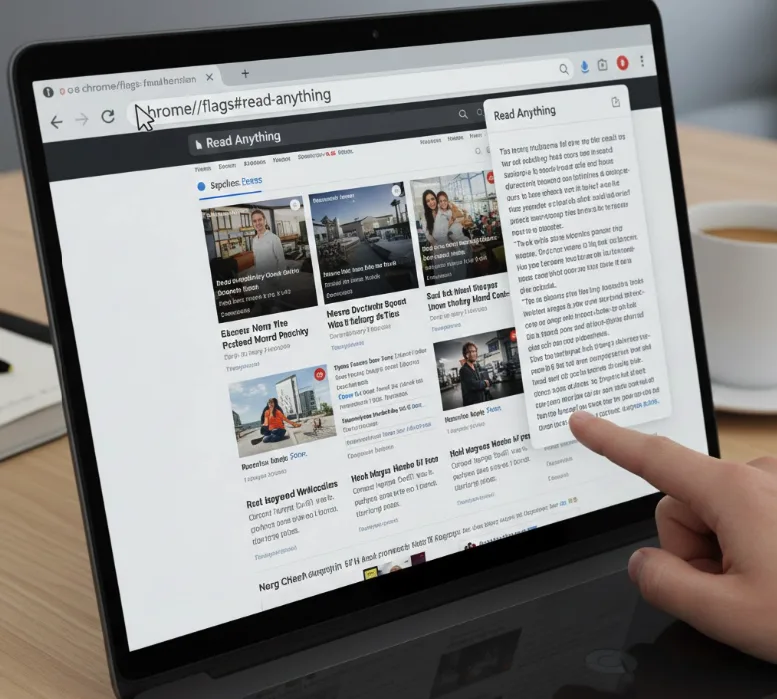
Select “Read Anything” from the dropdown menu. The side panel opens on the right side of your browser window.
The original web page stays in the left browser tab. The distilled text version appears in the side panel on the right.
Adjust the panel width
The side panel opens in a narrow view by default. Move your cursor to the left border of the panel until it changes to a resize cursor.
Click and drag the border left or right to adjust the width. You can make it as wide or narrow as needed for comfortable reading.
Customize reading options
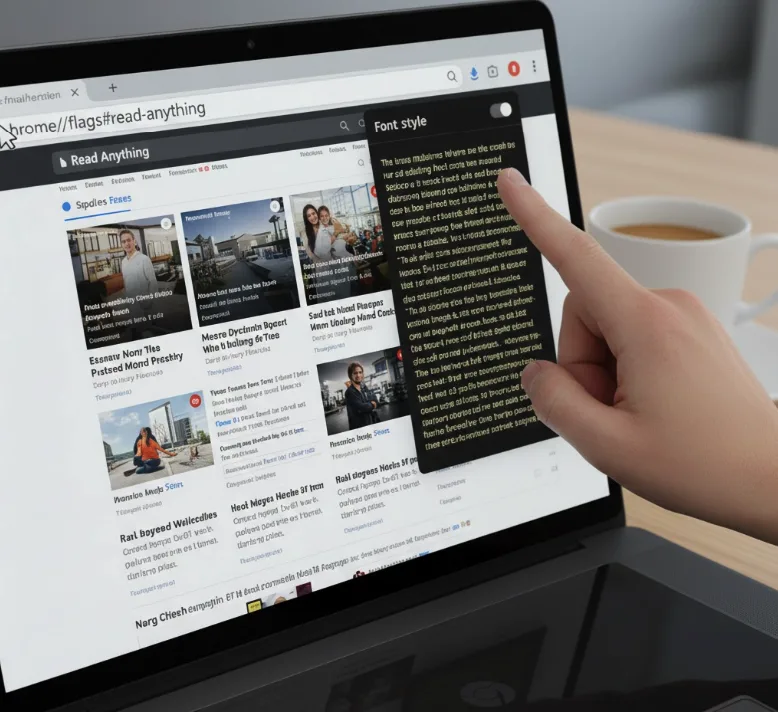
Look for the toolbar above the text in the side panel. You’ll find options to change background color, font type, and line spacing.
Click the dark mode toggle if you prefer reading with a dark background. Select your preferred font from the available options.
Adjust vertical and horizontal line spacing using the spacing controls. Choose colors like yellow for high contrast if that helps your reading.
Navigate linked content
Links remain active in the Read Anything panel. Click any link in the distilled text.
The linked page loads in the left browser tab. The original distilled content stays in the side panel so you can reference it.
Read Anything strips out images and focuses purely on text content. This differs from the standard Reader Mode, which displays both text and images.
The feature may undergo name changes before the official ChromeOS 114 release. Google has referred to it as both “Read Anywhere” and “Reader Mode” in different communications.
FAQs
What’s the difference between Reader Mode and Read Anything?
Reader Mode converts the entire browser tab to basic text with images. Read Anything displays distilled text in the ChromeOS side panel while keeping the original page visible.
Does Read Anything work on all websites?
Read Anything works on most web pages with text content. Pages with complex layouts or non-standard formatting may not distill properly through the experimental feature.
Can I use Read Anything without enabling the flag?
No, Read Anything requires enabling the experimental flag in ChromeOS 111. The feature becomes available by default when ChromeOS 114 officially launches later this year.
Will my Read Anything settings save between sessions?
Your customization preferences like font, spacing, and color choices save automatically. These settings apply each time you open Read Anything in the side panel.
Does Read Anything read text aloud?
Read Anything currently focuses on visual text presentation only. For text-to-speech functionality, you’ll need to use ChromeOS’s separate accessibility features like Select-to-Speak.
