


Browsing on a Chromebook with just the keyboard means navigating websites, clicking links, and managing tabs without touching your trackpad or mouse. ChromeOS includes native keyboard shortcuts for basic tasks like opening tabs and scrolling.
For power users who want complete keyboard control, you can install Vimium, a Chrome extension that adds advanced navigation shortcuts. This approach keeps your hands on the keyboard at all times, eliminating the time lost when switching between keyboard and trackpad.
Learning keyboard-only browsing speeds up your workflow and reduces repetitive hand movements.
How to browse on a Chromebook with just the keyboard?
You can browse on a Chromebook using two methods: native ChromeOS shortcuts for basic navigation and the Vimium extension for advanced control.
Start with native ChromeOS keyboard shortcuts
ChromeOS includes keyboard shortcuts that handle common browsing tasks. Press Ctrl + t to open a new tab or Ctrl + w to close the current tab.
Use Ctrl + n to open a new window. Press Space or PgDn to scroll down a webpage and Shift + Space or PgUp to scroll up.
Move your cursor to the address bar by pressing F5 or Ctrl + r. Close the current window with Ctrl + Shift + w or Alt + F4.
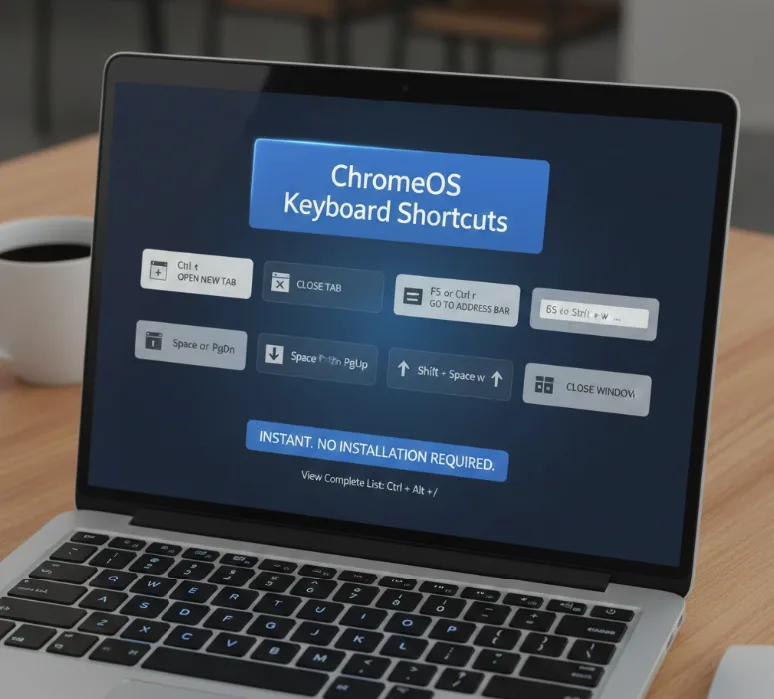
These shortcuts work immediately on your Chromebook without installing anything. You can view the complete list of keyboard shortcuts by pressing Ctrl + Alt + /.
Install Vimium from the Chrome Web Store
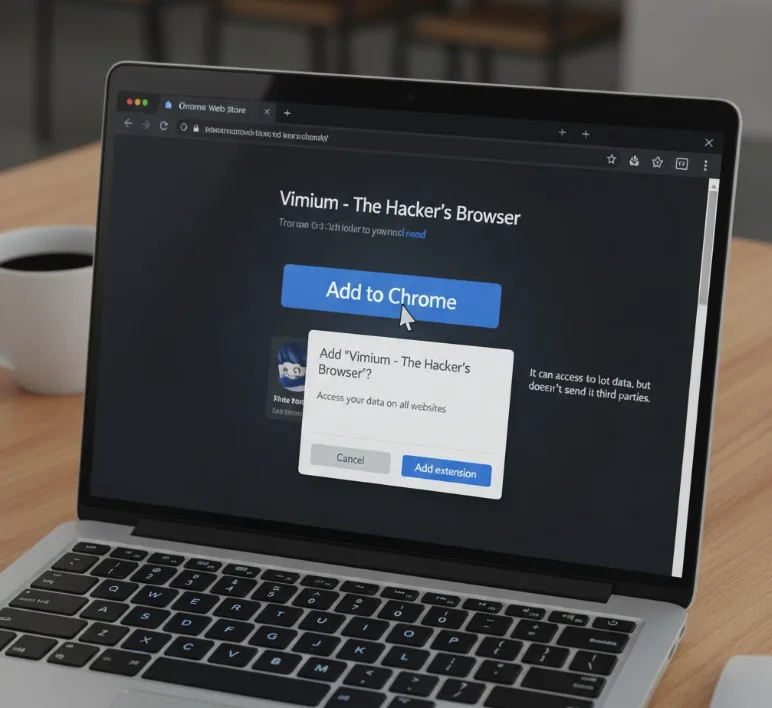
Open the Chrome Web Store and search for Vimium. Click Add to Chrome and allow the requested permissions.
The extension needs to access your browser pages to function but does not send data to external servers. You can verify this by viewing the extension’s source code.
Vimium works on Chromium-based browsers like Sidekick. Firefox users can install a compatible version from the best Chrome extensions available for productivity.
Navigate webpages with Vimium shortcuts
After installing Vimium, press the lowercase j key to move down the page in small increments. Press k to move up.
The default scroll distance is 60 pixels. You can adjust this in the Vimium options menu along with other custom keyboard shortcuts.
Press gg to jump to the top of a page. Press G to jump to the bottom.
Use d to scroll down half a page and u to scroll up half a page.
Click links using the f key
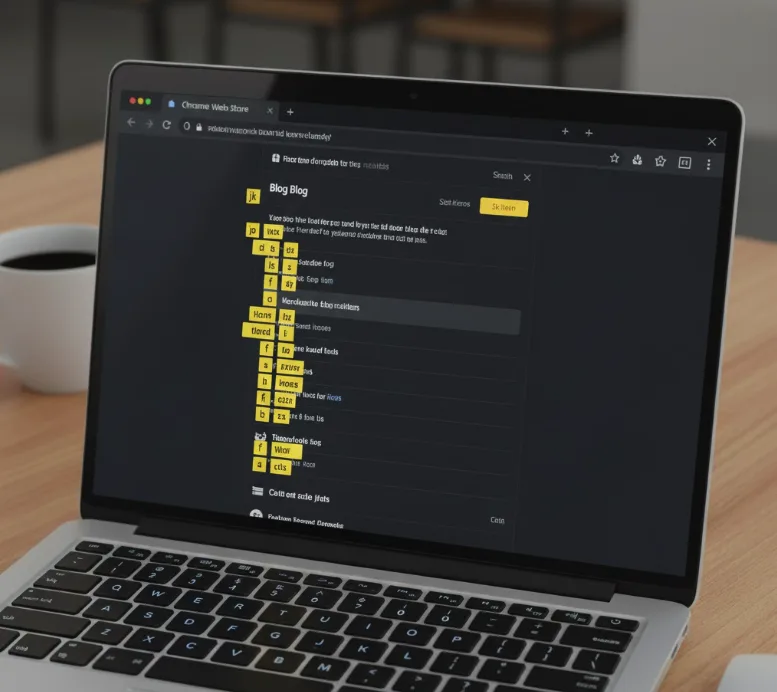
Press lowercase f to display all clickable links on the current page. Each link shows one or two yellow letters next to it.
Type the letters shown next to your desired link. Vimium opens that link in the same tab automatically.
Press uppercase F to open links in new tabs instead. This shortcut shows the same yellow letter indicators.
Manage tabs with keyboard commands
Press uppercase J (using Shift) to move right through your open tabs. Press uppercase K to move left.
Close the current tab by pressing lowercase x. Reopen closed tabs by pressing uppercase X as many times as needed.
Press lowercase t to open a new tab. Type your search or URL directly. If you frequently work with multiple tabs, learning how to manage your tabs efficiently can save significant time.
FAQs
What keyboard shortcut opens a new tab on Chromebook?
Press Ctrl + t to open a new tab on your Chromebook. This shortcut works in Chrome and most Chromium-based browsers without additional extensions.
Do I need to install anything to browse with keyboard?
No. ChromeOS includes native keyboard shortcuts for basic browsing tasks like opening tabs, scrolling, and closing windows without installing extensions.
How do I click links without a mouse on Chromebook?
Install Vimium and press the f key to show link shortcuts. Type the yellow letters next to your desired link to click it without a mouse.
Can I use Vimium on other browsers?
Yes. Vimium works on Chromium-based browsers like Sidekick. Firefox has a separate compatible version available in the Firefox add-ons store.
Does Vimium collect my browsing data?
No. Vimium accesses browser pages to function but does not send your data to external servers. You can verify this in the extension’s source code.
