


Video editing on a Chromebook is easier than you think. Cloud-based applications have transformed these lightweight devices into capable editing machines. Whether creating content for YouTube, social media, or personal projects, your Chromebook can handle video editing tasks without requiring expensive hardware. Understanding the right tools and techniques makes the editing process smooth and efficient, allowing you to produce professional-quality videos directly from your browser or through Android apps available on Chrome OS.
How To Edit Videos In Your Chromebook?
Getting started with video editing requires choosing the right application for your needs. Your Chromebook supports multiple editing platforms through web browsers and the Google Play Store.
Choose Your Video Editing Application
Select an editor based on your skill level and project requirements. Best free Chromebook video editors include WeVideo, Clipchamp, and KineMaster. WeVideo offers cloud-based editing with stock footage libraries and social media integration. Clipchamp provides templates and direct Google Drive integration for quick edits.
For advanced features, KineMaster supports multi-layer editing and color grading tools. InShot works perfectly for social media content creators who need quick, creative edits.
Upload Your Video Files
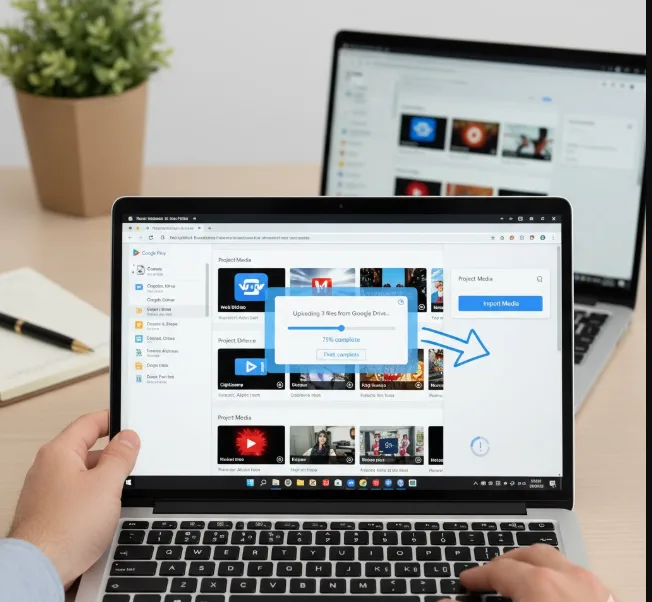
Access your chosen editing app through the Chrome browser or Google Play Store. Import video files from your Chromebook’s local storage or directly from cloud storage services like Google Drive. Cloud storage prevents filling up your device’s limited space while keeping projects accessible across devices.
Most editors support drag-and-drop functionality, making file uploads straightforward and quick.
Cut and Trim Your Footage
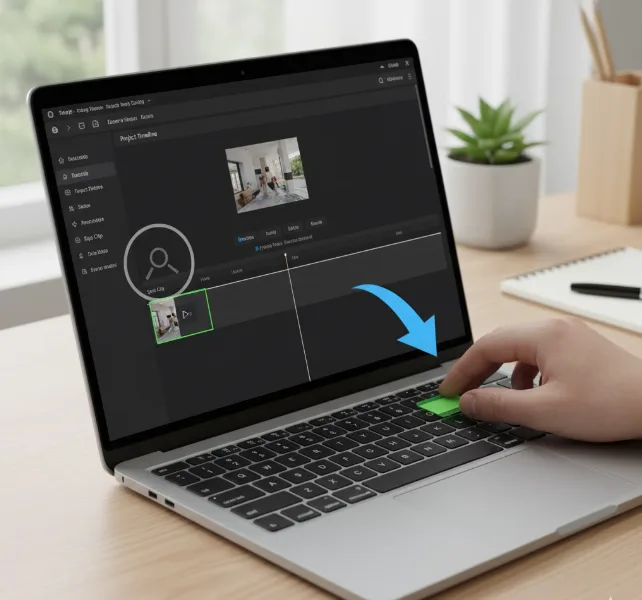
Remove unnecessary sections to create concise, engaging content. All major Chromebook video editors provide timeline-based cutting tools. Click on clips in the timeline, then drag the edges to trim or use split functions to remove middle sections.
This step shapes your video’s pacing and removes mistakes or unwanted footage.
Add Transitions and Effects
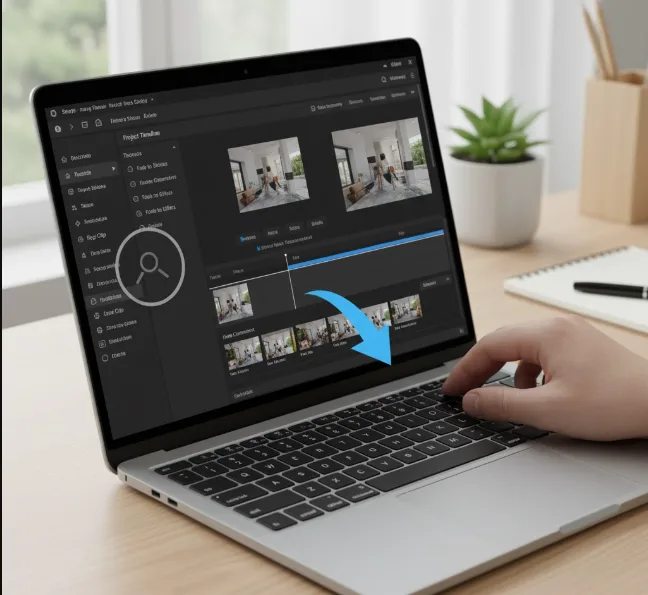
Create smooth flow between clips by applying transitions. Simple fades work for most projects, while more complex wipes suit creative content. Cloud-based editors like WeVideo and Clipchamp offer extensive transition libraries.
Apply filters and visual effects to enhance your video’s aesthetic. Adjust brightness, contrast, and saturation for professional polish.
Incorporate Audio Elements
Add background music, sound effects, or narration to complete your video. Many editing apps include royalty-free music libraries. Upload custom audio files or record voiceovers directly within the editor.
Adjust volume levels and add fade effects for professional audio mixing. Balance background music with dialogue to ensure clarity.
Insert Text Overlays
Add titles, captions, or subtitles to guide viewers and emphasize key information. Customize fonts, colors, and animations to match your brand. Most editors offer preset text templates for quick implementation.
Text overlays improve accessibility and viewer engagement across platforms.
Export Your Finished Video
Select your export settings based on where you’ll share the video. Most platforms support 1080p resolution for high-quality uploads to YouTube, Instagram, or Facebook. Cloud-based editors export directly to online storage, eliminating local storage concerns.
Export times vary depending on video length and resolution settings. Once complete, share files through cloud platforms or upload directly to social media.
Consider your Chromebook’s performance capabilities when working with large files. Lower-end models handle simpler edits better, while higher-spec devices with 8GB RAM or more manage complex projects smoothly.
FAQs
Can I edit 4K videos on my Chromebook?
Most Chromebooks handle 1080p editing well, but 4K editing requires higher-end models with Intel i5 processors and at least 8GB RAM for smooth performance.
Do I need internet to edit videos on a Chromebook?
Some cloud-based editors require internet connectivity, but apps like KineMaster allow offline editing once installed. Download files for offline access when needed.
How much storage do I need for video editing?
Video files consume significant space. Use external storage or cloud services like Google Drive, OneDrive, or Dropbox to manage large projects without filling your device.
Will video editing slow down my Chromebook?
Video editing demands processing power. Close unnecessary tabs and apps before editing to optimize performance and prevent slowdowns during rendering.
Can I use Google Photos for video editing?
Yes, Google Photos includes a basic video editor for trimming clips, adding music, and applying filters. It’s perfect for simple projects but lacks advanced features.
