


Microsoft recently updated Skype for Web with new browser restrictions. The service now only works with Microsoft Edge and Google Chrome on Windows or Mac devices.
Chromebook users see a “browser not supported” message even though Chrome is technically supported. Microsoft checks both your browser and hardware, blocking Chrome OS devices entirely.
This creates a problem for Chromebook owners who prefer the web version over mobile apps. The good news is you can bypass this restriction using a simple browser extension.
This guide shows you how to use Skype for Web on a Chromebook by making your device appear as a Windows PC to Microsoft’s servers.
How to use Skype for Web on a Chromebook now that Microsoft isn’t supporting it?
You can access Skype for Web on your Chromebook by installing a user-agent switcher extension. This tool makes your Chromebook appear as a Windows device running Microsoft Edge.
The process takes just a few minutes and lets you make Skype calls directly from your browser without installing Android apps.
Install the User-Agent Switcher extension
Open the Chrome Web Store on your Chromebook. Search for “User-Agent Switcher” and install the extension from the results page.
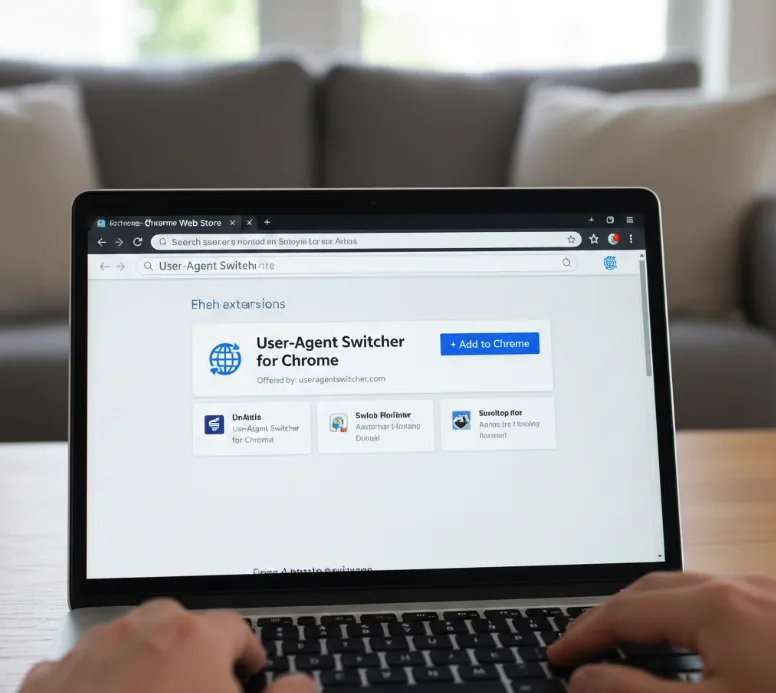
The extension adds a small icon to your browser toolbar. You’ll use this icon to change how websites see your device. If you’re new to Chrome extensions, these simple tools can enhance your browsing experience significantly.
Configure the extension to simulate Microsoft Edge
Click the User-Agent Switcher icon in your toolbar. A dropdown menu appears with different browser and device options.
Select “Microsoft Edge on Windows” from the available configurations. This tells websites your device is running Windows with Edge browser.
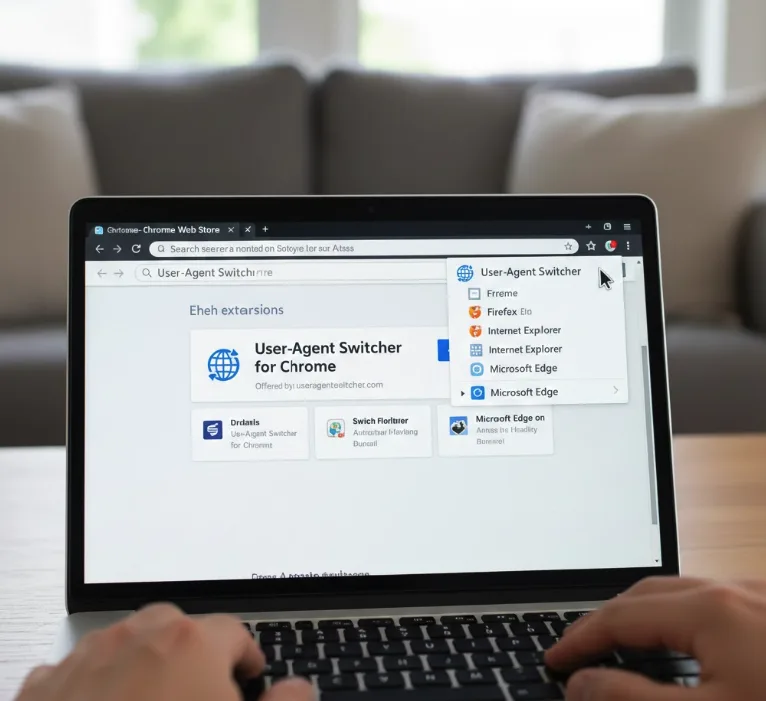
Access Skype for Web
Navigate to web.skype.com in your Chrome browser. The site now recognizes your device as compatible.
Sign in with your Microsoft account credentials. You can now make calls and send messages through the browser interface.
Keep the extension active during use
Leave the User-Agent Switcher enabled while using Skype for Web. Switching back to your default settings will trigger the restriction again.
You can toggle the extension on and off as needed. Just remember to activate it before accessing Skype.
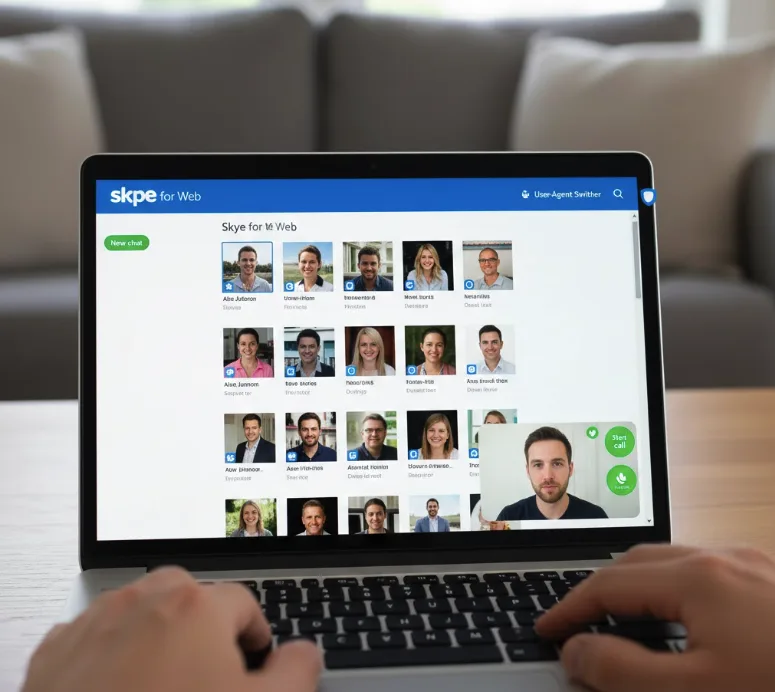
The Android version of Skype remains another option if the browser method stops working. However, the web client often provides a faster experience for quick calls or messages without needing app installations.
FAQs
Does Skype for Web work on all Chromebook models?
Yes, this method works on any Chromebook that runs Chrome browser. The User-Agent Switcher extension bypasses Microsoft’s device restrictions regardless of your Chromebook’s specifications.
Will Microsoft ban my account for using this workaround?
No, changing your user agent is a standard browser feature. You’re simply accessing Skype through a supported browser configuration without violating terms of service.
Can I use other user agents besides Microsoft Edge?
Chrome on Windows doesn’t work for Skype access. Microsoft Edge on Windows is currently the only user agent configuration that successfully bypasses the restriction.
Do I need to keep the extension running all the time?
You only need the User-Agent Switcher active when using Skype for Web. You can disable it for other browsing and re-enable it when needed.
What happens if Microsoft blocks this workaround?
The Android version of Skype remains available on Chromebooks through the Google Play Store. You can install Android apps as a backup solution for calls and messaging.
