


Project Crostini brings Linux app support to Chrome OS through a containerized environment. Sometimes the Terminal app fails to launch properly, leaving users unable to access their Linux container.
This typically happens after manual updates to system components or when development channel updates introduce compatibility issues. The Terminal window may briefly appear before closing immediately.
Understanding how to bypass the Terminal app and access your container directly through Chrome OS’s shell saves time and keeps your Linux workflow running. This guide shows you the exact steps to regain access when the standard Terminal app won’t cooperate.
Can’t open your Project Crostini container Terminal? Here’s how to get access
When you can’t open your Project Crostini container Terminal, you need to access the Linux environment through Chrome OS’s command shell instead. This method bypasses the broken Terminal app entirely.
The process involves three commands that connect you directly to your Linux container. You’ll use crosh, Chrome OS’s built-in shell, to establish this connection.
Open the Chrome OS shell
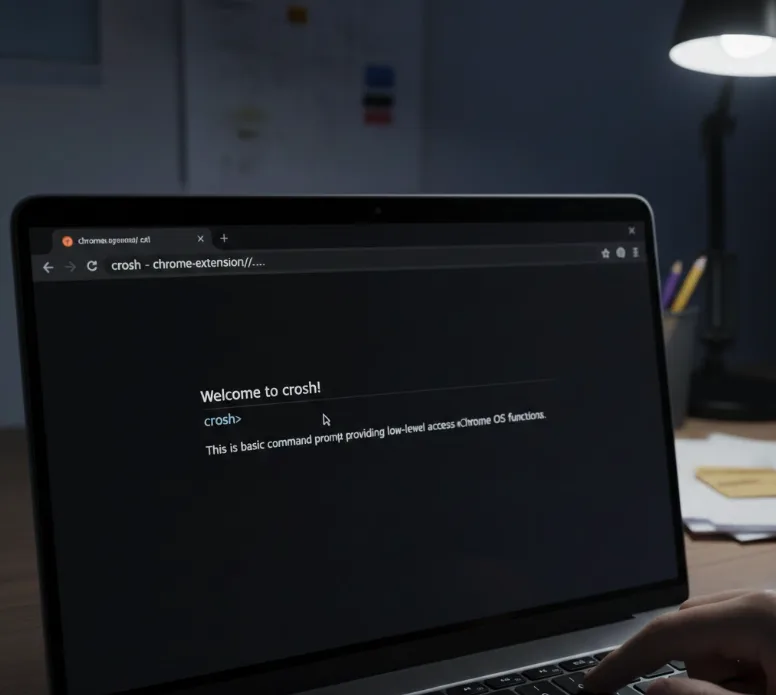
Press Ctrl+Alt+T on your keyboard. This opens crosh in a new browser tab.
Crosh provides low-level access to Chrome OS functions. It looks like a basic command prompt with black background and white text.
Connect to your virtual machine
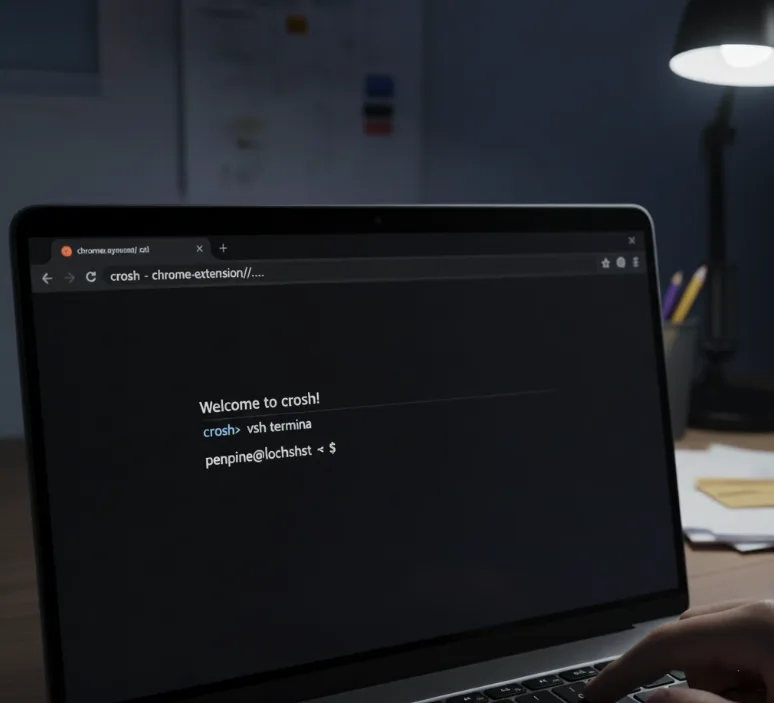
Type vsh termina and press Enter. This connects you to the virtual machine running your Linux container.
Most Chromebooks use “termina” as the default VM name. If you’ve customized your setup, replace “termina” with your specific VM name.
Access your Linux container
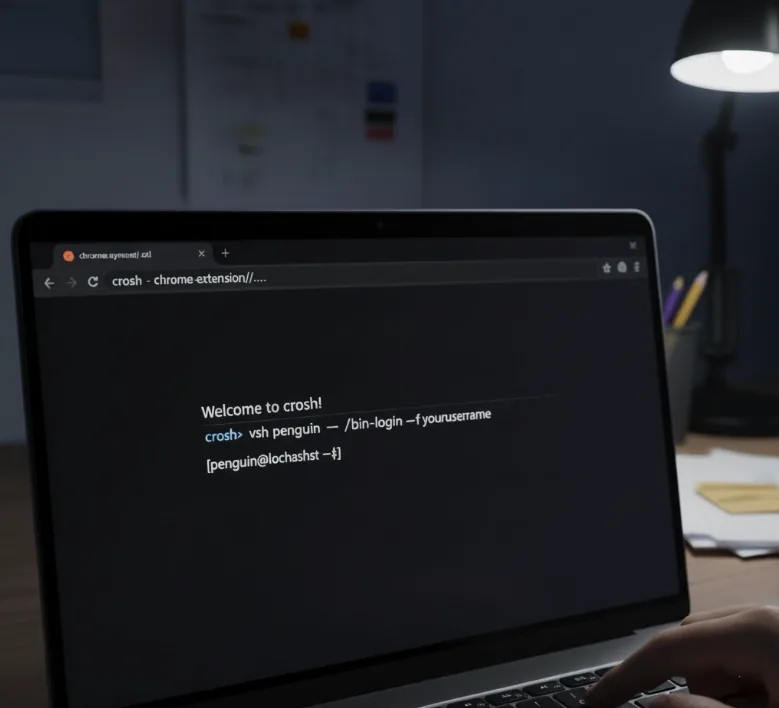
Type lxc exec penguin -- /bin/login -f yourusername and press Enter. Replace “yourusername” with the username you created during Linux setup.
The default container name is “penguin” for most installations. If you named your container differently, use that name instead.
Your Linux environment now opens inside the crosh window. It functions identically to the standard Terminal app.
You can run all your usual Linux commands, install packages, and manage files. The only difference is the interface location.
This workaround typically becomes necessary after component updates or when running Chrome OS development channel builds. The Chromium development team usually resolves Terminal app issues quickly through automatic updates.
FAQs
What causes the Project Crostini container Terminal to stop opening?
Manual updates to the cros-termina component or development channel bugs can break Terminal app functionality. The app opens briefly then closes immediately without displaying errors.
Do I need to reinstall Linux to fix Terminal access issues?
No reinstallation is necessary. Accessing your container through crosh preserves all your files, settings, and installed applications while bypassing the broken Terminal app interface.
Will this workaround delete my Linux files and applications?
Your Linux environment remains completely intact. All installed packages, configuration files, and personal data stay untouched when using crosh to access the container directly.
How do I know my VM and container names?
Most Chromebooks use “termina” for the VM and “penguin” for the container by default. Custom names appear during initial Linux setup if you changed them.
Can I use this method permanently instead of the Terminal app?
Yes, crosh provides full Linux functionality. However, the Terminal app offers better integration with Chrome OS once updates resolve the compatibility issues causing launch failures.
