


Chrome OS 88 introduced a screen saver feature that mirrors Google Nest smart displays. This update lets you display Google Photos, weather information, time, and media details when your Chromebook sits idle.
The feature transforms your device into a functional display similar to Google Nest products. You can showcase family photos, check temperature at a glance, and view the current time without unlocking your device.
Users benefit from this feature by repurposing their Chromebook during downtime. Instead of a blank screen, you get useful information and personalized images that make your workspace more inviting.
How to turn your Chromebook screen saver into a Google Nest display of sorts with Chrome OS 88
Setting up this screen saver requires Chrome OS 88 or later. Most supported Chromebooks received this update within weeks of its release.
Access your Chromebook settings
Open Chrome OS Settings from the system tray. Look for the Personalization option in the left sidebar and select it.
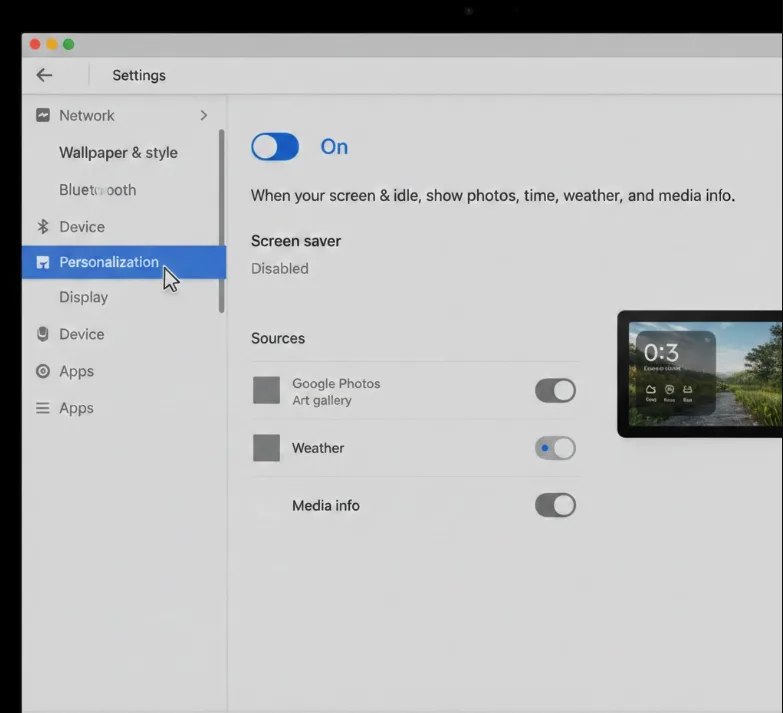
Enable the screen saver option
Find the Screen Saver setting within Personalization. Many users will see this disabled by default. Click on it to view available configuration options.
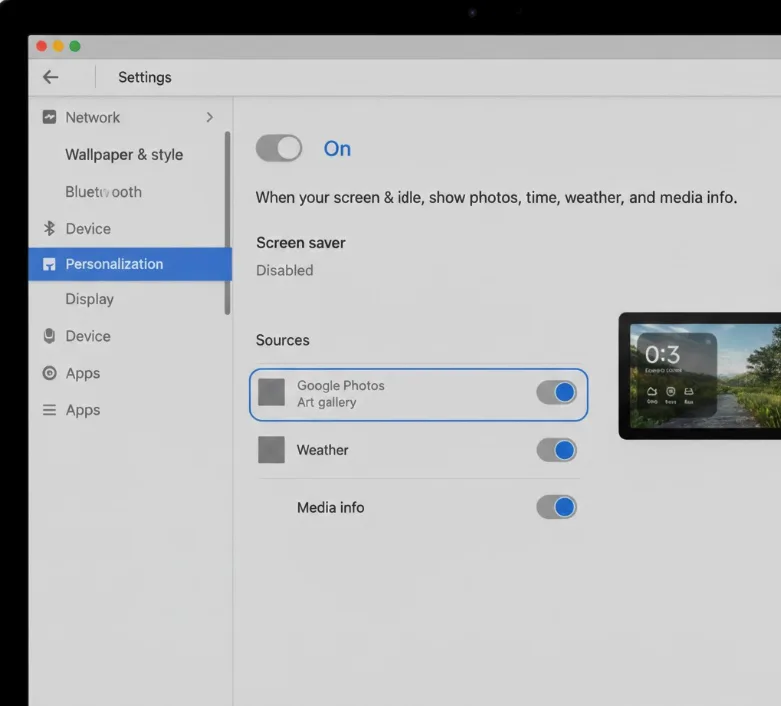
Turn on the screen saver feature
Toggle the switch to “On” for your screen saver. The description reads: “When your screen is idle, show photos, time, weather, and media info.” This mirrors the core functionality of Google Nest displays.
Choose your photo source
Select how you want images to appear on your screen saver. You can pick a single Google Photos image, multiple photos, or an entire album. Images rotate approximately every two minutes when using albums.
If you want to organize your photos effectively, consider setting your Chromebook wallpaper to a Google Photos album for a similar experience.
Configure weather display preferences
Choose your temperature unit preference. The screen saver displays local weather alongside your photos. Select either Fahrenheit or Celsius based on your preference.
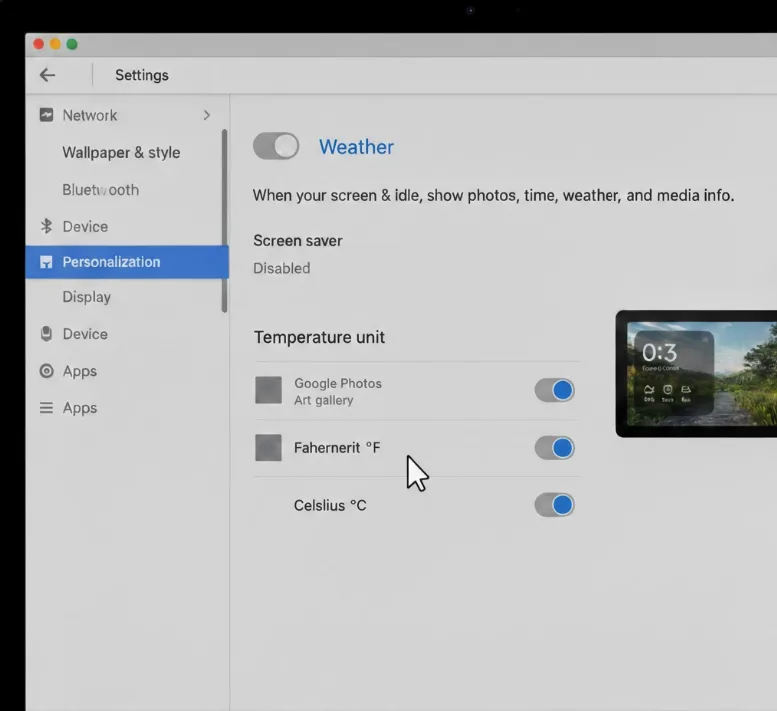
Verify your settings
Review your selections before exiting. Your chosen images, temperature format, and other preferences should display correctly. The screen saver activates automatically when your Chromebook becomes idle.
The screen saver displays your selected content along with time and temperature information. You can modify these settings anytime by returning to the Personalization section in Chrome OS Settings.
The keyboard or trackpad wakes your Chromebook from screen saver mode. Screen taps won’t interrupt the display, maintaining the viewing experience.
Chrome OS 88 also brought native device performance monitoring and an experimental screen recording function that you might find useful.
FAQs
What Chrome OS version do I need for this screen saver feature?
You need Chrome OS 88 or later installed on your Chromebook to access this screen saver functionality with Google Photos integration.
Can I use any Google Photos album for my Chromebook screen saver?
Yes, you can select any Google Photos album, individual images, or multiple photos from your library to display on your screen saver.
How often do photos change on the Chromebook screen saver?
Photos rotate approximately every two minutes when you use a Google Photos album as your screen saver source.
Does touching the screen wake my Chromebook from screen saver mode?
No, touching the screen won’t wake your Chromebook. You must use the keyboard or trackpad to exit screen saver mode.
Can I control Google Home devices from the Chromebook screen saver?
The screen saver doesn’t offer direct smart home controls. Use Google Assistant through voice commands or typing to control Google Home devices.
