


Chromebooks now include a native sharing feature that lets you send web pages to Progressive Web Apps and nearby devices without third-party extensions. The Chrome OS Sharing Hub appears as a sharing icon in your browser’s address bar, giving you quick access to installed PWAs and connected devices.
This feature eliminates the need for multiple Chrome extensions and streamlines your workflow. Whether you’re saving articles to a reading app, posting links to social media PWAs, or sending content between your devices, the sharing hub makes it simple.
Understanding how to activate and use this feature helps you work more efficiently on your Chromebook.
How to easily share web content to PWAs or nearby devices on a Chromebook
The Chrome OS Sharing Hub requires a quick setup before you can start sharing content. Once enabled, the feature integrates directly into your browser.
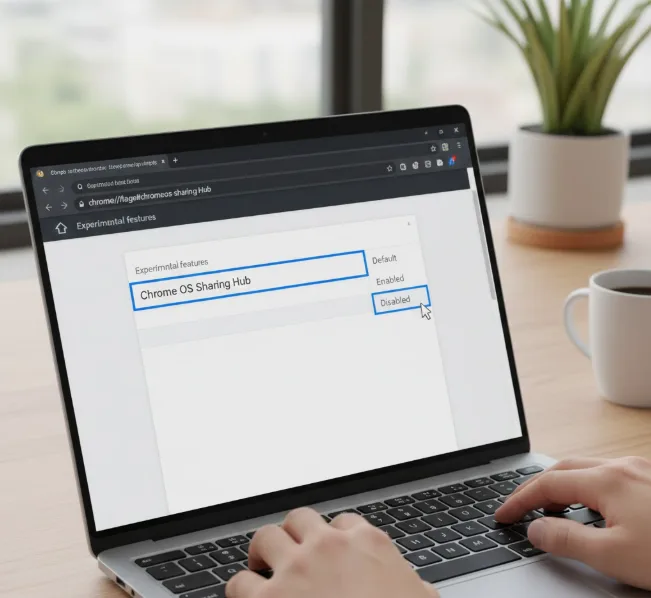
Enable the Chrome OS Sharing Hub flag
Open Chrome on your Chromebook and type chrome://flags#chromeos-sharing-hub in the address bar.
Press Enter to access the experimental features page. Locate the Chrome OS Sharing Hub option and change the setting from “Default” to “Enabled.”
Restart your browser
Click the blue “Restart” button that appears at the bottom of the page.
Your Chromebook will close and reopen Chrome automatically. This restart activates the sharing feature.
Locate the sharing icon
Look for the sharing icon on the right side of the address bar. The icon resembles three connected dots or circles.
This icon stays visible on all web pages you visit. You don’t need to navigate to specific sites to see it.
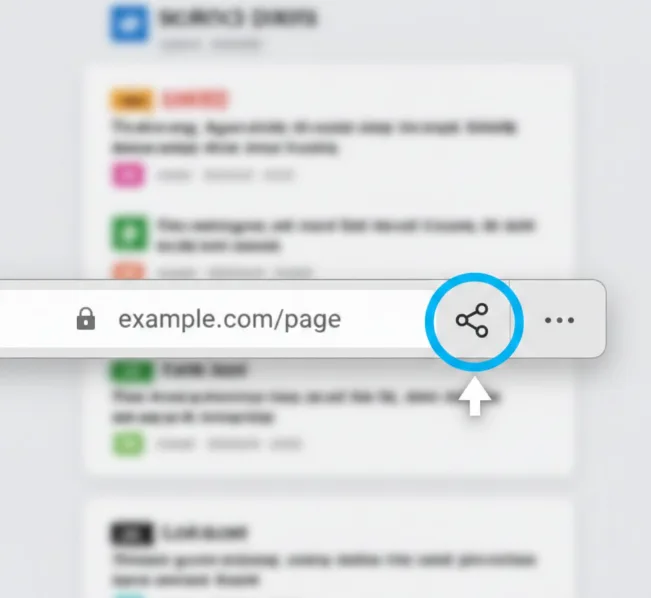
Share content to PWAs or devices
Navigate to any web page you want to share. Click the sharing icon in the address bar.
A menu appears showing your available sharing options. You’ll see nearby devices that support receiving content and any PWAs installed on your Chromebook.
Select your preferred destination from the list. The web page link sends to your chosen PWA or device immediately.
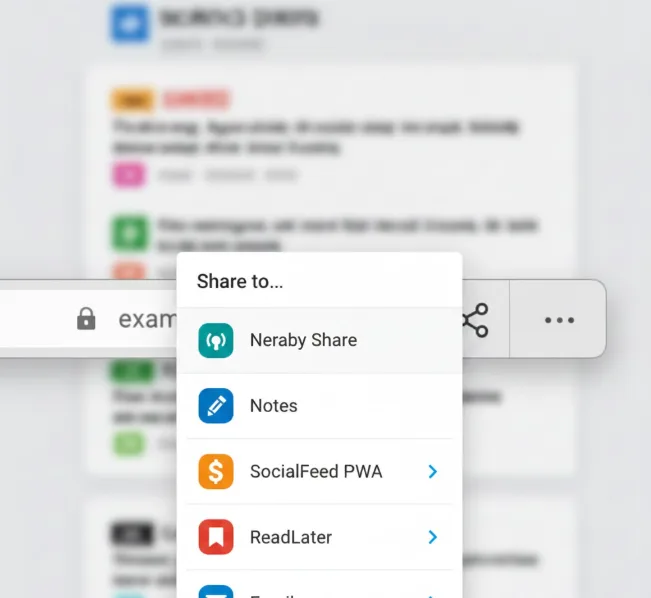
The feature works with various PWAs including note-taking apps, social media platforms, and productivity tools. Each PWA handles the shared content according to its design.
This native sharing function works across Chrome browsers on Windows, macOS, and Linux, not just Chromebooks. The implementation may vary slightly between operating systems.
FAQs
What is the Chrome OS Sharing Hub?
The Chrome OS Sharing Hub is a native browser feature that lets you share web content to installed Progressive Web Apps and nearby devices without using extensions.
Do I need Chrome extensions to share content on Chromebook?
No, you don’t need Chrome extensions. The built-in sharing hub provides native sharing functionality directly from the address bar once you enable the feature flag.
Which devices appear in the sharing menu?
Nearby devices that support Chrome’s sharing protocol appear in the menu. This includes other Chromebooks, Android phones, and computers signed into your Google account with Chrome.
Can I share to any installed PWA?
Yes, most installed PWAs appear as sharing targets. The PWA must support receiving shared content through the Web Share Target API to show up in the menu.
Is the Chrome OS Sharing Hub available on other platforms?
Yes, the sharing hub works on Chrome browsers for Windows, macOS, and Linux. The feature implementation is similar across all platforms that run Chrome.
