


Chrome Flags are experimental tools in the Chrome browser. They provide access to features that are not part of the regular version.
Developers or tech-savvy users mostly use them to fix issues or customize the browser. However, some features, like enabling dark mode for websites, can also be helpful for everyone.
Chrome Flags work on multiple platforms, including Windows, macOS, Android, iOS, and Chromebooks.
While they can improve browsing in many ways, enabling them comes with risks. Since these features are experimental, they might make your browser unstable or even crash.
Only allow the flags that you understand and need. Before making any changes, consider how it might affect your browsing.
If problems happen after enabling a flag, you can fix it by resetting Chrome to its default settings or reinstalling the browser.
Even though there are risks, using Chrome Flags can be an exciting way to test new tools and improve your browsing experience.
How to Enable Chrome Flags?
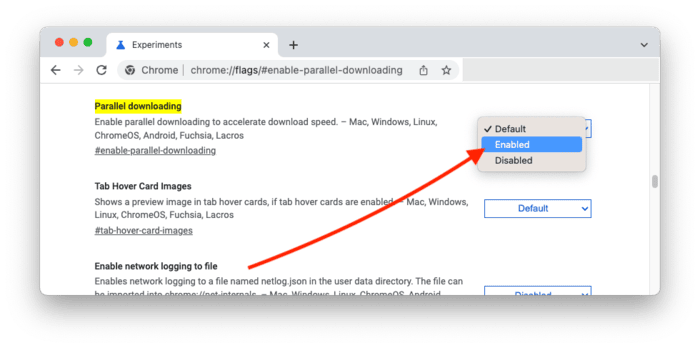
You can enable Chrome Flags on Windows, Mac, Android, iOS, or Chromebook by following these simple steps:
- Open Your Browser
Start by launching Google Chrome on your device.
- Go to Chrome Flags
Type chrome://flags/ in the address bar and hit Enter. The Chrome Flags page will open, showing experimental features.
- Search for a Flag
Use the search bar at the top of the page to type in the name of the feature you want to enable. If you’re unsure what you’re looking for, you can scroll through the list of available options.
- Enable the Feature
Once you find the flag, click the drop-down menu next to it. Select “Enabled” from the options. After that, Chrome will prompt you to restart the browser.
- Restart Chrome
Press the “Relaunch” button. Chrome will close and open again to enable the chosen feature.
You can try out new features that are not yet part of the default browser settings by enabling Chrome Flags.
Be cautious when allowing them; some may still be in testing and affect browser performance. Always restart Chrome after making changes to apply them properly.
Disabling Chrome Flags
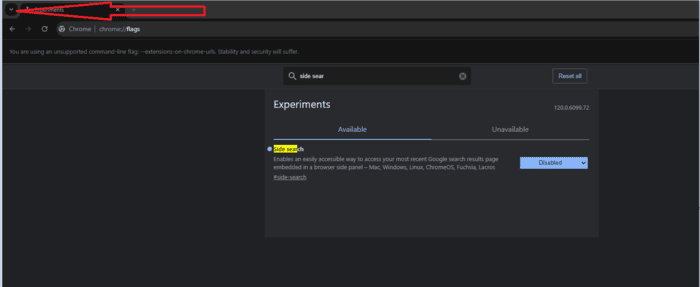
Sometimes, flags may cause problems like slow-loading pages or errors. You can disable them easily:
- Go to Chrome Flags: Open Chrome and type chrome://flags/ in the address bar.
- Reset All Flags: Click “Reset all” in the top-right corner.
- Restart Chrome: Relaunch the browser to restore the default settings.
Popular Chrome Flags to Try
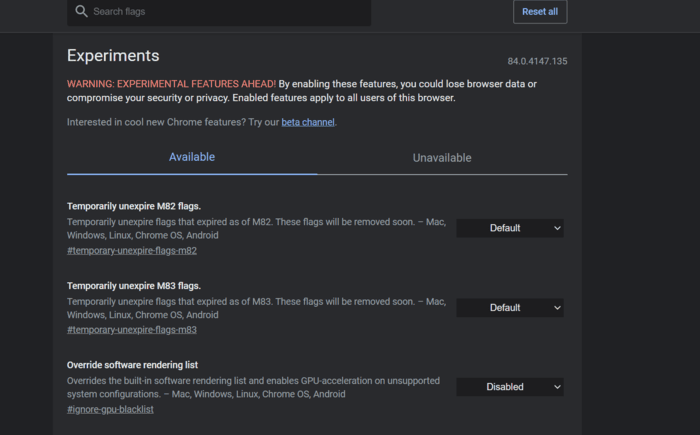
Here are a few proper flags that might enhance your browsing:
- Parallel Downloading
This flag speeds up large downloads by splitting them into smaller parts. To enable it:
- Search for “Parallel Downloading” in the flags menu.
- Enable it and relaunch the browser.
- Dark Mode for All Websites
This flag forces websites to display in dark mode, making it easier on your eyes. To enable it:
- Search for “Auto Dark Mode for Web Contents.”
- Enable it and restart Chrome.
- Touch-Friendly Interface
If you’re using a touchscreen device, this flag makes Chrome easier to navigate with more prominent icons and buttons. To enable it:
- Search for “Touch UI Layout.”
- Enable it and relaunch Chrome.
