


Google Side Search is an experimental feature that lets you search the web directly from a side panel without opening new tabs. This function streamlines your browsing workflow by displaying search results and content side by side in a single window.
Chrome OS 96 users gain quick access to web searches while keeping their current page visible. The feature works particularly well for research tasks where you need to compare multiple sources or verify information quickly.
How to Add Google Side Search in Chrome OS 96
Getting Google Side Search running on your Chromebook requires enabling an experimental flag and performing a quick activation step.
Enable the Side Search Flag
Open your Chrome browser and type chrome://flags#side-search into the address bar. Find the Side Search option and change it from “Default” to “Enabled.” Chrome will prompt you to restart the browser for changes to take effect.
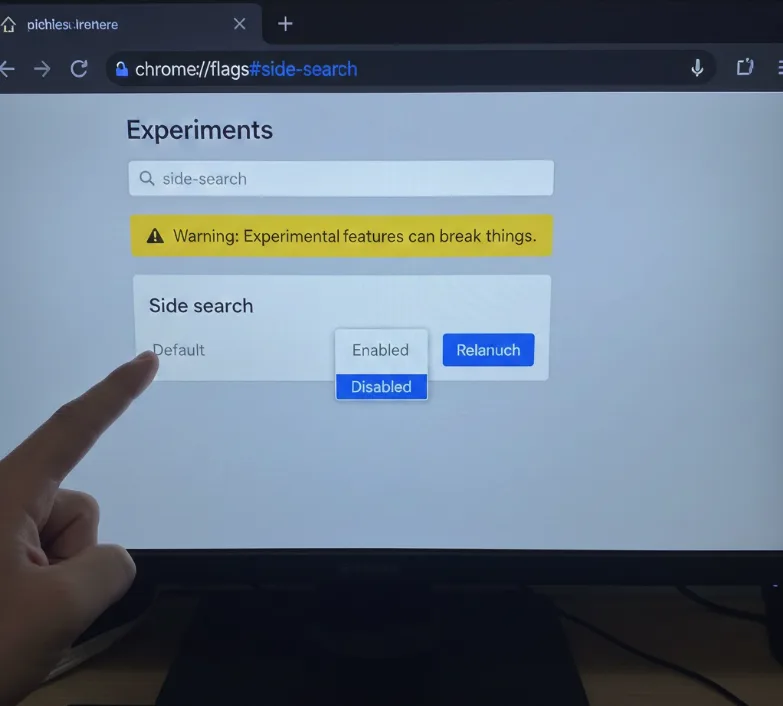
If you’re new to Chrome flags and experimental features, they provide access to tools that enhance Chrome’s functionality before they become standard features.
Activate the Feature with a Google Search
After restarting, the feature won’t appear active yet. Open a new tab and perform any Google search. Click on any search result to trigger the side search functionality.
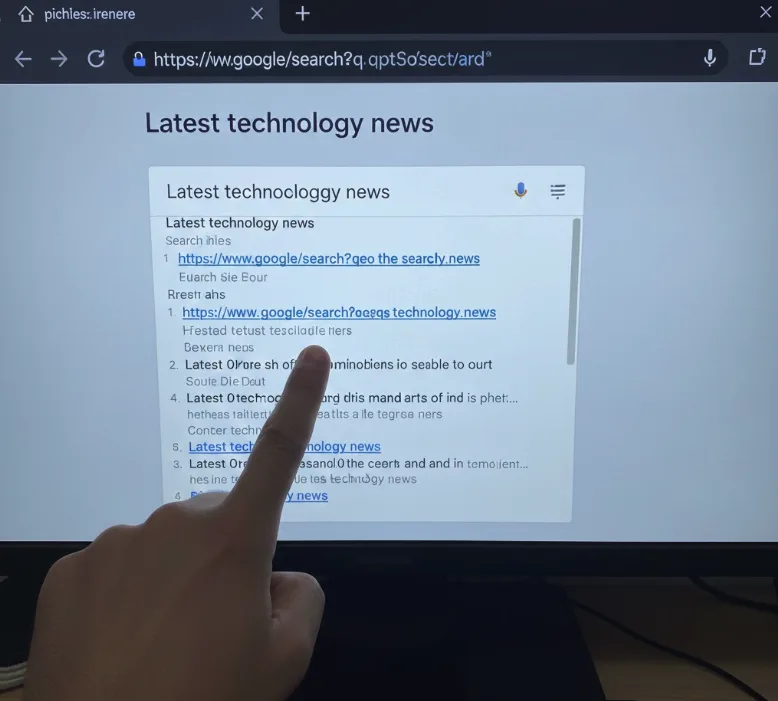
Access Side Search from the Omnibox
Look for the Google “G” icon that now appears to the left of your address bar. Click this icon to open the side panel search interface.
The side panel takes up approximately one-third of your browser window and adjusts automatically when you resize the tab. Your most recent Google search appears in the panel, and you can perform additional searches directly from there. Any links you click open in the main browser area to the right.
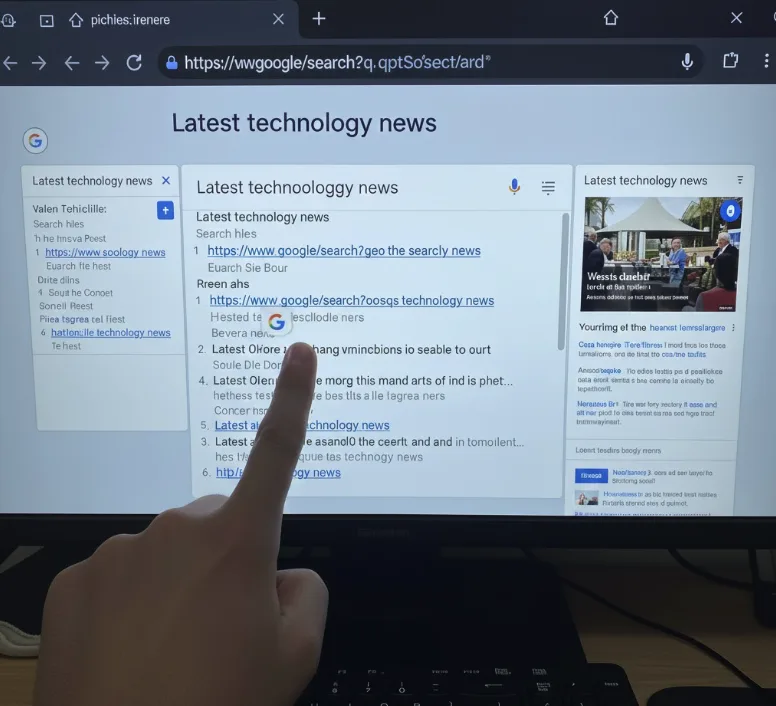
The “G” icon disappears when you close the tab where side search was activated. You’ll need to perform another Google search in a new tab to reactivate it. Pinning a side search-enabled tab to your browser keeps the feature readily available.
Chrome OS offers multiple ways to view apps or browser tabs side-by-side, and Side Search complements these window management options.
FAQs
Does Google Side Search work on all Chromebooks?
Google Side Search works on any Chromebook running Chrome OS 96 or later. You need to manually enable the experimental flag since it’s not activated by default.
Can I disable Google Side Search after enabling it?
Return to chrome://flags#side-search and change the setting back to “Default” or “Disabled.” Restart your browser to remove the feature completely.
Why doesn’t the G icon appear in my address bar?
The icon only appears after you perform a Google search and click a result. Close any existing tabs and start fresh with a new Google search.
Does Side Search work with other search engines?
Google Side Search currently only activates from Google searches. Other search engines like Bing or DuckDuckGo won’t trigger the side panel feature.
Will Side Search slow down my Chromebook?
Side Search uses minimal system resources since it’s just displaying web content in a panel. Performance impact is negligible on most Chromebooks.
