


If you’re running Linux on a Chromebook, you’ve likely relied on apt commands to install applications. Nala offers a modern alternative that transforms the package installation experience with a cleaner interface and enhanced features.
This Terminal-based front-end for apt delivers faster downloads through parallel processing and mirror selection. It provides installation history with rollback capabilities, making package management more intuitive and efficient.
Nala maintains full compatibility with apt while adding practical improvements. The visual presentation eliminates cluttered Terminal output, replacing it with organized information and progress indicators that make tracking installations straightforward.
How to install and use Nala for Linux on a Chromebook
Installing Nala on your device enhances the Linux application management experience without replacing core functionality.
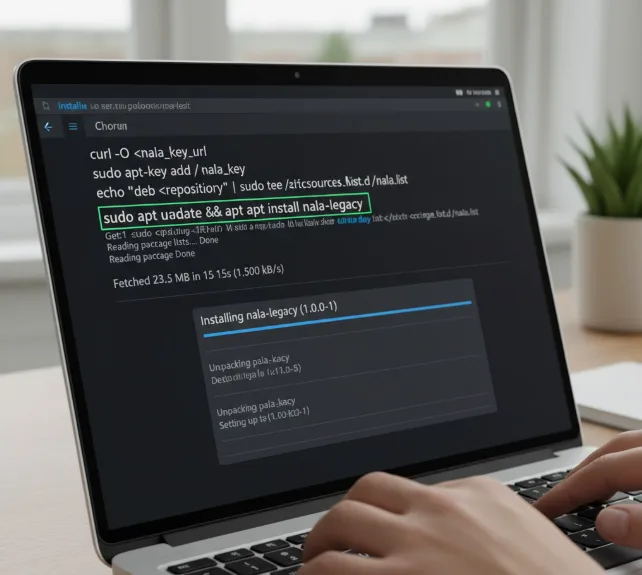
Install the Nala repository
Open the Terminal on your Chromebook. Navigate to the official Nala installation page and follow the repository setup instructions.
You’ll need to add the repository key and source list. This ensures your system recognizes Nala as a trusted package source.
Run the installation command
Type the following command in your Linux Terminal:
sudo apt update && sudo apt install nala-legacy
The “legacy” version ensures compatibility with Debian-based Linux environments on Chromebooks. Wait for the installation to complete before proceeding.
Configure faster download mirrors
Execute sudo nala fetch to test available download servers. Nala automatically measures connection speeds to various mirrors and ranks them by performance.
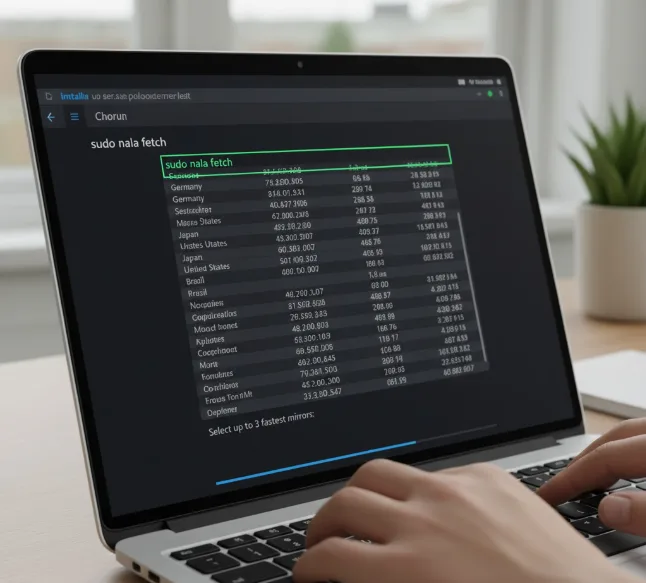
Select the three fastest mirrors when prompted. The system saves your selections and applies them to future downloads.
Start using Nala commands
Replace apt commands with Nala equivalents. Use sudo nala install package-name instead of sudo apt install package-name when installing Linux apps.
The interface displays a cleaner layout with organized package information. Progress bars show download and installation status for each component.
View installation history
Type nala history to see your complete installation record. Each entry receives a unique ID number for easy reference.
Use nala history info [ID] to view detailed information about specific installations. This feature simplifies troubleshooting and package management.
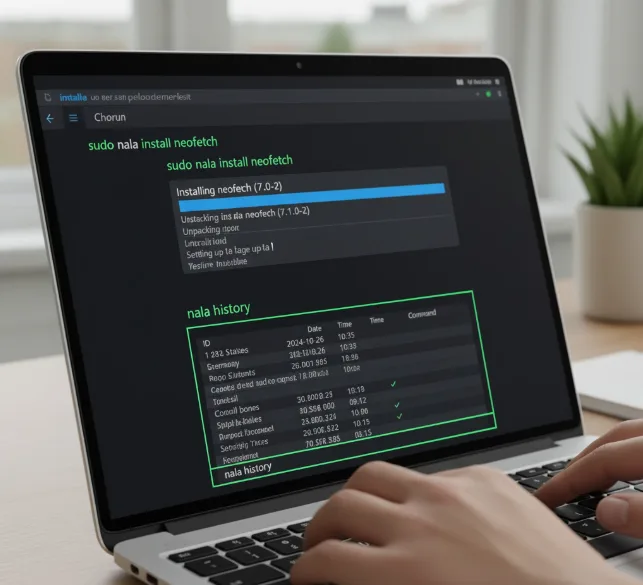
Undo or redo installations
Execute sudo nala history undo [ID] to remove previously installed packages. The system reverses the specified installation completely.
You can also use sudo nala history redo [ID] to reinstall packages. This eliminates manual package tracking and simplifies system maintenance.
Nala brings Chromebook’s simplicity principles to Linux package management. The parallel download feature accelerates installations significantly compared to traditional methods.
FAQs
Does Nala replace apt completely?
Nala functions as a front-end for apt, not a replacement. Both use the same package repositories and backend systems, ensuring full compatibility with existing Linux installations.
Will Nala work on all Chromebooks?
Nala works on any Chromebook that supports Linux. Your device needs the Linux development environment enabled. Installation requires the nala-legacy version for Debian compatibility.
Can I still use apt after installing Nala?
Yes, apt commands continue functioning normally after Nala installation. You can switch between both tools freely. However, Nala’s enhanced features make it preferable for most operations.
How much faster are Nala downloads?
Download speeds vary based on mirror selection and network conditions. Parallel downloading and optimized mirrors typically provide noticeable improvements. Testing mirrors ensures maximum performance for your location.
Does Nala history consume storage space?
Nala’s history feature uses minimal disk space. It stores metadata about installations rather than actual packages. You can clear history if needed without affecting installed applications.
