


Lately, I’ve taken an interest in some mini PCs. These are similar to Chromeboxes but instead of using desktop chipsets, they use laptop parts. Along my mini PC exploration journey, I recently added a relatively low-cost ultrawide monitor. It took me a whole week of using that setup to realize something. A Chromebook and ultrawide monitor are a match made in heaven when it comes to productivity.
Setting up a Chromebook and ultrawide monitor
Other than the 21:9 aspect ratio of my ultrawide monitor, there’s nothing special or different about it. To my Chromebook, it’s just like any other external display.
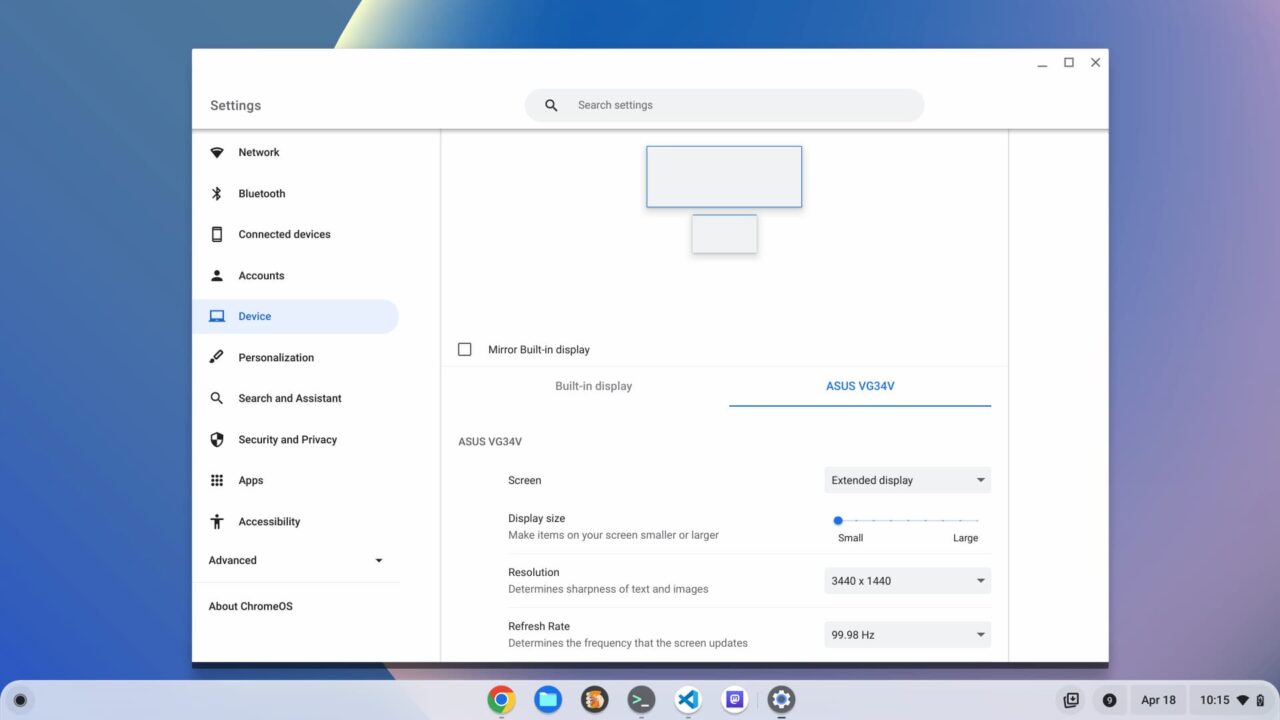
All I did was connect my Acer Chromebook Spin 714 to the monitor using an HDMI cable. My Chromebook display was immediately mirrored to the ultrawide monitor. I hopped into the Display Settings in ChromeOS, adjusted to an extended desktop and that was it.
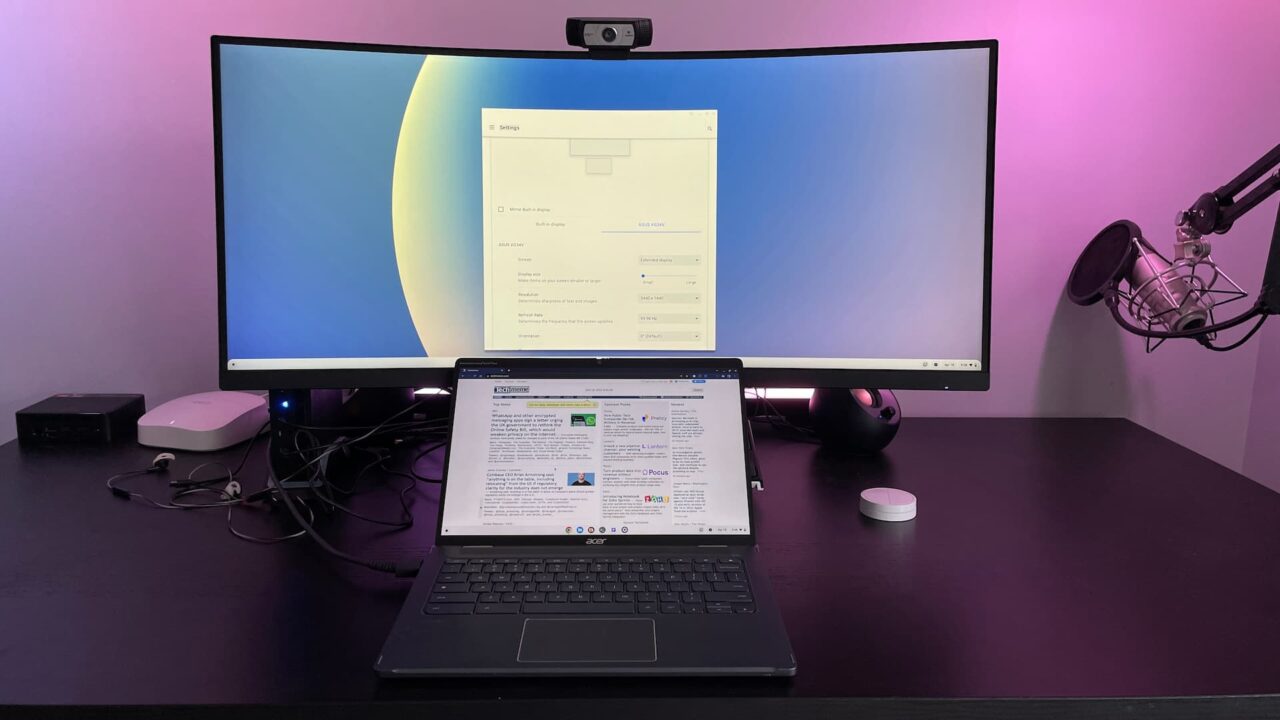
I didn’t want to spend an obscene amount of money for this monitor, so I chose this Asus TUF 34-inch curved model at $469. It supports a 100Hz frame rate over HDMI, and ChromeOS defaulted to that option.
Using DisplayPort, you can get up to 165 Hz. The native screen resolution is 3440 x 1400, and that’s no problem for this Chromebook to render.
Virtual desks are nice. More actual space is nicer.
I’ve long been a fan of the Virtual Desks feature found on Chromebooks. I set them up so I can focus on work, school, or personal productivity, for example. I don’t need all of my computing scenarios on one screen all the time. Smart use of virtual desks helps with this. But… they’re still limited to your actual display space, of course.
I have used standard external monitors to boost my Chromebook productivity. Pairing an ultrawide monitor isn’t just a boost, though. It’s a turbo-boost thanks to the extra screen space. You could accomplish a similar situation with a pair of external displays. You’d also have a distracting set of side bezels right between those two monitors.
Using my Chromebook and ultrawide monitor feels so freeing.
I can do my programming in the Linux version of VS Code on the Chromebook’s native display, for example. The ultrawide serves as a place for coding research and notes, plus a little entertainment: Go Liverpool! YNWA!
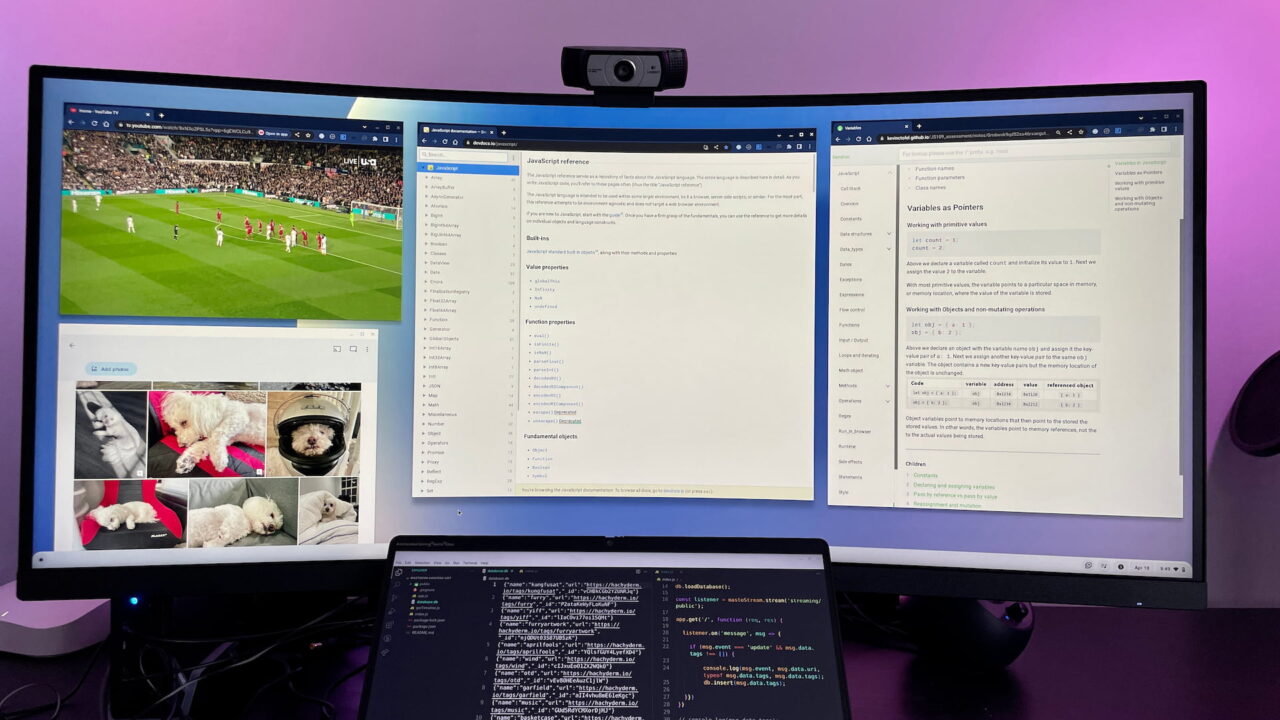
I wouldn’t normally have the Google Photos app in this situation but I wanted to illustrate that Android apps work in this case too.
Can your Chromebook support an ultrawide monitor?
Let’s say this extra screen space is appealing to you. If you have a Chromebox, an ultrawide monitor is a perfect match. You need a display with the Chromebox anyway, so it’s worth considering the extra expense if you take advantage of a wide screen. Whether you have a Chromebox or a Chromebook, odds are good that your device supports an ultrawide monitor.
However, you’ll want to double-check the external display output specifications of your particular ChromeOS device.
In my case, the Acer Chromebook Spin 714 is more than capable of handling a fast screen at 3440 x 1400 resolution. Acer doesn’t list the external display capabilities on the product site for this device. However, the Intel chipset spec page for the Core i5-1235U tells me what I needed to know:
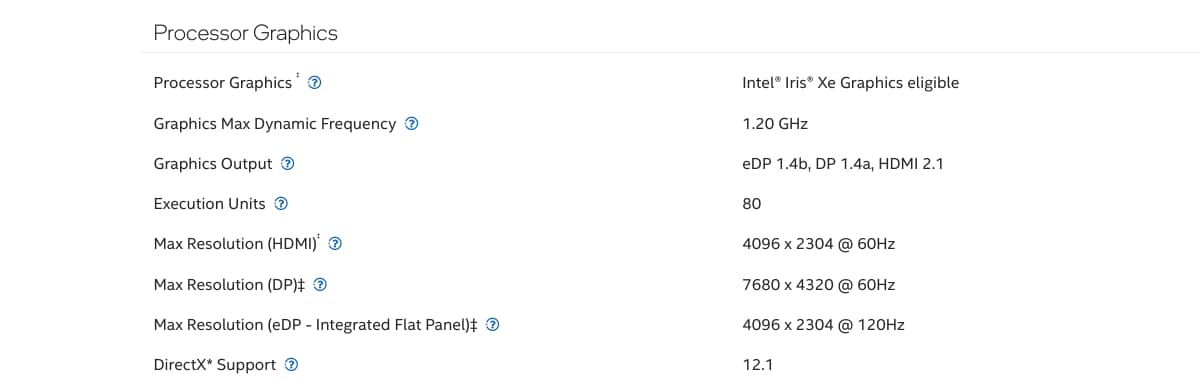
The 3440 x 1440 resolution of my ultrawide monitor over HDMI is lower than the supported maximum resolution. So unless Acer did something funky to limit external display output, I should be good. And I am.
Ideally, the official specifications of your Chromebook or Chromebox should have this information. I had to dig around because Acer doesn’t provide this information.
Be sure to first check the product page of your ChromeOS device first for the supported external display data. If it’s not there, your second-best stop is to check the chipset capabilities. And frankly, even a two year old Intel Celeron N4500 can technically support 4096 x 2304 resolution monitor. Would I recommend you pair that Celeron-powered Chromebook with a 3440 x 1440 ultrawide monitor? Not really because that’s going to slow your system down.
Got a more powerful, newer CPU and GPU in your Chromebook though? Think about how you would or could use that extra screen space. If you know you’d take advantage of it, a Chromebook and ultrawide monitor makes a great match.
