


Chrome OS lets you drag apps directly from your Launcher to the System Tray. This feature provides a faster way to pin frequently used apps without navigating through menus.
The drag-and-drop method works like app management on Windows and Mac computers. You can organize your System Tray quickly by moving apps with your mouse.
This approach saves time compared to right-clicking and selecting pin options. Users who frequently reorganize their workspace will find this method more efficient.
The feature works on Chrome OS 96 and later versions. You don’t need to enable any experimental flags to use it.
Chromebook how-to: Drag and drop apps from Launcher to the System Tray
Open your Launcher
Click the Launcher icon in the bottom-left corner of your screen. Your installed apps will appear in a grid or list view.
The Launcher displays all available apps on your Chromebook. You can also open it by pressing the Launcher key on your keyboard.
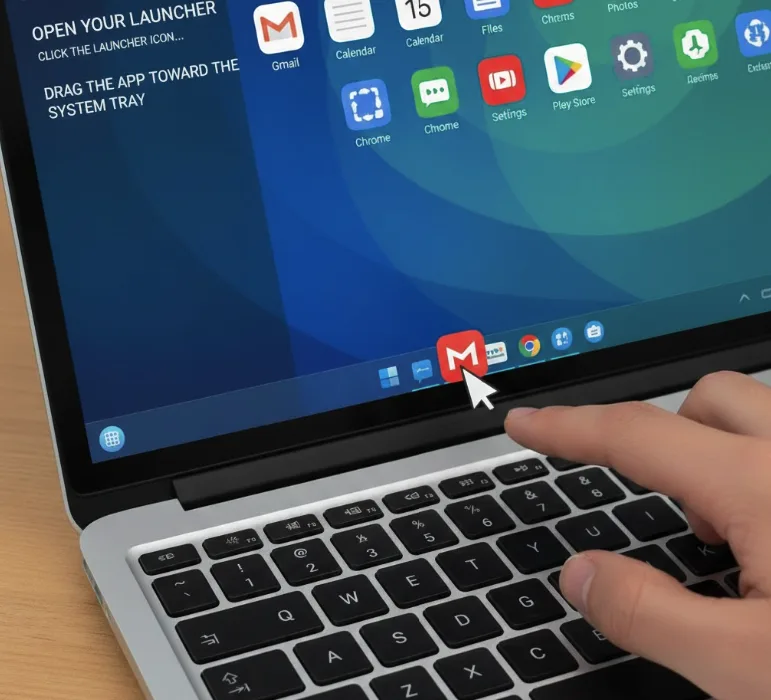
Click and hold an app icon
Find the app you want to move to your System Tray. Click on the app icon and hold down your mouse button.
Keep holding the button throughout the entire process. Releasing early will cancel the action.
Drag the app toward the System Tray
Move your cursor toward the bottom of the screen while holding the app icon. The icon will follow your cursor movement.
You’ll see the app icon appear between the Launcher and System Tray. This confirms you’re successfully dragging it.
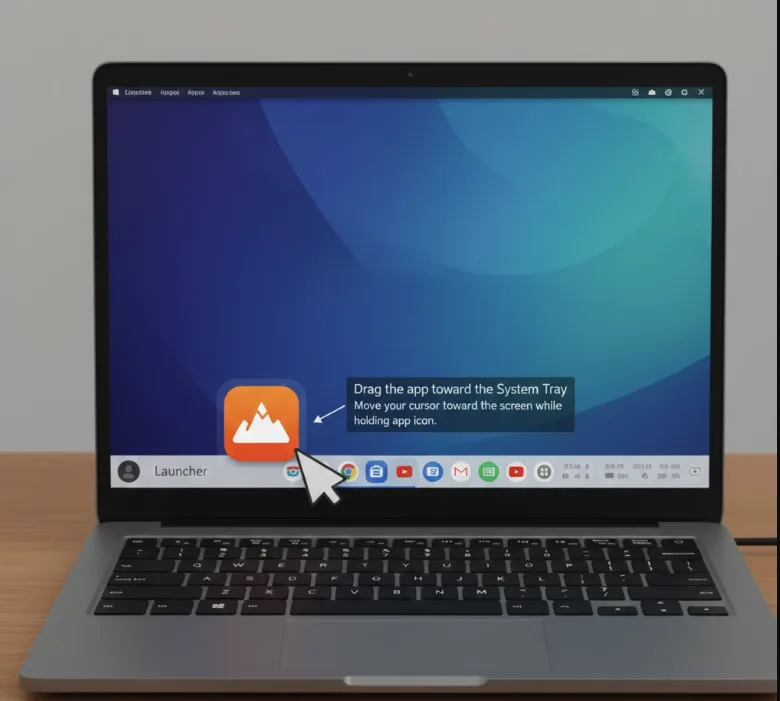
Position the app on the System Tray
Move the cursor over your System Tray at the bottom of the screen. Choose where you want to place the app among your other pinned items.
A visual indicator shows where the app will land. You can position it between existing apps or at either end.
Release the mouse button
Let go of the mouse button when the app is in your desired position. The app icon will now appear in your System Tray.
The app remains in your Launcher as well. This method only creates a shortcut in the System Tray.
You can rearrange System Tray apps anytime using the same drag-and-drop method. Dragging an app off the System Tray removes the shortcut but keeps it in your Launcher.
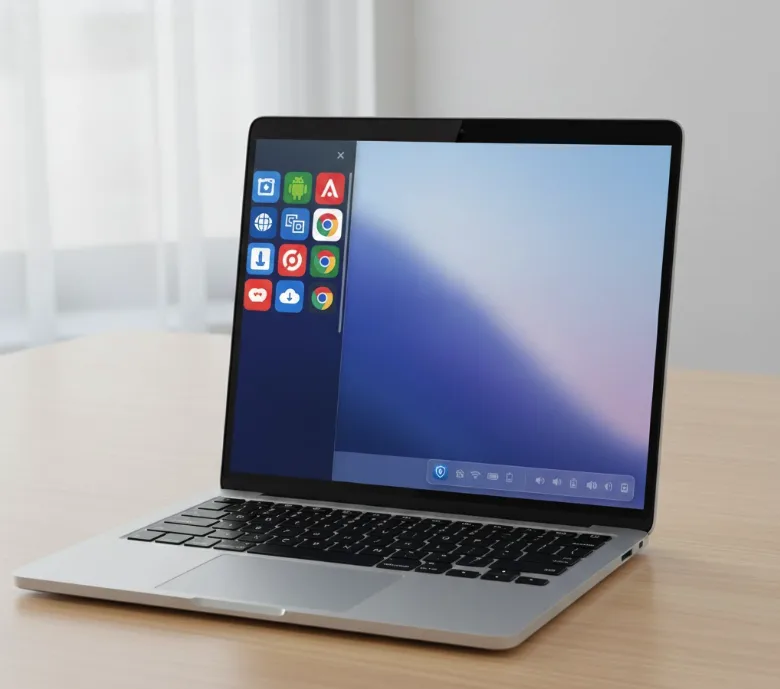
This feature works with both Android apps and Chrome apps. The process remains identical regardless of app type.
FAQs
Does dragging an app to the System Tray delete it from the Launcher?
No, the app stays in your Launcher. Dragging only creates a shortcut in the System Tray for quick access.
Can I remove an app from the System Tray by dragging it off?
Yes, drag the app away from the System Tray and release your mouse button. The shortcut disappears but the app remains installed.
Do I need to enable flags to drag apps to the System Tray?
No, this feature works by default on Chrome OS 96 and later versions without enabling any experimental flags.
What happens if I release the mouse button while dragging?
The app returns to its original position. You’ll need to start the drag-and-drop process again from the Launcher.
Can I drag Android apps to the System Tray?
Yes, both Chrome apps and Android apps can be dragged to the System Tray using this method.
