


Chromebooks have supported Android apps since 2016, with all new devices from 2019 onward gaining full support for mobile applications. Today, most Chromebooks run mobile apps through the Google Play Store without issues.
However, certain features depend on specific Android versions. For example, app resizing works on Android 11 but not on Android 9. Knowing how to see the version of Android on a Chromebook helps you understand which features your device supports.
If you’ve noticed missing functionality that others have, the Android version is likely the reason. Here’s how to check your Android version in a few simple steps.
How to see the version of Android on a Chromebook?
Finding your Android version takes less than a minute. Follow these steps to locate the information.
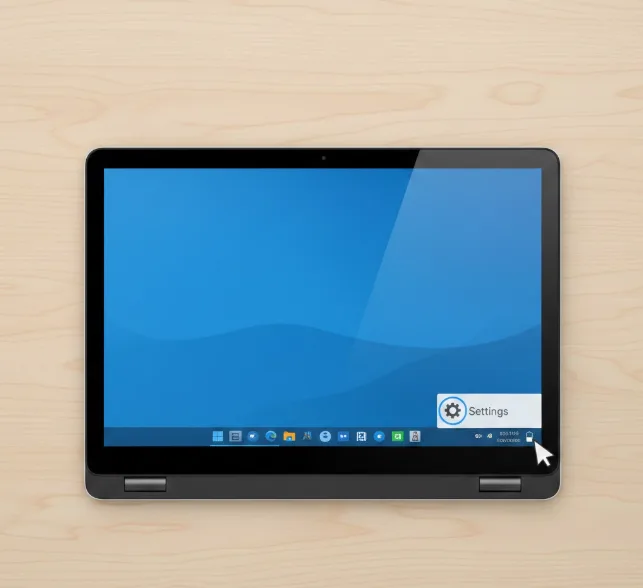
Step 1: Open ChromeOS Settings
Click the time display in the bottom-right corner of your screen.
Select the gear icon to access Settings.
Step 2: Navigate to the Apps section
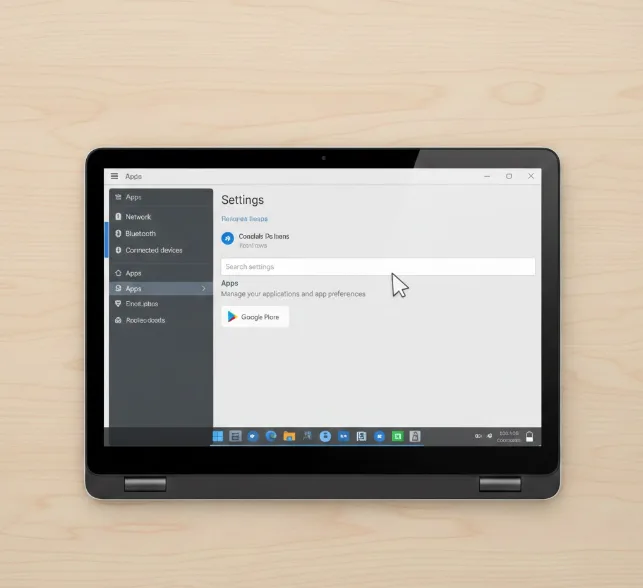
Scroll down the Settings menu and click “Apps.”
This section manages all applications on your Chromebook, including those you install from the Google Play Store.
Step 3: Select Manage Android preferences
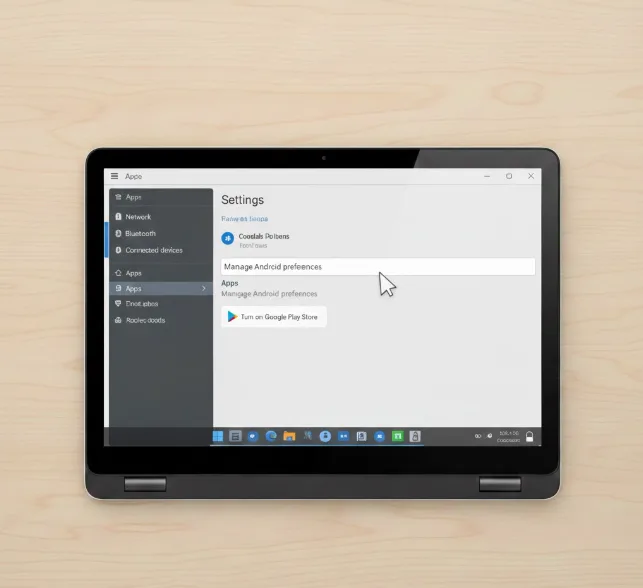
Click “Manage Android preferences” to open Android-specific settings.
A new window appears with a phone-like interface.
Step 4: Find About device
Scroll down through the Android settings menu.
Click “About device” near the bottom of the list.
Step 5: View your Android version
The Android version number displays on this screen.
You’ll see the exact version installed on your device.
What you can and cannot do with this information
You cannot manually update Android on your Chromebook. Google controls these updates through ChromeOS system updates.
If your device runs an older Android version, newer features may not work. For instance, some Android apps cannot be resized on devices running Android 9 or earlier.
Users who want apps unavailable in the Play Store can install APK files through Linux as an alternative method.
FAQs
Can I update Android on my Chromebook manually?
No. Google manages Android updates through ChromeOS. You cannot force an update or install a newer Android version yourself.
Why does my Chromebook run an older Android version?
Google ties Android versions to specific Chromebook models. Older devices may not receive newer Android updates due to hardware limitations.
Does the Android version affect app compatibility?
Yes. Some apps require newer Android versions. If an app needs Android 11 features but your device runs Android 9, certain functions won’t work.
Where do I find Android settings on a Chromebook?
Go to ChromeOS Settings, click Apps, then select Manage Android preferences. This opens a separate Android settings interface.
Can I resize Android apps on any Chromebook?
App resizing requires Android 11 or newer. If your Chromebook runs an older version, you cannot resize apps between phone, tablet, and freeform layouts.
