


When you connect a mouse to your Chromebook, you might find the trackpad getting in your way. Accidental touches while typing can move your cursor or trigger unwanted clicks, disrupting your workflow.
Chrome OS doesn’t include a built-in settings option to turn off the trackpad. However, you can disable it using a simple keyboard shortcut after enabling a specific Chrome flag.
This guide shows you exactly how to disable your Chromebook’s trackpad when using an external mouse. You’ll avoid those frustrating accidental touches that interrupt your work.
How to disable trackpad on a Chromebook
Follow these steps to turn off your Chromebook’s trackpad. The process takes just a few minutes and works on most current Chromebook models.
Enable the debug shortcuts flag
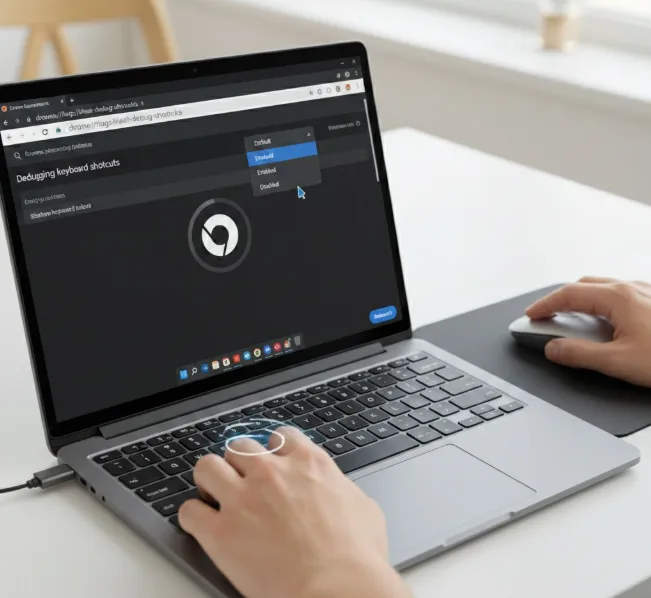
Open your Chrome browser and type chrome://flags/#ash-debug-shortcuts into the address bar. Press Enter to access the flag settings page.
Locate the “Debugging keyboard shortcuts” option on the page. Click the dropdown menu next to it and select “Enabled” if it’s not already active.
Chrome flags are experimental features that let you access functions not available in standard settings. If you’re new to using these experimental settings, you can learn more about what Chrome flags are and how they work.
Restart your browser
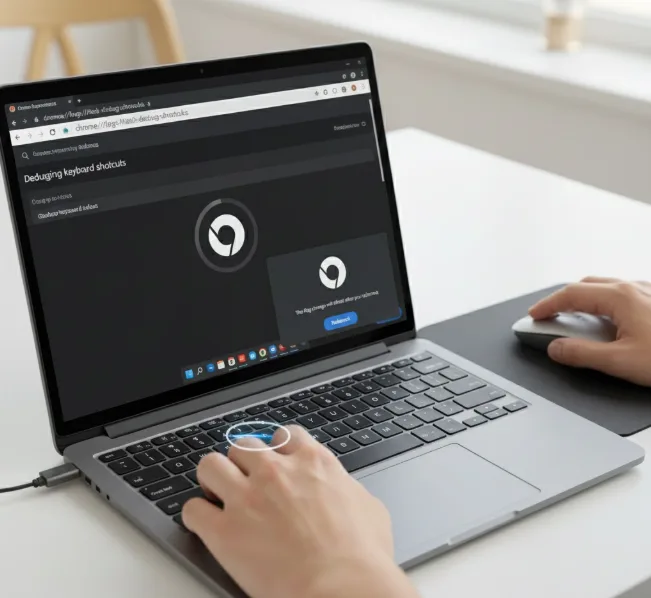
After enabling the flag, Chrome will prompt you to restart your browser. Click the “Relaunch” button that appears at the bottom of the screen.
Your browser will close and reopen automatically. All your tabs will restore after the restart completes.
Use the keyboard shortcut
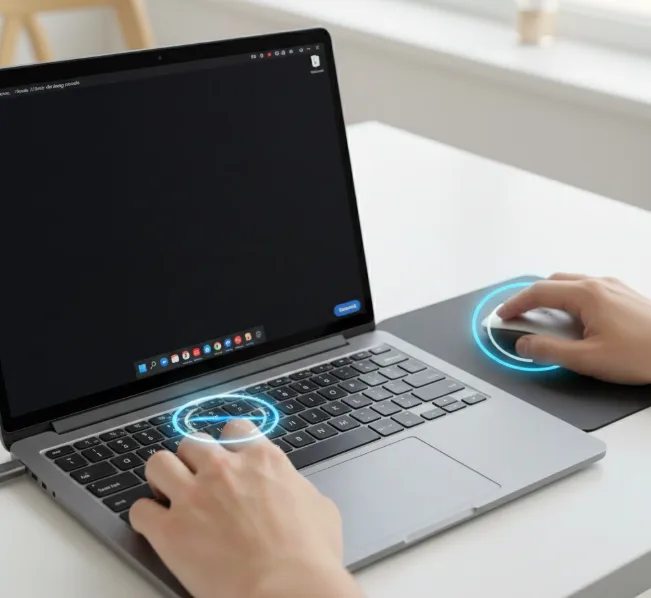
Press Search + Shift + P on your keyboard simultaneously. This combination toggles the trackpad on and off.
Your trackpad will disable immediately. You can now use your wireless mouse without worrying about accidental trackpad touches.
To re-enable your trackpad later, press the same keyboard combination again. The shortcut works as a toggle switch.
Keep in mind this flag is experimental. Google may remove it in future Chrome OS updates, which would eliminate the trackpad disable feature.
If you’re interested in learning more ways to navigate your Chromebook efficiently, check out these helpful Chromebook keyboard shortcuts to improve your productivity.
FAQs
Can I disable the Chromebook trackpad through settings?
No, Chrome OS doesn’t include a native settings option to disable the trackpad. You must use the Chrome flags method and keyboard shortcut described above.
What is the keyboard shortcut to disable trackpad on Chromebook?
Press Search + Shift + P simultaneously to disable or re-enable your Chromebook’s trackpad after enabling the required Chrome flag.
Does disabling the trackpad work on all Chromebooks?
This method works on most current Chromebooks running recent Chrome OS versions. However, results may vary on older or specialized Chromebook models.
Will the trackpad disable feature stop working?
The feature uses an experimental flag that Google could remove anytime. If removed in a future update, you’ll lose the ability to disable your trackpad.
Can I still use the touchscreen after disabling the trackpad?
Yes, disabling the trackpad only affects the touchpad itself. Your touchscreen and any connected mouse will continue working normally after you disable the trackpad.
