


Some Chromebook users face installation issues when trying to download Excel for Android from the Google Play Store. The error shows the app as incompatible with certain Chrome OS devices.
Microsoft identified this problem and released a beta version of Excel for Android to fix the compatibility issues. This workaround lets you install Excel on your Chromebook until the standard version works properly again.
You need this solution if you see an incompatibility message when trying to install Android apps on your Chromebook. The beta version bypasses these installation barriers and gives you full access to Excel’s features on your Chromebook.
How to install Excel for Android on a Chromebook incompatible?
First, check if you still need the workaround. Some Chromebook models now show Excel as compatible in the Google Play Store after recent updates.
Open the Google Play Store on your Chromebook and search for Excel. Try installing it normally.
If the installation works, you don’t need the beta version. Your Chromebook already has access to the fixed version of Excel for Android.
If you still see the incompatibility message, follow these steps to install the beta version.
Join the Office Insider for Android group
Visit the Office Insider for Android Google+ community page. Click the join button to become a member of this testing group.
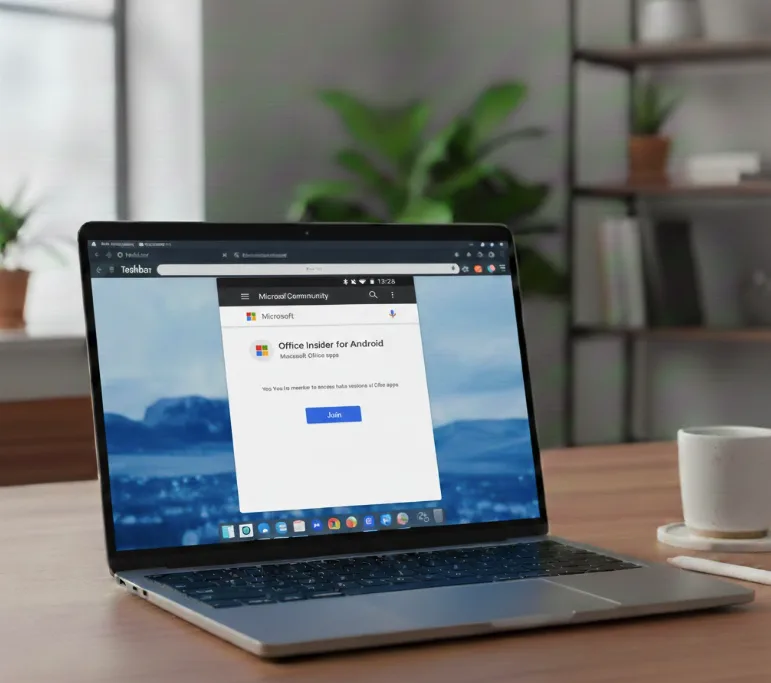
You need membership in this community to access beta versions of Microsoft Office apps. The approval process is automatic and takes just a few seconds.
Opt into Excel beta testing
Go to the Microsoft Excel beta testing page. Click the button that says “Become a tester” to opt into the beta program.
This step links your Google account to the Excel beta program. Microsoft will recognize you as a beta tester when you visit the Play Store.
Install Excel beta from Play Store
Open the Google Play Store on your Chromebook. Search for Microsoft Excel.
You should now see the beta version available for installation. The app page will indicate you’re installing a beta or pre-release version.
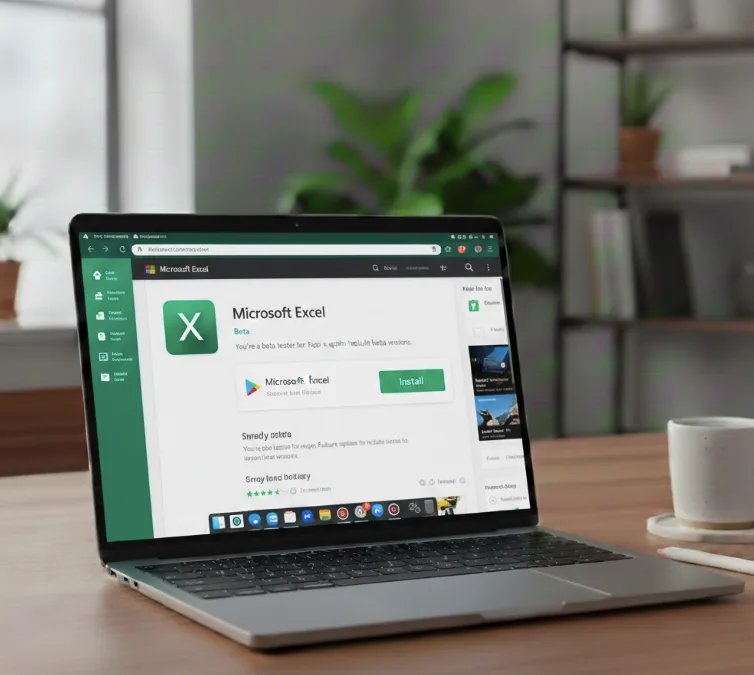
Download and install the Excel beta app. It functions like the standard version with all core features available.
Switch back to standard Excel later
When Microsoft fixes the compatibility issue, you can return to the regular version. Visit the same Excel beta testing page you used in step two.
Click “Leave the program” to opt out of beta testing. Uninstall the Excel beta app from your Chromebook.
The standard version of Excel will then appear in the Play Store for normal installation.
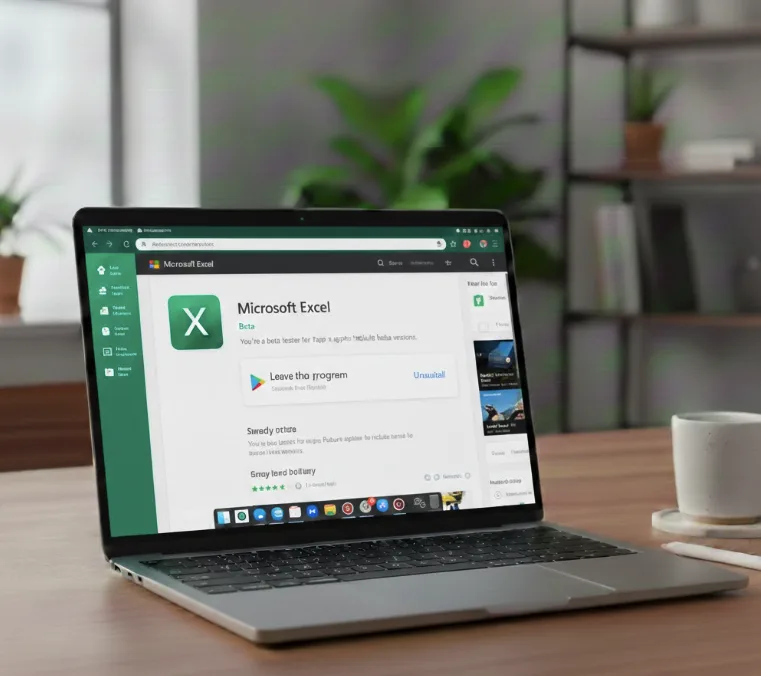
The beta version works identically to the regular Excel for Android app. You can create spreadsheets, edit existing files, and sync with your OneDrive or Office 365 account without limitations.
Note that Microsoft has since ended support for Office Android apps on Chromebooks, transitioning users to web-based alternatives. If you’re setting up Microsoft Office 365 on your Chromebook today, you’ll want to use the Progressive Web App version instead.
FAQs
Can I use Excel beta with my Office 365 subscription?
Yes, the Excel beta app works with your existing Office 365 subscription. Sign in with your Microsoft account to access all premium features and cloud storage.
Will my Excel files sync between the beta and regular version?
All your files sync normally through OneDrive or SharePoint. Switching between beta and regular versions doesn’t affect your saved spreadsheets or cloud storage.
How long does it take to access the Excel beta?
You can install Excel beta immediately after joining the Office Insider group and opting into testing. The entire process takes about five minutes to complete.
Does the beta version have bugs or stability issues?
Beta versions may contain minor bugs, but Excel beta generally performs well. Microsoft tests updates before release, so most users experience stable performance on Chromebooks.
Can I install other Office apps using this method?
Yes, you can join beta programs for Word and PowerPoint using the same process. Visit their respective beta testing pages after joining the Office Insider community.
