


Black Friday has evolved from a single day into a weeks-long shopping event that dominates November. While you can find excellent Chromebook deals during this period, not all offers are worth your money. Understanding how to evaluate these deals helps you avoid wasting money on outdated devices with limited software support.
The key to smart Chromebook shopping during Black Friday is checking the Automatic Update Expiration date, calculating cost per year of support, and matching features to your actual needs. Skip the hype and focus on devices that will serve you well beyond the initial purchase.
Many shoppers make the mistake of jumping on the lowest price without checking how long the device will receive updates or whether it has the features they need. A cheap Chromebook that stops getting updates in two years costs you more in the long run than a pricier model with seven years of support.
How to shop Black Friday Chromebook deals (and how not to)
Check the Automatic Update Expiration date before buying
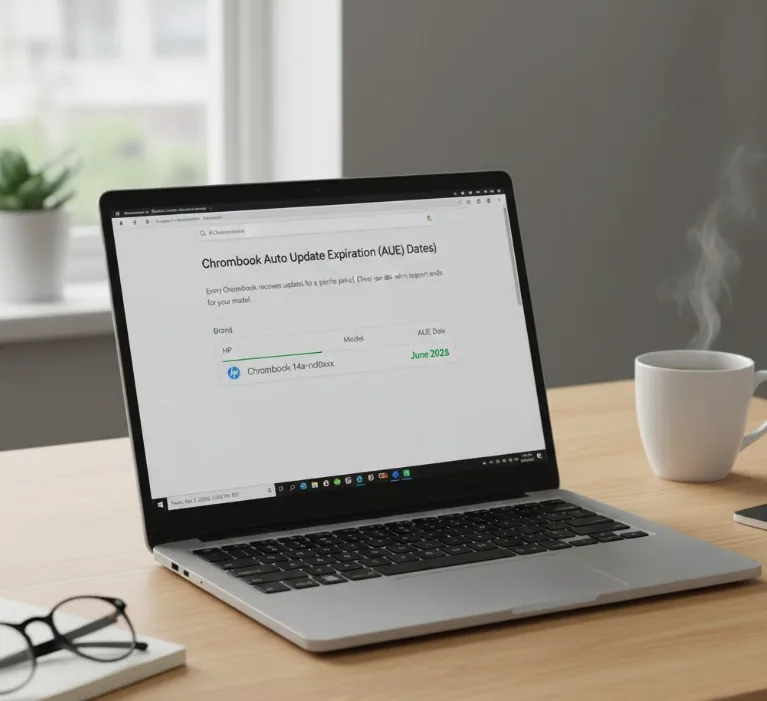
Every Chromebook has an AUE date that determines when Google stops providing software updates. New Chromebooks typically get around eight years of support, but Black Friday deals often feature older models with less time remaining.
Visit Google’s official support page and search for the specific model by brand and name. The page lists every Chromebook with its AUE date. If you can’t find the model listed, avoid the purchase since you won’t know when updates will stop.
This step takes two minutes but saves you from buying a device that might lose support within months.
Calculate the cost per year of supported use
A $300 Chromebook that stops getting updates in two years costs you $150 per year of supported use. A $600 Chromebook with seven years of support costs about $86 per year.
This calculation helps you see past the sticker price. Cheaper isn’t always better when you factor in how long you can actually use the device with full security updates and new features.
Consider how long you plan to keep the Chromebook and divide the price by years of remaining support. You can install ChromeOS Flex to extend device life, though this option has limitations.
Determine your usage needs before looking at deals
Start by listing what you’ll actually do with the Chromebook. Basic web browsing a few times daily needs minimal specs. Full-time use with multiple apps and browser tabs requires better hardware.
Light users can get by with 4 GB of memory and a basic display. Heavy users should look for 8 GB of memory and higher resolution screens. The amount of memory directly affects how many apps and tabs you can run simultaneously.
Write down your must-have features before shopping to avoid impulse purchases on deals that don’t meet your needs. For guidance on choosing the right Chromebook tier, check out model codes that indicate device quality.

Verify you need specific features like touchscreens and card slots
Not every Chromebook includes a touchscreen, even expensive models. If you plan to use Android apps or prefer touch navigation, confirm the model has this feature before buying.
MicroSD card slots used to be standard but some manufacturers now skip them. Check the specifications if you need expandable storage.
Assume nothing about included features. Verify each specification matches your requirements. Understanding what makes Chromebooks worth it helps you evaluate which features matter most for your needs.
Research the device age and processor information
Read deal descriptions carefully. Terms like “newest” can be misleading. A “newest Dell 3189” might be the latest version of that model, but the model itself could be five years old.
Look up when the model originally launched. Check the processor specifications since the CPU generation reveals the device’s real age. A processor from 2016 means you’re buying old technology regardless of the price.
Search for the CPU model number to find its release date. This tells you if you’re getting a deal on current technology or outdated hardware. Consider Chromebook Plus models that meet specific hardware standards for better long-term value.
FAQs
What is the AUE date on a Chromebook?
The AUE date is when Google stops providing software updates and security patches to a specific Chromebook model. You can find this date on Google’s official support page.
How long do Chromebooks get software updates?
New Chromebooks receive approximately eight years of software updates from their release date. Older models may have less time remaining depending on when they launched.
Do all Chromebooks have touchscreens?
No, touchscreens are not standard on all Chromebooks. Even expensive models may lack touchscreens, so verify specifications before purchasing if you need this feature.
Can I use a Chromebook after updates stop?
Yes, but you won’t receive security patches or new features. You can install ChromeOS Flex as an alternative to extend the device’s usable life.
How much memory do I need in a Chromebook?
Light users can manage with 4 GB for basic browsing. Heavy users who run multiple apps and browser tabs simultaneously should get 8 GB minimum.
