


Chromebooks are built to offer a smooth and clean user experience.
One of their handy features is Bluetooth support. If you’re wondering how to turn on Bluetooth on a Chromebook, this guide will walk you through the steps.
With Bluetooth enabled, you can link your Chromebook to headphones, speakers, keyboards, and more—without wires.
Understanding Bluetooth in Simple Terms
Bluetooth is a short-range wireless technology. It helps devices talk to each other without needing cables.
It’s common in many gadgets like laptops, phones, speakers, and earphones. Thanks to Bluetooth, file sharing and device linking have become easy and fast.
Steps to Enable Bluetooth on a Chromebook
Enabling Bluetooth doesn’t take long. Just follow the directions below to switch it on.
| Step | Action |
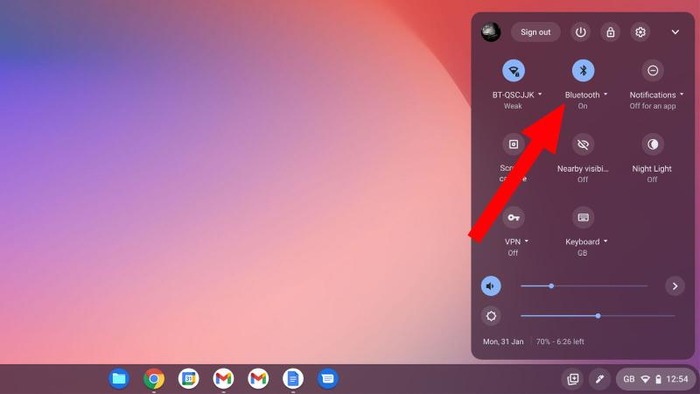
| 1 | Select the clock from the lower-right edge of the screen. |
| 2 | Choose the gear icon to go into settings. |
| 3 | Find and tap the Bluetooth option. |
| 4 | Toggle the Bluetooth switch to the “on” position. |
Linking Devices After Enabling Bluetooth
Once you’ve activated Bluetooth, your Chromebook will begin scanning for other devices. Here’s what to do next:
- Make sure the gadget you want to pair is discoverable.
- Select “Add device” from the Bluetooth section on your Chromebook.
- Wait for your Chromebook to detect nearby Bluetooth gadgets.
- Choose your device from the list when it appears.
Tip: Make sure both devices are close to each other. Bluetooth works best within a short range.
Finalizing the Pairing Process
Sometimes, a code will appear on your screen to confirm the connection.
Enter this code if needed or approve the link on both devices. Once confirmed, the pairing will finish.
You’ll see a notice on your Chromebook when the connection is complete. Your device is now ready to use.
Why Bluetooth is Useful on Chromebooks
Here are some major perks of using Bluetooth on your Chromebook:
| Benefit | Description |
| No Wires | Avoid the mess of cables by going wireless. |
| Ease of Use | Connecting devices is quick and doesn’t need special tools. |
| Multiple Uses | Supports headphones, keyboards, speakers, phones, and more. |
| Smooth Sharing | Lets you move data between gadgets without extra software. |
Helpful Hints for Using Bluetooth
Make your wireless setup even better with these tips:
- Keep Devices Nearby: Always keep gadgets close to your Chromebook for a stable signal.
- Update Your Chromebook: Fresh updates help avoid glitches and improve connection quality.
- Remove Unused Devices: Disconnect gadgets you’re not using to save battery and avoid signal issues.
- Choose Quality Gadgets: Good hardware ensures a strong and steady link.
Wrapping Up
Knowing how to turn on Bluetooth on a Chromebook can help you connect various devices quickly.
Whether you’re using wireless earbuds or syncing your smartphone, the setup process is simple and efficient.
Follow the guide above and make the most out of your Chromebook’s wireless features.
Bluetooth lets you do more without plugging in, helping you stay productive and enjoy your devices with ease.
