


Chromebooks running Linux containers use Debian as their foundation. Debian Bullseye 11.3 brings 83 security patches and 92 bug fixes to your system.
Upgrading Linux on a Chromebook to Debian Bullseye 11.3 keeps your container secure and stable. The process takes only a few minutes through Terminal commands.
You might want to upgrade to access the latest security improvements and bug fixes. This ensures your Linux applications run smoothly without vulnerabilities.
The upgrade process is straightforward. You’ll verify your current version, update package lists, and install available updates through simple commands.
How to upgrade Linux on a Chromebook to Debian Bullseye 11.3?
You need Linux enabled on your Chromebook before starting. Navigate to Chrome OS Settings, select Advanced, then Developers to activate the Linux development environment.
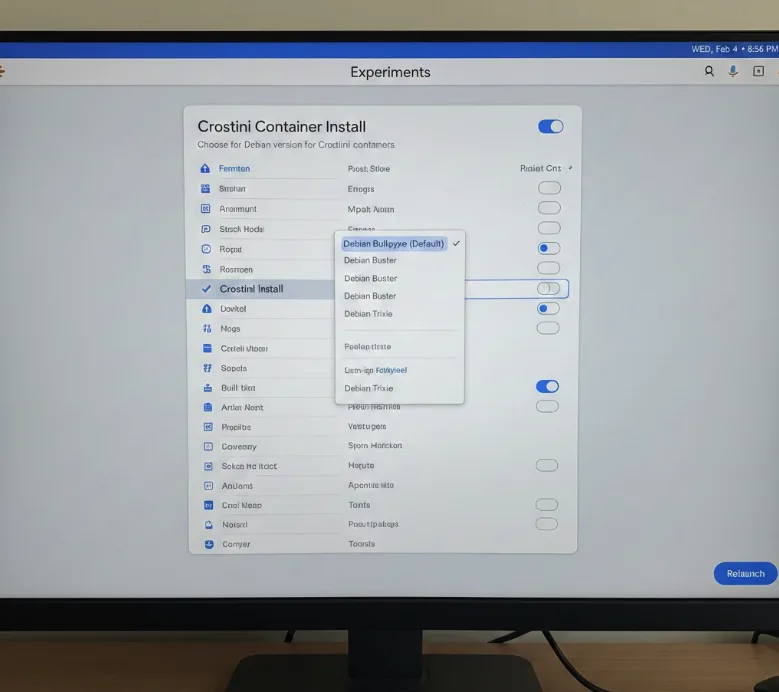
Verify Debian Bullseye is set as default
Open a new tab and enter chrome://flags#crostini-container-install in the address bar. Check that Bullseye appears as the selected option from the dropdown menu.
If Buster (version 10) or another version shows, select Bullseye instead. Chrome OS initially used Debian 10 as default but now defaults to version 11.
Check your current Debian version
Open the Terminal app from your app drawer. Type cat /etc/debian_version and press Enter.
The command displays your current version number. A fresh Bullseye installation typically shows 11.2 or earlier.
Update package lists
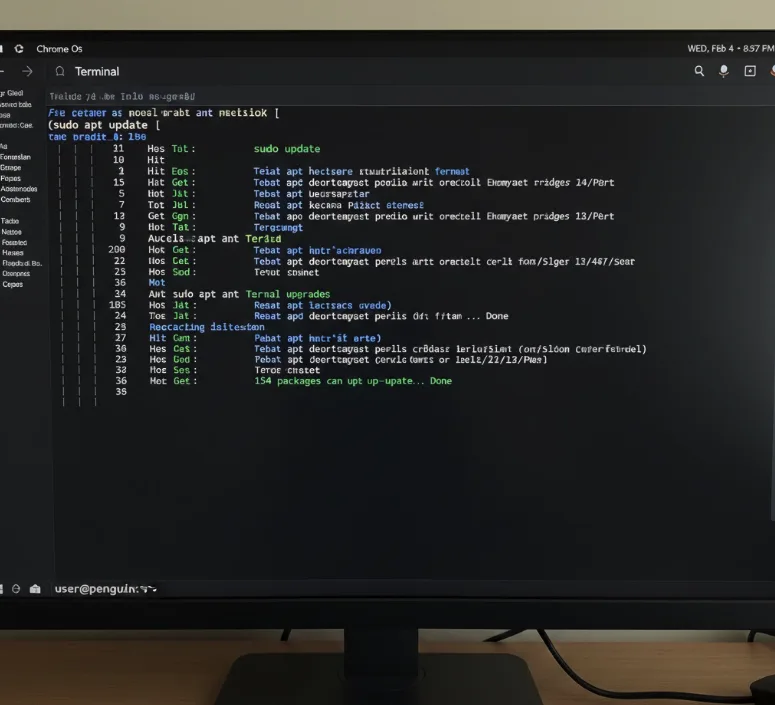
Run sudo apt update in Terminal. This command checks repositories for available updates to your installed packages.
The process completes in seconds. You’ll see a list of packages that can be upgraded.
Install available updates
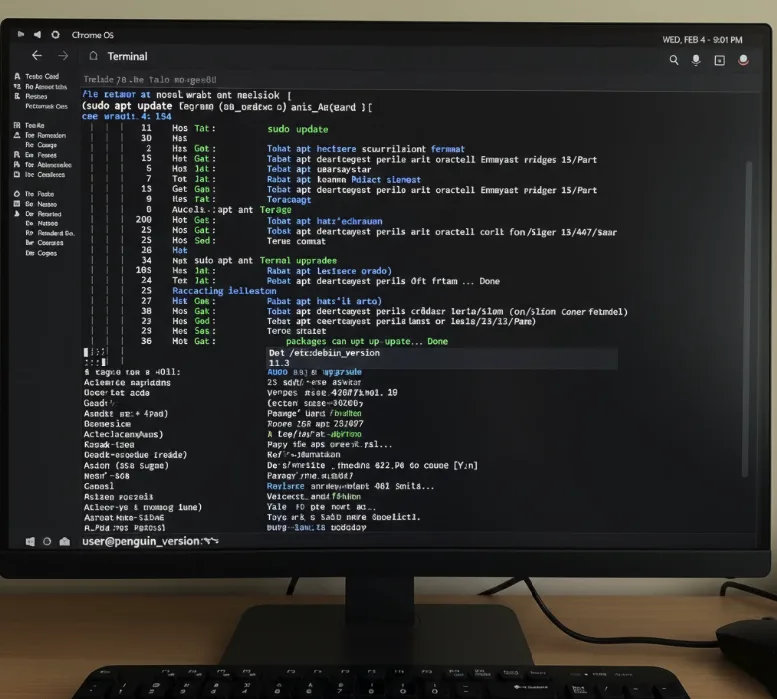
Execute sudo apt upgrade in Terminal. The system prompts you to confirm by typing Y and pressing Enter.
Download and installation time varies based on your internet speed and Chromebook performance. Most upgrades complete within two to five minutes.
Confirm the upgrade succeeded
Use cat /etc/debian_version again to verify your version. The output should now display 11.3.
Your Linux container now runs the latest Debian Bullseye release with all security patches and bug fixes applied.
The upgrade doesn’t change the visual appearance of your Linux environment. All improvements happen behind the scenes through security enhancements and stability fixes.
Regular updates through Terminal commands keep your Linux container protected from vulnerabilities. Running these commands monthly ensures you stay current with Debian releases.
FAQs
Can I upgrade directly from Debian Buster to Bullseye 11.3?
No, you need to reinstall Linux with Bullseye selected in Chrome flags. Direct upgrades between major Debian versions aren’t supported in Chrome OS containers.
Will upgrading delete my Linux apps and files?
No, upgrading from 11.2 to 11.3 preserves all installed applications and files. Only major version changes require reinstallation and backup.
How often should I run apt update and upgrade?
Run these commands weekly or monthly to maintain security. Debian releases minor updates regularly with important security patches and fixes.
Does upgrading affect Chrome OS performance?
No, the upgrade only affects the Linux container. Chrome OS remains unaffected and continues running normally during and after the update process.
What if the upgrade fails or gets stuck?
Restart your Chromebook and try again. If problems persist, disable and re-enable Linux in Chrome OS settings to start fresh.
