


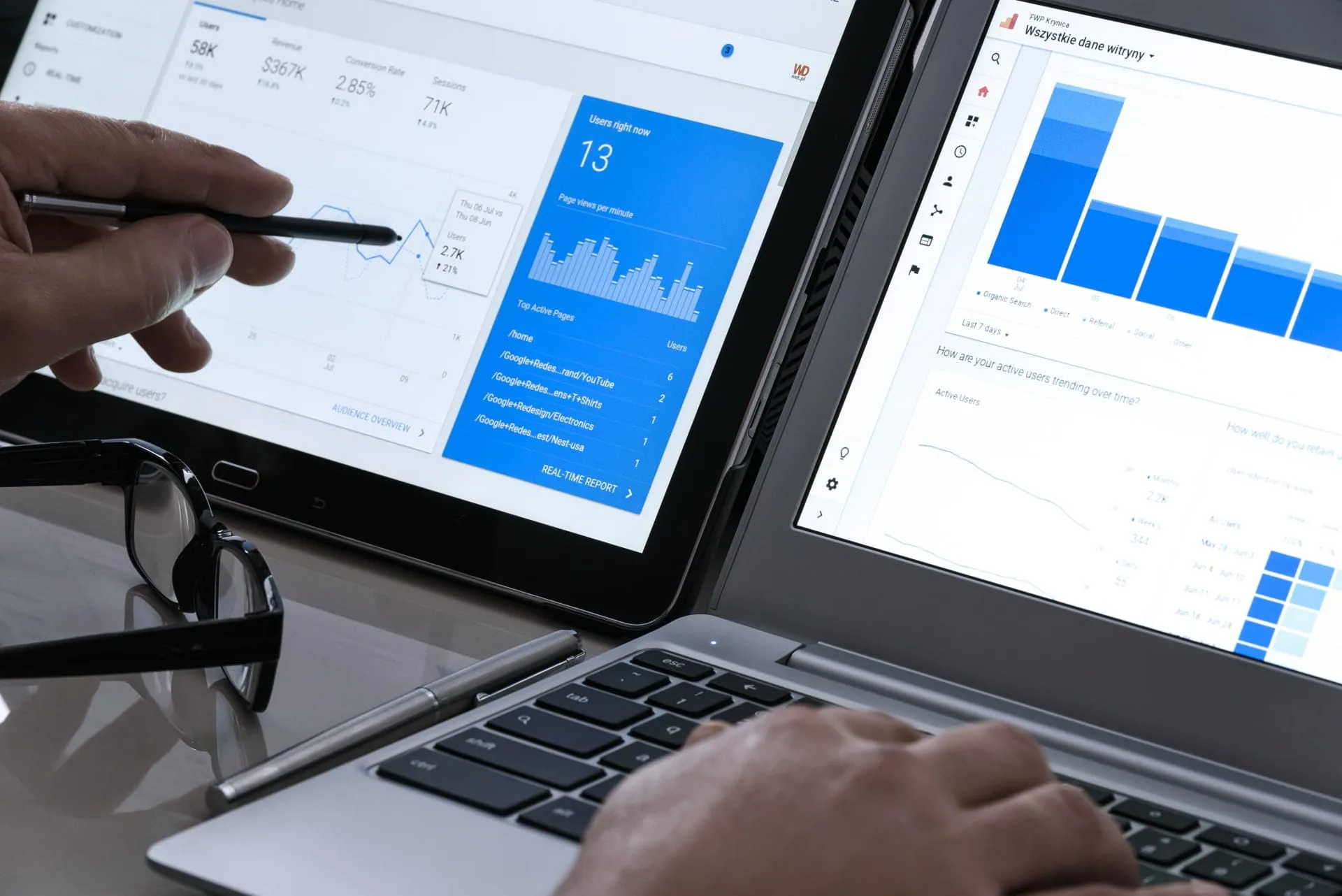
Google Analytics works well on a Chromebook. The best way is to open the regular desktop website inside the Chrome browser. Chromebooks run ChromeOS, and the web version gives you full reach over every report and admin setting. You do not need a high-end machine for any of this.
How to Use Google Analytics on Chromebook Through the Browser?
This is the option most people should pick. Follow these short steps:
- Start the Chrome browser on your device.
- Go straight to the Google Analytics web page.
- Sign in with your work or personal Google Account.
- Make the page act like a desktop program. Click the three-dot menu at the top-right of Chrome. Pick More tools, then click Create shortcut. Tick the box that says “Open as window.” You can now open the tool with one click from your app shelf.
How to Use Google Analytics on Chromebook With the Android App?
Many newer Chromebooks support the Google Play Store. If yours does, you can grab the official mobile app. It is handy for quick offline viewing and a touch-friendly dashboard.
- Open the Play Store on your Chromebook.
- Look for Google Analytics for Android and install it.
- Launch the app to see live data, the main metrics, and your saved custom panels.
| Method | Best For | Needs |
| Chrome Browser | Full reports and admin work | Any Chromebook |
| Android App | Quick checks on the go | Play Store support |
Useful Chrome Extensions When You Use Google Analytics on Chromebook
You can speed up daily work by adding small helpers from the Chrome Web Store. Three are worth a look for any site owner.
| Extension | What It Does |
| Google Analytics Debugger | Prints tracking notes into the Chrome JavaScript console (Ctrl + Shift + J). Use it to check if your site tags fire the right way. |
| Tag Assistant | Helps you spot setup problems with your gtag.js code and your Google Tag Manager build. It runs right on your live site. |
| Page Analytics (GA4) | Built fresh for Google Analytics 4. Shows basic traffic graphs, bounce rates, and click behavior laid over the web page you are looking at. |
The Debugger is for quick console checks. Tag Assistant gives you a visual view of tag problems. Page Analytics (GA4) puts numbers on the page itself, so you can read traffic data while you browse your own website.
Quick Recap on How to Use Google Analytics on Chromebook
Pick the browser route for full work. Add the Android app if you want a touch dashboard. Pair both with one or two Chrome extensions for testing. Once your shortcut, app, and helpers are in place, your Chromebook is ready for daily reporting jobs.
The setup takes only a few minutes, and you keep the same features a Windows or Mac user gets when working with Google Analytics.
