


Google is currently developing native file integration between Chrome OS and Linux containers. Until that feature arrives, you can manually mount Linux container files in the Chrome OS Files app for Project Crostini using SFTP.
This workaround connects your Linux virtual machine to Chrome OS through the Secure Shell app. The entire process takes about five minutes to complete.
Once finished, you can view and transfer files between both systems. You can drag files from your Chrome OS Downloads folder straight into your Linux container. This makes running full Linux apps on a Chromebook much more practical for daily work.
How to Mount Linux Container Files in the Chrome OS Files App for Project Crostini?
Follow these steps to set up the SFTP connection between your Linux container and Chrome OS. Make sure you have Linux enabled on your Chromebook before starting.
Set a Password for Your Linux User Account
- Open the Terminal app on your Chromebook.
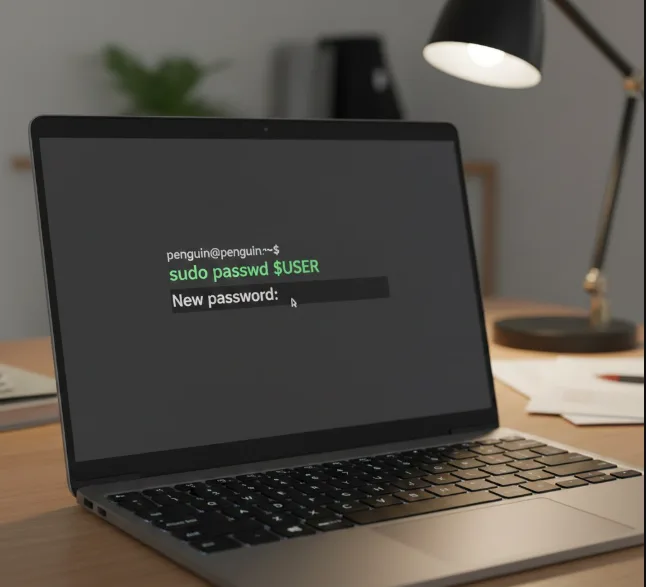
- Run the command
sudo passwd $USERto create a password. - Choose a strong password but do not use your Google account password. You will need this password later during the SFTP connection.
Install the OpenSSH Server
- Type
sudo apt-get install openssh-serverin the Terminal. - Press Enter and wait for the installation to finish.
- This package allows secure connections between Chrome OS and your Linux container.
Find Your Linux VM IP Address
- Run the command
hostname -Iin the Terminal. - Write down the IP address that appears. You need this address to connect the Secure Shell app to your Linux virtual machine.
Install the Secure Shell App
- Open the Chrome Web Store from your browser.
- Search for “Secure Shell” and install the app. This extension enables SFTP mounting, which is how the Chrome OS Files app connects to Linux files.
Connect Using Your Credentials
- Open the Secure Shell app.
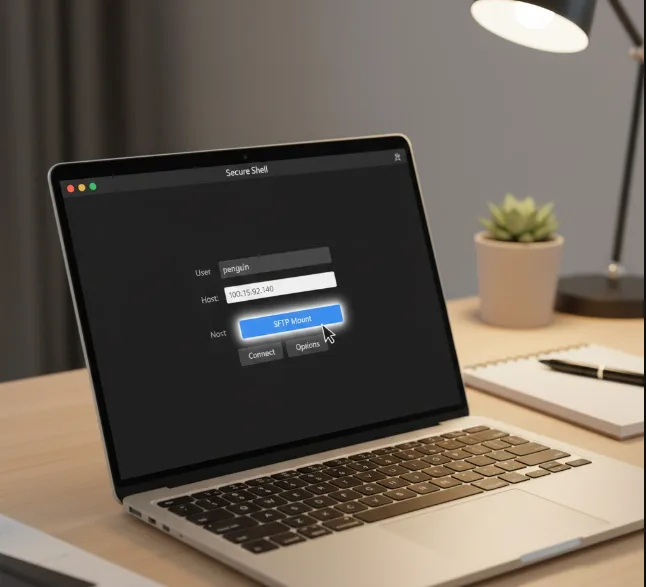
- Enter your Linux username in the first field. Type the IP address you noted earlier in the host field.
Create the SFTP Mount
- Click the SFTP Mount button.
- Confirm the connection when prompted. Enter your Linux password when asked.
Access Your Linux Files
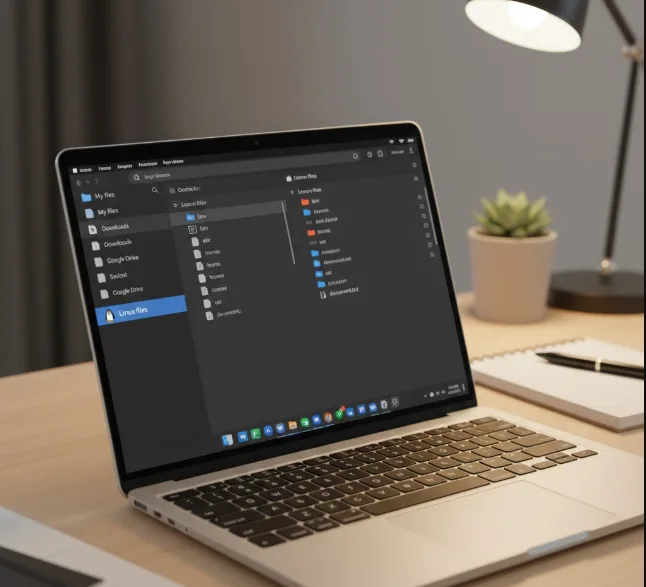
- Your Linux machine now appears in the sidebar of the Chrome OS Files app.
- You can browse, copy, and move files between Chrome OS and Linux just like any other folder.
Keep in mind that this SFTP mount is not persistent. You need to open both Terminal and Secure Shell to remount the Linux files after each reboot. The Secure Shell app saves your username and IP address, so reconnecting takes less time after the first setup.
This method works the same way as using SFTP to connect to a Raspberry Pi or any remote server. Google will eventually add native file sharing between Chrome OS and Linux, but this manual approach works well until then.
FAQs
Do I need Developer Mode to mount Linux files in Chrome OS?
No. Project Crostini runs Linux in a secure container without Developer Mode. You only need to enable Linux in your Chromebook settings.
Why do I need to remount after restarting my Chromebook?
The SFTP connection does not persist between sessions. Open Terminal first to start the Linux container, then reconnect through Secure Shell.
Can I use my Google password for the Linux user account?
No. Create a separate password for your Linux account. Using your Google password creates security risks.
What happens if my Linux IP address changes?
Run hostname -I again in Terminal to find the new address. Update the host field in Secure Shell with the new IP.
Which Chromebooks support Project Crostini?
Most Intel and AMD Chromebooks support Linux apps. Some ARM devices also work. Check your settings for the Linux development environment option.
