


Chrome OS initially lacked native dark mode support, but Google gradually rolled out this feature through beta channels before making it available to all users. Dark mode reduces eye strain during extended use and can make your Chromebook more comfortable to use in low-light environments.
This feature transforms the system interface and compatible apps to display darker color schemes. Many users prefer dark mode for its aesthetic appeal and potential reduction in screen glare.
Understanding how to enable this feature lets you customize your Chromebook’s appearance to match your preferences and usage patterns.
How To Turn On Dark Mode On Chromebook?
Activating dark mode on your Chromebook involves accessing the system settings and selecting your preferred theme option.
Open Settings
Click the system tray in the bottom-right corner of your screen. Select the gear icon to launch the Settings application.
Navigate to Personalization
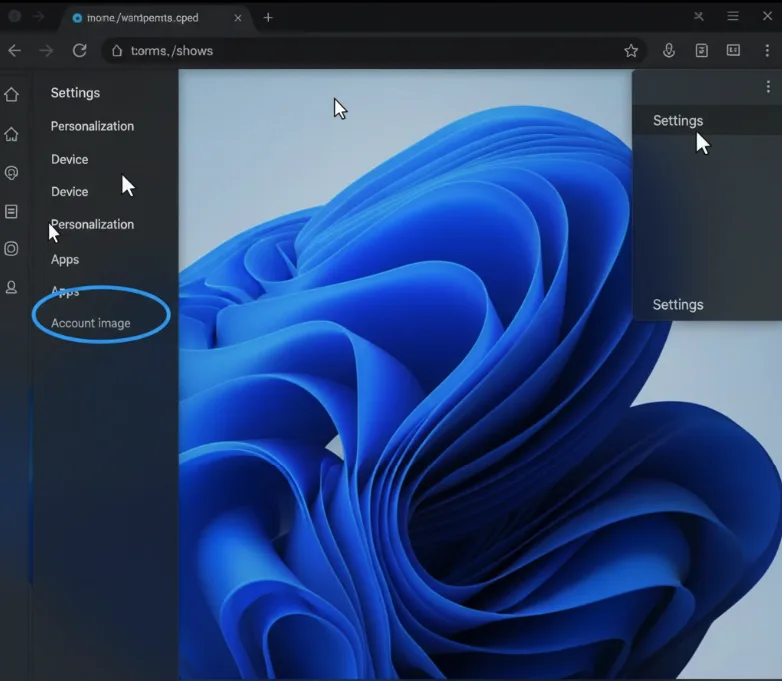
Find and click on the Personalization section in the left sidebar menu.
Access Theme Options
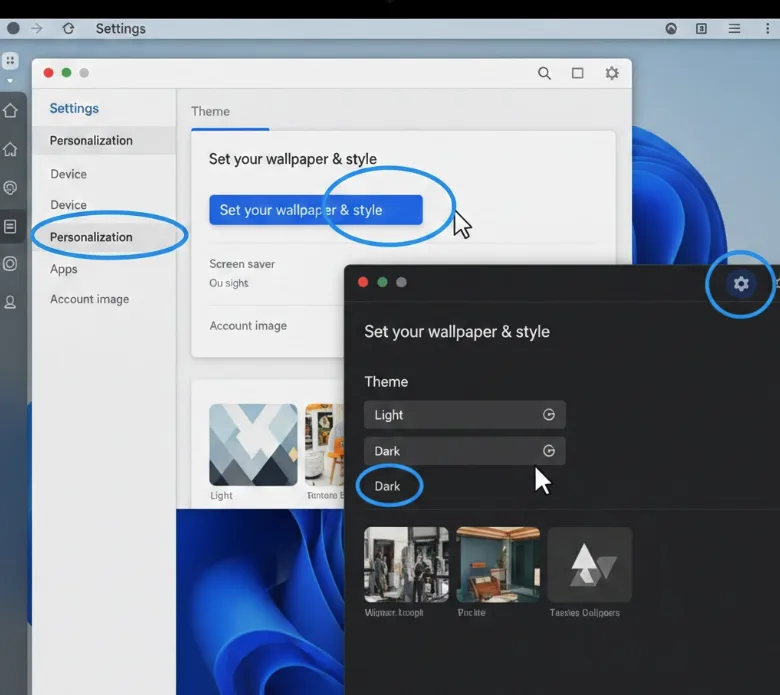
Select “Set your wallpaper & style” to view customization options.
Choose Dark Mode
Locate the Theme dropdown menu. Select “Dark” to enable dark mode immediately, or choose “Auto” to switch automatically based on time of day.
The Auto option requires location permissions to determine sunrise and sunset times in your area. If you’re concerned about privacy, stick with the manual Dark or Light options instead.
Enable Dark Mode in Chrome Browser
System-level dark mode doesn’t automatically apply to Chrome browser. Open Chrome and click the three-dot menu icon in the top-right corner.
Select Settings from the dropdown menu. Navigate to the Appearance section in the left sidebar.
Click the Mode dropdown and choose “Dark” or “Device” to sync with your system settings.
Force Dark Mode on Websites
Some websites don’t support dark mode natively. You can enable experimental features to force dark mode on all websites.
Type chrome://flags in the Chrome address bar and press Enter. Search for “Auto Dark Mode for Web Contents” using the search box.
Click the dropdown next to this flag and select “Enabled.” Restart Chrome when prompted.
This experimental feature may cause display issues on some websites. You can disable it anytime by returning to chrome://flags and selecting “Default.”
If you’re interested in customizing other aspects of your Chromebook, check out how to change your Chromebook wallpaper. For users experiencing display problems, learning how to invert colors on Chromebook or how to unfreeze your Chromebook might help resolve related issues. You can also explore more Chrome flags settings to enhance your browsing experience.
FAQs
Does dark mode save battery on Chromebooks?
Dark mode shows dark gray rather than true black, so battery savings are minimal even on OLED displays. Traditional LCD Chromebook screens see virtually no battery improvement.
Can I schedule dark mode automatically?
Yes, select “Auto” in theme settings. Your Chromebook will switch between light and dark modes based on sunrise and sunset times in your location.
Why doesn’t dark mode work on some websites?
Many websites don’t support dark mode natively. Use the Auto Dark Mode flag in chrome://flags to force dark themes on unsupported sites.
How do I turn off dark mode?
Go to Settings > Personalization > Set your wallpaper & style. Change the Theme dropdown from Dark to Light or Auto to disable dark mode.
Does dark mode affect printing documents?
No, dark mode only changes on-screen display. Documents print normally regardless of your theme settings, maintaining their original colors and formatting.
