


Chrome OS 80 brings the ability to sideload Android apps to Chromebooks, letting you install apps from outside the Google Play Store. This feature uses Android Debug Bridge (ADB) through Linux to load Android APK files directly onto your device.
While Google designed this primarily for developers testing apps built in Android Studio, you can use it to install apps unavailable in the Play Store. The process doesn’t require Developer Mode but does introduce security risks from unverified sources.
You’ll need Chrome OS 80 Dev Channel, Android SDK Platform Tools in Linux, and APK files from trusted sources. Your device will display a warning about sideloaded apps on the lock screen.
Chrome OS 80: How to sideload Android apps to a Chromebook
Before installing apps, you need to set up your Chromebook with the right tools and settings.
Install Chrome OS 80 Dev Channel
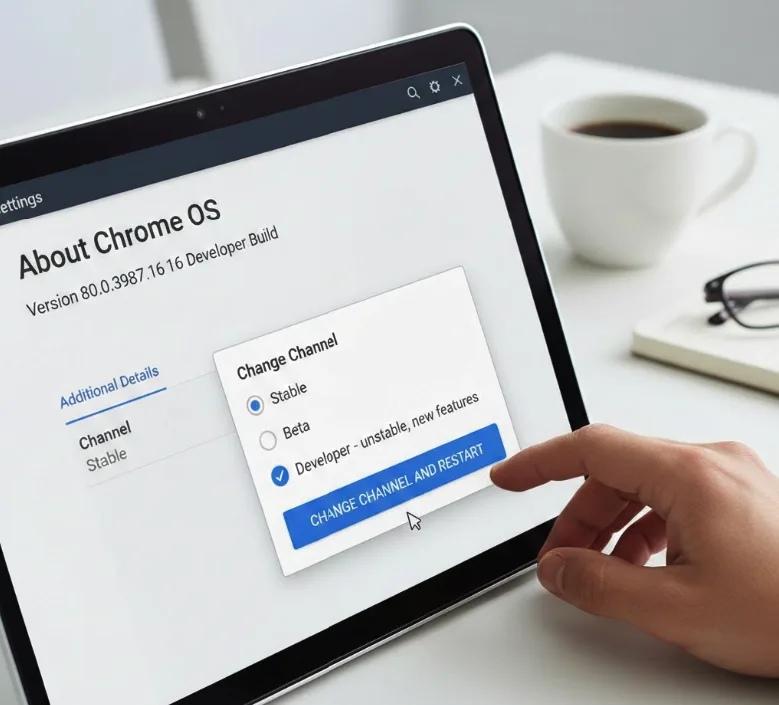
Switch your Chromebook to the Dev Channel through Settings. Navigate to About Chrome OS, click Additional Details, then select Change Channel. Choose Dev from the options and restart your device when prompted.
Set up Linux on your Chromebook
Enable Linux if you haven’t already. Go to Settings, find the Developers section, and turn on Linux development environment. The setup takes a few minutes to download and install the Linux container.
Install Android SDK Platform Tools
Open the Linux Terminal app. Download the Android SDK Platform Tools package for Linux from the official Android developer website. Extract the downloaded file to a folder you can easily access.
Enable ADB Debugging
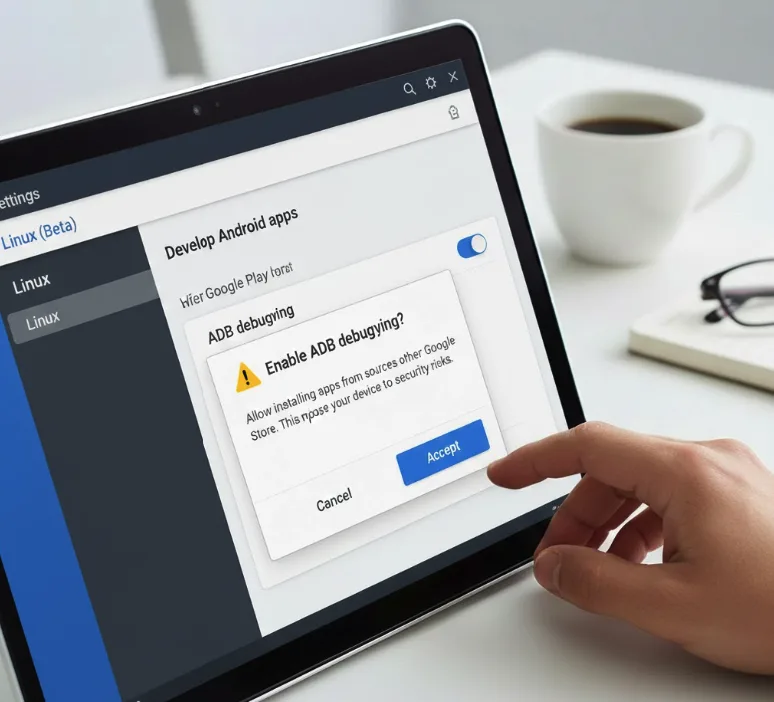
Open Chrome OS Settings and navigate to the Linux section. Find “Develop Android apps” and click it. Toggle on ADB Debugging.
You’ll see a confirmation dialog warning about security implications. Accept the prompt to proceed. Your Chromebook will restart automatically to apply the changes.
After restart, your lock screen displays a persistent warning message. This notifies you that apps from outside Google Play may be installed on your device.
Download your Android APK file
Get the APK file for the app you want to install. Save it to your Downloads folder or another accessible location. Make sure you trust the source of your APK files to avoid security risks.
Connect to the Android container
Open the Linux Terminal. Type the command: adb connect 100.115.92.2:5555
This connects your terminal to the Android Runtime Container (ARC) as if it were a physical Android device.
Install the Android app
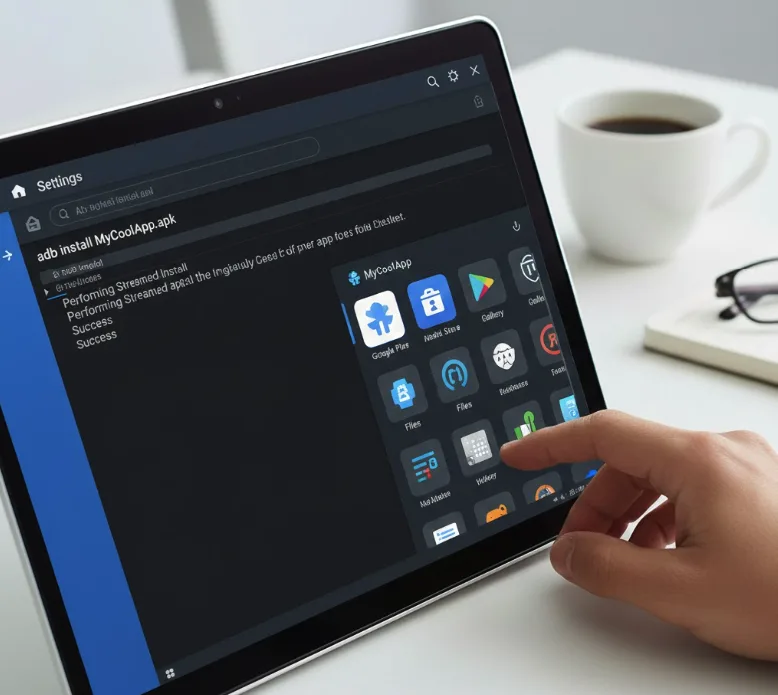
Navigate to your APK file location in Terminal. Use the install command: adb install filename.apk
Replace “filename.apk” with your actual file name. The installation process takes a few seconds. You’ll see a success message when complete.
The installed app appears in your app drawer alongside other Android apps. Launch it like any Play Store app.
Some sideloaded apps may not work properly. Apps designed for specific devices or manufacturers might crash or behave unexpectedly on Chrome OS.
FAQs
Is sideloading Android apps on Chrome OS safe?
Sideloading carries security risks since apps bypass Google Play’s verification. Only install APKs from trusted sources to minimize malware risks and potential data breaches.
Do I need Developer Mode to sideload apps?
No, you don’t need Developer Mode. The ADB debugging method works without reducing your Chromebook’s security through Developer Mode, though risks still exist.
Will all sideloaded apps work on Chrome OS?
Not all apps work correctly. Some apps may crash, loop, or fail to launch depending on device compatibility and app requirements.
Can I uninstall sideloaded apps easily?
Yes, uninstall sideloaded apps like any other Android app. Right-click the app icon and select Uninstall, or remove it through Settings.
Does sideloading void my Chromebook warranty?
Sideloading doesn’t void your warranty since it doesn’t modify system files or require Developer Mode. However, check your manufacturer’s specific warranty terms.
