

Close Menu
    Facebook X (Twitter) Instagram
    • About
    • Privacy Policy
    • Write For Us
    • Newsletter
    • Contact
    Instagram
    About ChromebooksAbout Chromebooks
    • Linux
    • News
      • Stats
      • Reviews
    • AI
    • How to
      • DevOps
      • IP Address
    • Apps
    • Business
    • Q&A
      • Opinion
    • Gaming
      • Google Games
    • Blog
    • Podcast
    • Contact
    About ChromebooksAbout Chromebooks
    News

    Chrome OS 87 eliminates media controls from the notification stack on Chromebooks

    Kevin TofelBy Kevin TofelOctober 5, 2020Updated:September 9, 2025No Comments2 Mins Read

    The new Global Media Controls (GMC) feature in Chrome OS 87 may not look like a huge deal, but I’m thrilled to see how it’s progressing. The latest Dev Channel update shows exactly what I was hoping for: No more of the (what I think) are annoying media playback features persistently stacked on your Chromebook notifications. Instead, you can choose to have media controls in the system tray or available from the tray icon.

    Here’s what I mean.

    With the chrome://flags/#global-media-controls-for-chromeos flag enabled in the Chrome OS 87 Dev Channel, I have the new GMC icon in my tray. Clicking it while watching a YouTube video, for example, shows media information as well as play, pause and other controls:
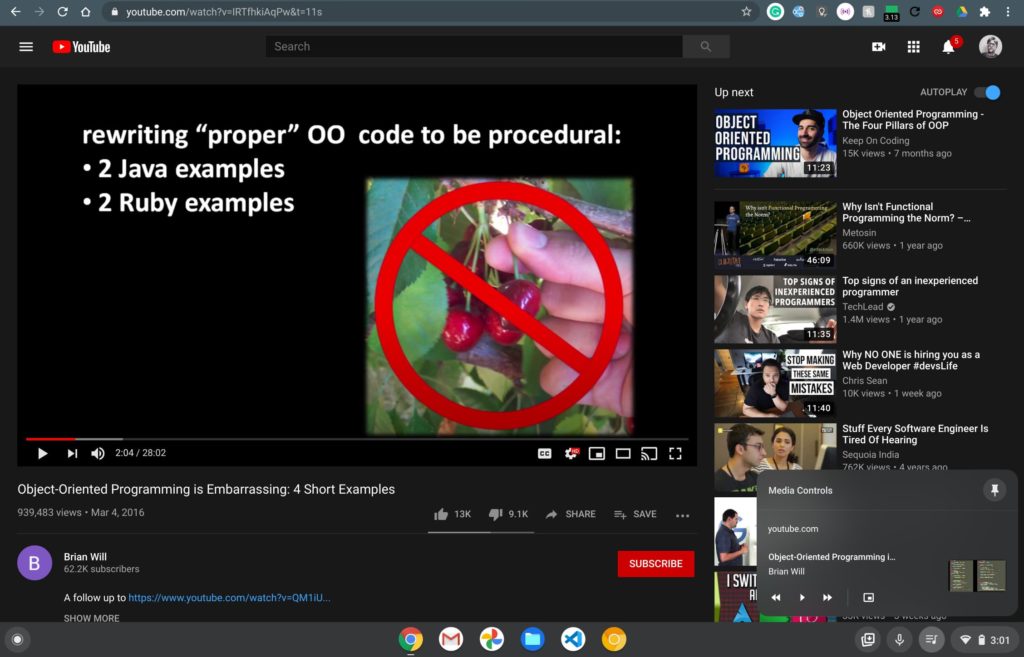
    There’s also a thumbtack icon, but I’ll get to that in a minute.

    While playing the same YouTube video, I opened up my Chrome OS system tray and that ill-placed media control above the system tray and notifications was gone.

    As it should be: So say we all. (Well, maybe not all, but I’m betting most of us.)
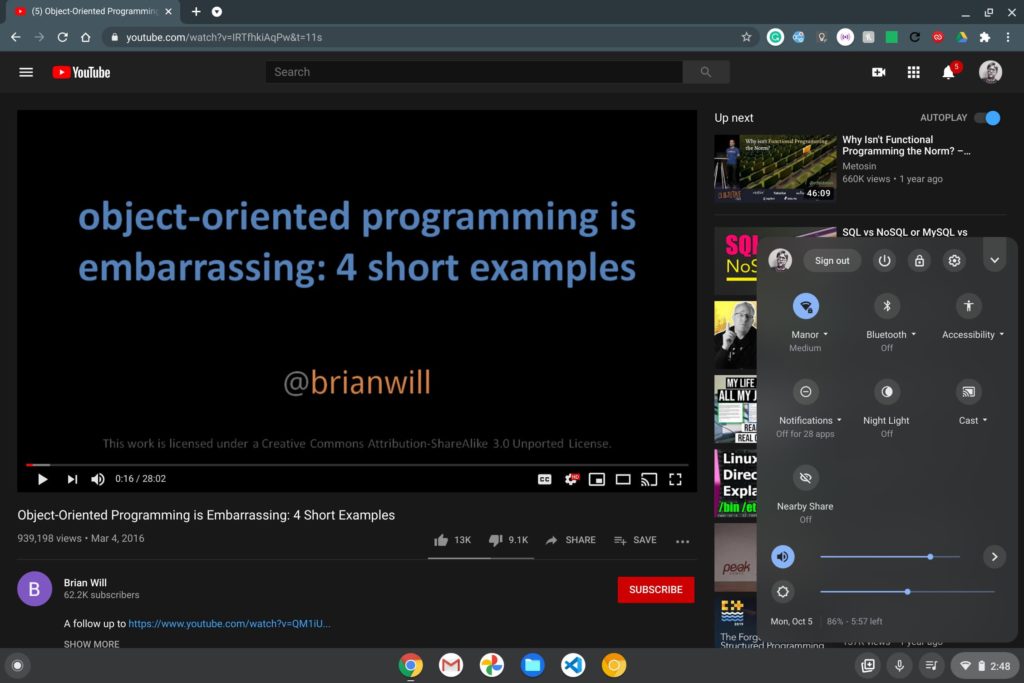
    Now, about that thumbtack.

    In this implementation, clicking the thumbtack removes the GMC icon from your system tray and moves the media info and controls to the Quick Settings. And it’s a much better spot from a user interface perspective.

    Here you can see where they reside after clicking the thumbtack, essentially “pinning” them below your quick controls:
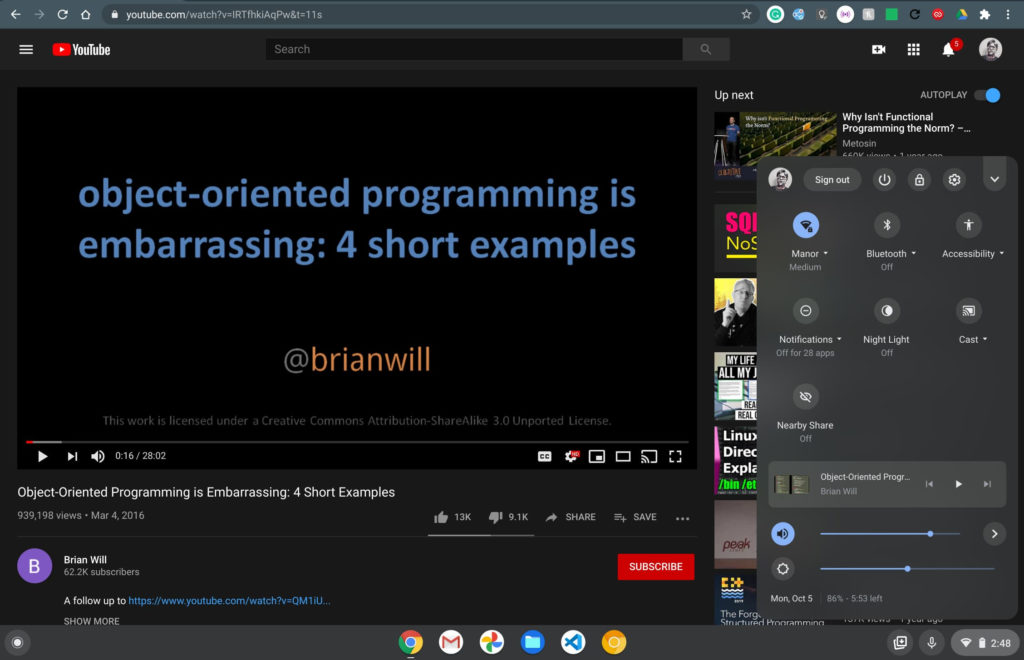
    I think this is a much improved implementation. You get the choice of where you want your media controls, either in the dock or the quick settings, and they don’t interfere with constantly changing notifications.

    One more thing: You might have noticed in the first image above there’s a picture-in-picture (PIP) control in the GMC. That’s not enabled by default currently, but you can turn it on with this flag: chrome://flags/#global-media-controls-picture-in-picture.

    Obviously, I did that and the feature already works:
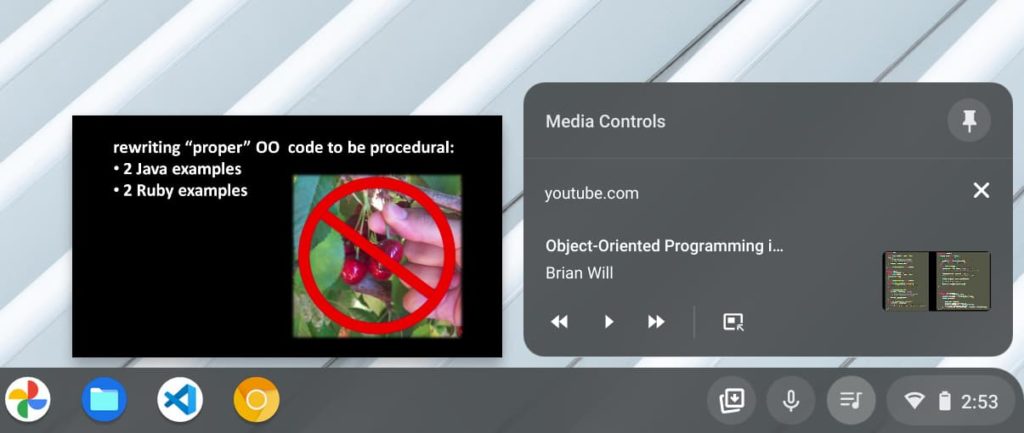
    It’s the little things in life that make me happy. 🙂

    Kevin Tofel
    • Website

    After spending 15 years in IT at Fortune 100 companies, Kevin turned a hobby into a career and began covering mobile technology in 2003. He writes daily on the industry and has co-hosted the weekly MobileTechRoundup podcast since 2006. His writing has appeared in print (The New York Times, PC Magazine and PC World) and he has been featured on NBC News in Philadelphia.

    Best of AI

    LMArena AI: Chatbot Ranking Platform 2026

    May 27, 2026

    Will AI Take Over the World

    May 25, 2026

    AI21 Jurassic Statistics 2026: Model Size, Usage and AI Performance Trends

    May 19, 2026

    Chub AI Explained

    May 6, 2026

    Stable Diffusion AI: Free Text To Image AI Generator

    May 5, 2026
    Trending Stats

    Chromebook Touchscreen vs Non-Touchscreen Usage Statistics 2026: Device Interaction and Form Factor Data

    June 11, 2026

    Chromebook Performance Across Price Segments Statistics 2026: Benchmark Comparison Data

    June 10, 2026

    Chromebook Daily Usage Hours Statistics 2026: Activity And Engagement Reports

    June 9, 2026

    Chromebook Usage In Developing vs Developed Markets Statistics 2026

    June 8, 2026

    Android App Usage on Chromebooks Statistics 2026: App Adoption And Usage Data

    June 6, 2026
    • About
    • Tech Guest Post
    • Contact
    • Privacy Policy
    • Sitemap
    © 2026 About Chrome Books. All rights reserved.

    Type above and press Enter to search. Press Esc to cancel.