

Close Menu
    Facebook X (Twitter) Instagram
    • About
    • Privacy Policy
    • Write For Us
    • Newsletter
    • Contact
    Instagram
    About ChromebooksAbout Chromebooks
    • Linux
    • News
      • Stats
      • Reviews
    • AI
    • How to
      • DevOps
      • IP Address
    • Apps
    • Business
    • Q&A
      • Opinion
    • Gaming
      • Google Games
    • Blog
    • Podcast
    • Contact
    About ChromebooksAbout Chromebooks
    News

    Chrome OS will show Debian package details when installing in the Files app

    Kevin TofelBy Kevin TofelSeptember 26, 2018Updated:May 7, 2026No Comments2 Mins Read

    Last month, Google made it easy to install Linux apps using Project Crostini on supported Chromebooks: After downloading a .deb package, there’s a simple two-click install process in the Files app, shown above. Of course, you can always use the command line interface or your package manager of choice to do this. And many folks probably will use those options because the .deb install function in Chrome is fairly bare-bones.

    That’s changing soon because Chrome OS will display key package information as part of the install process. Here’s a description of the change:

    Display .deb package info in install dialog

    This CL adds a details pane in the file manager’s .deb install dialog
    to provide package name, version, and a description of the package.

    If you’re not sure what that means, here’s some example information from a package manager about MS Visual Studio Code, which is installed on my Pixelbook.
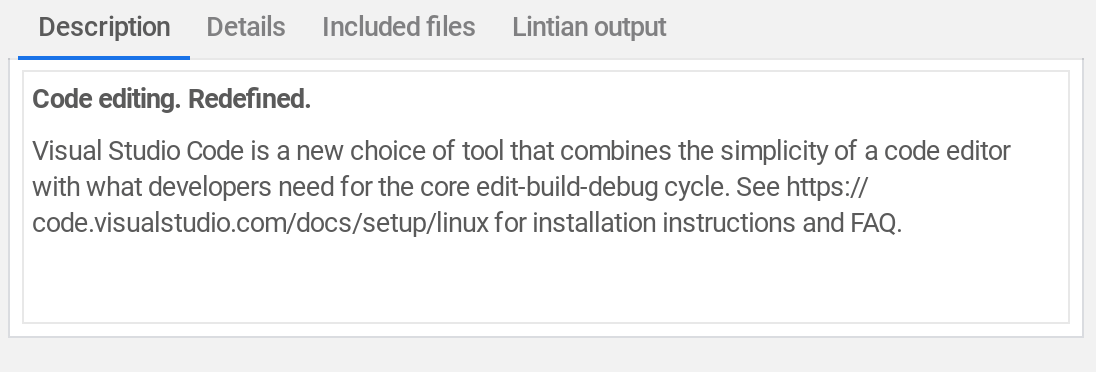
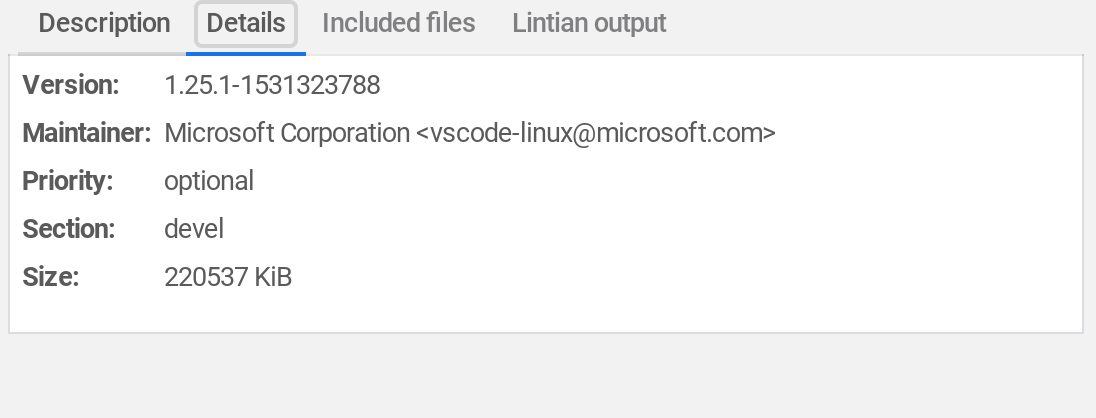
    Here you can see the description data, version, and other package info. Just to be clear, the above image isn’t how Chrome OS will display the package details. Instead, it will appear as a dialog box when installing a .deb package in the Chrome OS Files app, likely included in this one:
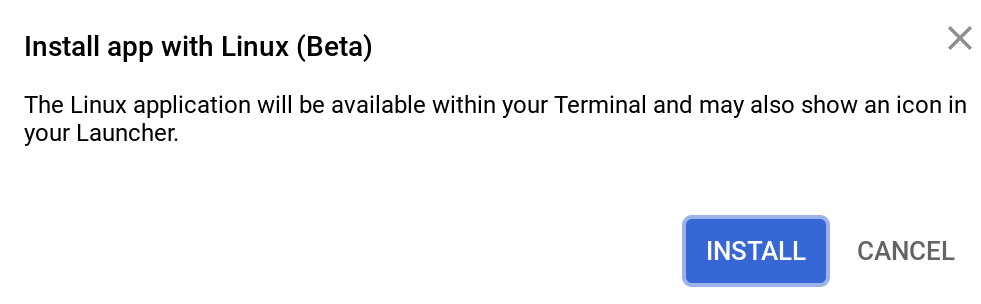
    Users would then have more information about the package before deciding to click the Install button.

    I still have an open question about how dependencies — essentially other packages and binaries that are pre-requisites for what you want to install — are handled by the Chrome OS package installation process. I haven’t run into any issues yet but I don’t want to assume “it just works.” And ideally, I’d like to see some dialog boxes showing dependency information as well. However, the addition of basic package info is a step in the right direction.

    Kevin Tofel
    • Website

    After spending 15 years in IT at Fortune 100 companies, Kevin turned a hobby into a career and began covering mobile technology in 2003. He writes daily on the industry and has co-hosted the weekly MobileTechRoundup podcast since 2006. His writing has appeared in print (The New York Times, PC Magazine and PC World) and he has been featured on NBC News in Philadelphia.

    Best of AI

    Chub AI Explained

    May 6, 2026

    Stable Diffusion AI: Free Text To Image AI Generator

    May 5, 2026

    Imagen AI: The Best Photo Editing AI In 2026

    April 21, 2026

    Alphafold AI from Google Deepmind 2026

    April 21, 2026

    Agentic AI Pindrop Anonybit: The Future of Secure Identity Verification

    April 17, 2026
    Trending Stats

    Chromebook Boot Failure and Recovery Statistics 2026

    May 7, 2026

    Linux Usage on Chromebooks Statistics 2026

    May 7, 2026

    Education Sector Chromebook Adoption Statistics 2026

    May 4, 2026

    ChromeOS Data Usage Patterns And Statistics 2026

    May 2, 2026

    Auto Update Expiration (AUE) In Chromebooks Statistics 2026

    May 2, 2026
    • About
    • Tech Guest Post
    • Contact
    • Privacy Policy
    • Sitemap
    © 2026 About Chrome Books. All rights reserved.

    Type above and press Enter to search. Press Esc to cancel.