


The upcoming Memory Saver performance feature for ChromeOS and the Chrome browser just got an important, useful option. In ChromeOS 108, you can configure certain sites to always stay active.
I noticed this new option upon updating one of my Chromebooks to the ChromeOS 108 Dev Channel. When I first reported on the new Performance settings last month, Memory Saver was quite binary. You could enable or disable it. And that’s still the case in the ChromeOS 108 Performance settings.
Memory Saver in ChromeOS 108
What’s new is the ability to add a list of sites that you want to always stay active, even with Memory Saver enabled. This is a welcome and surprising addition. To understand why you need to know what Memory Saver will do.
I should note that the code for Memory Saver refers to the feature as “high-efficiency mode”. According to the code, this feature “reclaims memory from tabs you aren’t actively using. This frees up your computer’s resources for other tasks and keeps Chromium speedy. Inactive tabs appear empty and automatically reload when you click them.”
That sounds quite a bit like one of the ways older Chromebooks with a scant 2 GB of memory used to behave. If you opened up more browser tabs than you had available memory for them, leaving and returning to them caused the tabs to be reloaded. That was by design to mitigate the memory limitations.
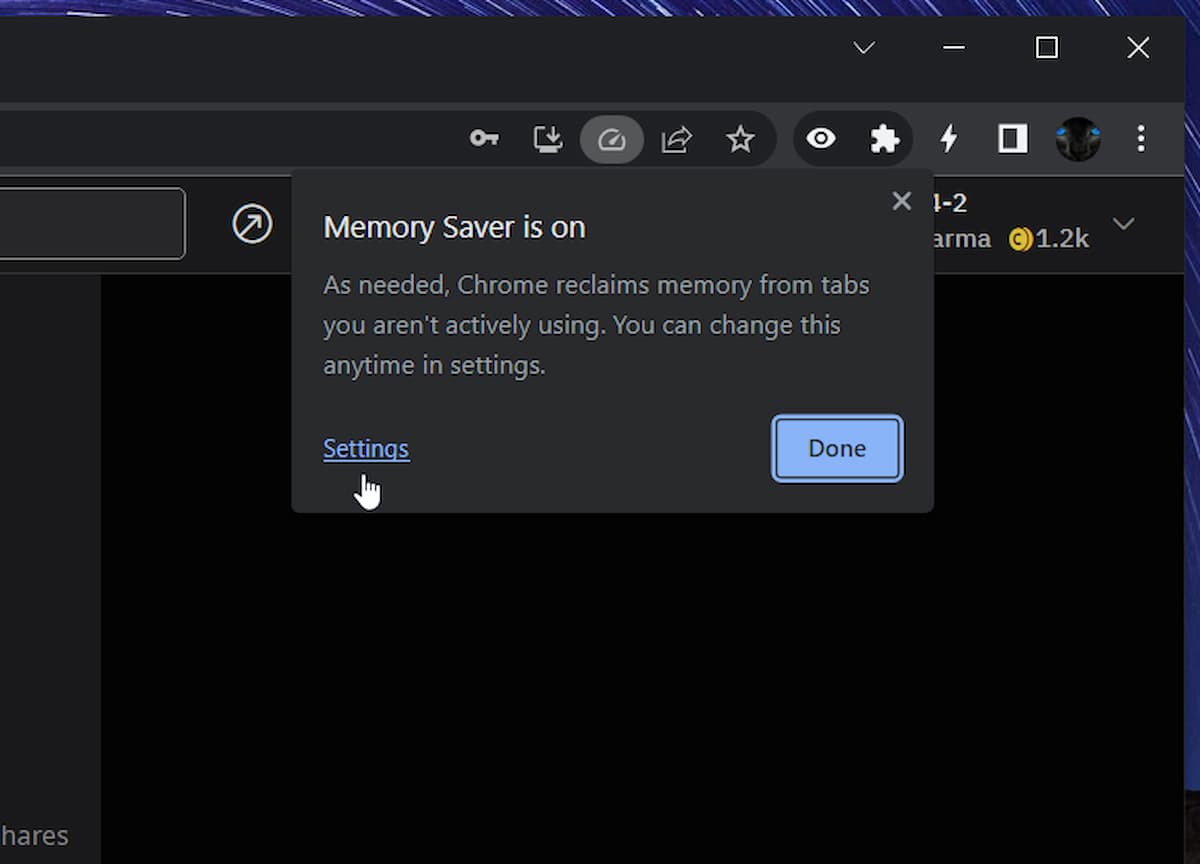
In a similar way, Memory Saver is designed to do the same thing to boost Chrome and ChromeOS performance. However, the ability to keep certain sites always active will put you in control of which tabs get reloaded and which are always active. As of today, trying to add a site to the “always active” list doesn’t work. When I click the Add button, nothing happens. So I can’t test it just yet.
Performance optimization isn’t limited to just tabs
Keep in mind that although the new Memory Saver option in the ChromeOS 108 Performance settings appears focused on browser tabs, there’s more to this feature. It will optimize performance based on overall memory usage performance degradation. As I noted last month:
Thresholds are set for the number of open tabs, how much “jank” (when software is sluggish to respond), and how much memory is being used by the system. When one or more of these thresholds are crossed, ChromeOS or the Chrome browser will start freeing up system memory and other resources to speed things up. The obvious downside is that some open tabs may reload when you make them active again.
I should note that what I said was an obvious downside won’t be a problem based on the ChromeOS 108 update. As long as you specify what websites you want always active, they won’t reload when you revisit them in an open tab. I’m already thinking of my list of sites: WordPress is on there for sure because I’ve lost typed copy in the past due to tab reloads.
How to enable this ChromeOS performance feature
As the Memory Saver feature is experimental, it’s hidden behind a flag. You can check for it on your Chromebook by navigating to chrome://flags and searching for the word “high”.
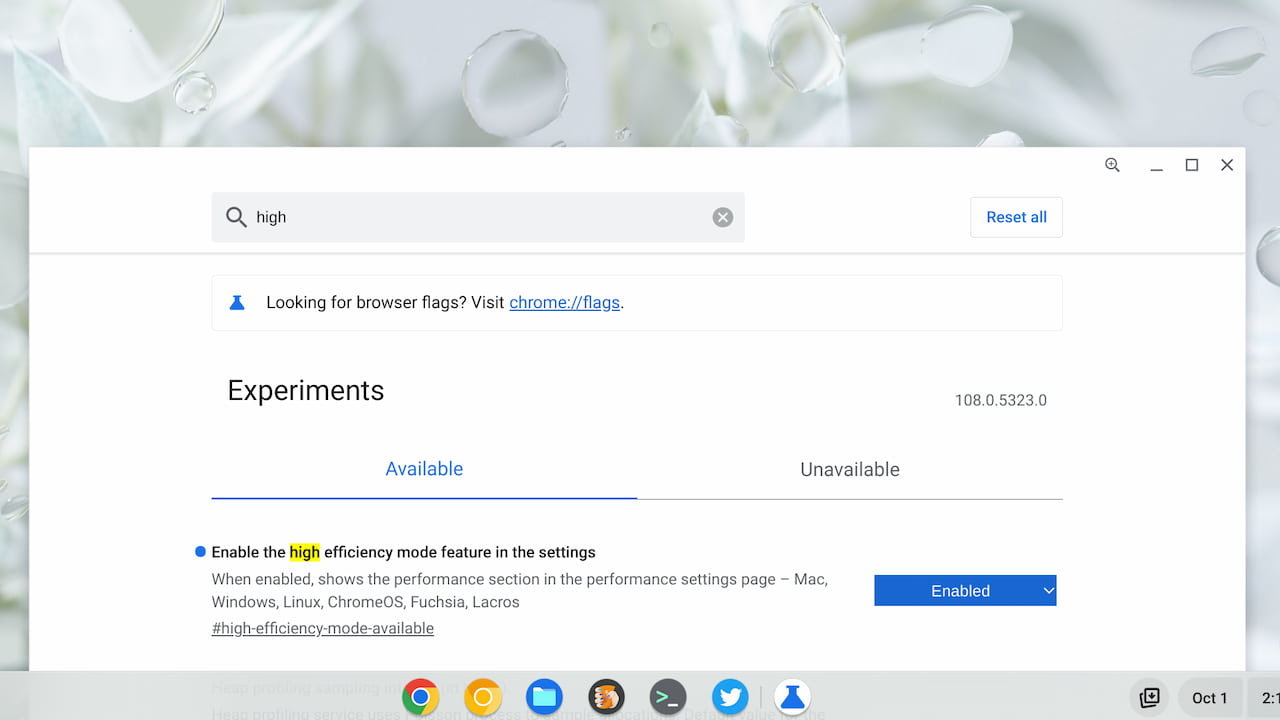
There might be a few options there, so look for the high-efficiency option. If you see it, enable the feature and restart your browser when prompted. After the restart, navigate to chrome://settings/performance to enable and configure the Memory Saver feature.
Without the ability to keep some websites always active, I thought this performance feature would be of limited value. In particular on devices with 4 GB of memory. However, if you can choose certain sites to stay active, it’s a far more compelling addition to Chrome and ChromeOS.
