


This is the week that Google Chrome 101 arrives and one of the new features is the ability to save password notes. The functionality is hidden behind an experimental flag but I’ll show you how to enable it. After saving a few notes, I see the appeal. I also see smidge of room for improvement.
To enable password notes, you’ll want to make sure you have the Google Chrome 101 update. Then, point your Chrome browser to chrome://flags#password-notes and select enabled from the drop-down menu.
You’ll need to restart your browser for the change to take effect.

Now you can click the three-dot button at the top right of the browser and choose the Settings option. In Settings click the Autofill choice on the left.
This is where you’d typically view or edit your saved passwords. Note that on a Chromebook, this used to be in the Chrome OS settings. To add a note, just click the three-dot option next to a saved password and choose Edit. You’ll see the new Notes field as an editable option.
Here I’ve typed an example note to save:
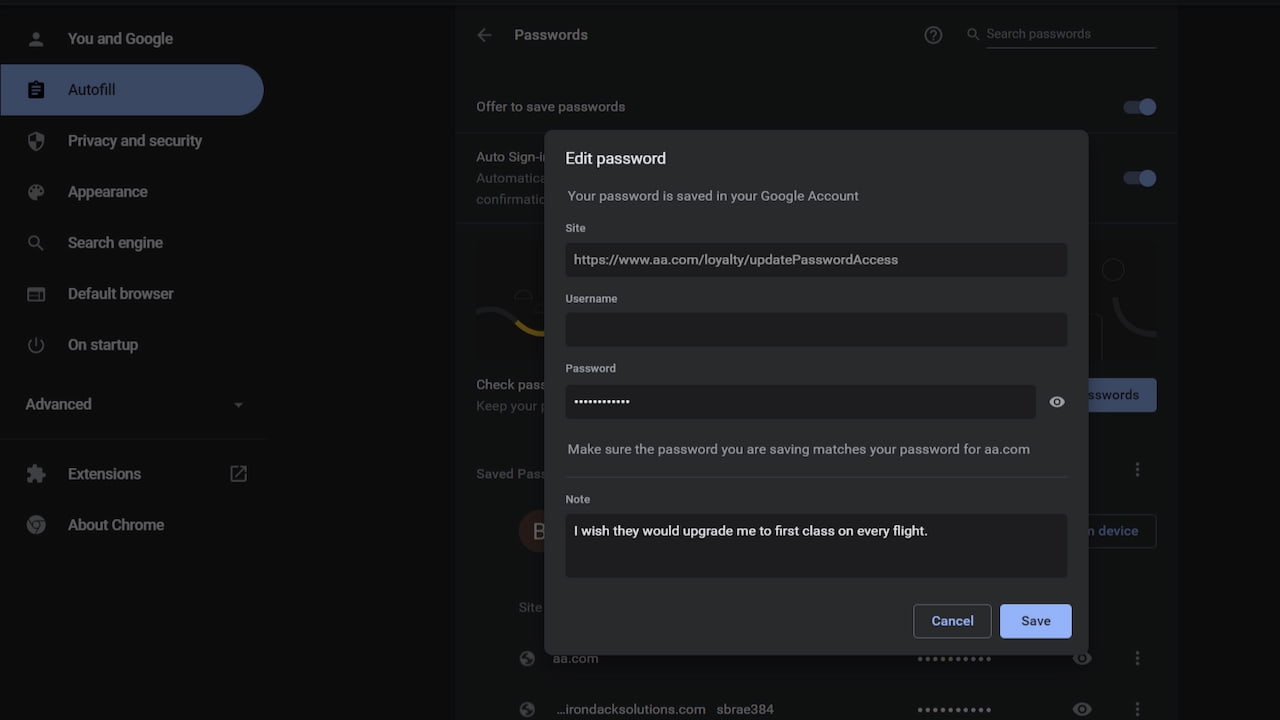
Once you’ve entered your note (or notes) for that particular password, click the Save button.
Here’s where I see this first implementation as falling a little short of what I hope will be the final result. You have to view a password to see any notes associated with it. And there’s no indication if a password does or doesn’t have any notes. And lastly, you can’t use the Search field on this settings page to find words from a note. At least not currently.
To view any password notes then, you’ll again click the three-dot menu to the right of a saved password in Chrome 101. The browser will respond with the password credentials, as it did prior, and now with the saved notes:
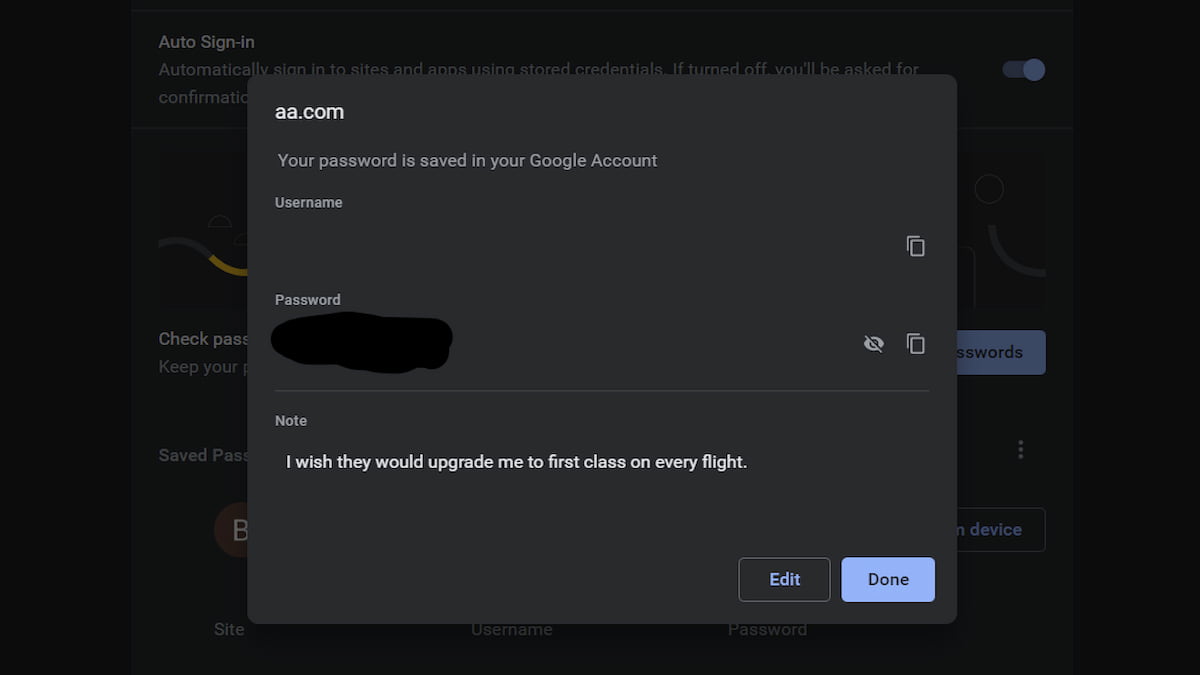
From here, if you want to change your notes or anything about your password, you can click the Edit button. Just be sure to save your changes.
These notes will synchronize across any devices where you’re signed in with a Google account. You don’t have to repeat the process across devices. That’s a definite plus. But the ability to easily find any notes would be useful as you might have multiple, related accounts with them scattered here and there.
