


Chromebooks support split-screen viewing, letting you work with two apps or browser tabs simultaneously on one display. This feature mirrors Windows’ Snap Assist functionality.
Many users don’t realize Chrome OS includes this capability. Split-screen viewing proves especially valuable on Chromebooks with 3:2 aspect ratios, where vertical space helps you see more content at once.
You might want this feature when researching while writing, comparing documents, watching videos while taking notes, or monitoring social media alongside other work. The setup takes seconds and works on any Chromebook model.
How to view apps or browser tabs side-by-side on a Chromebook snap assist?
Disable window maximization
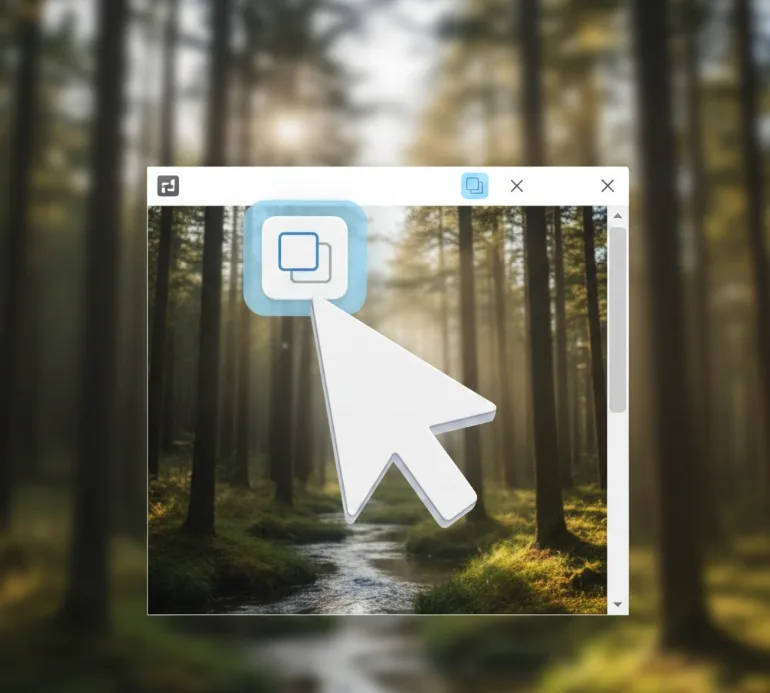
Your windows need to be unmaximized before you can snap them. If you can’t see your desktop background or wallpaper, your current window is maximized.
Click the middle icon among the three buttons in the top-right corner of your browser or app. This restores the window to a smaller size and reveals your desktop.
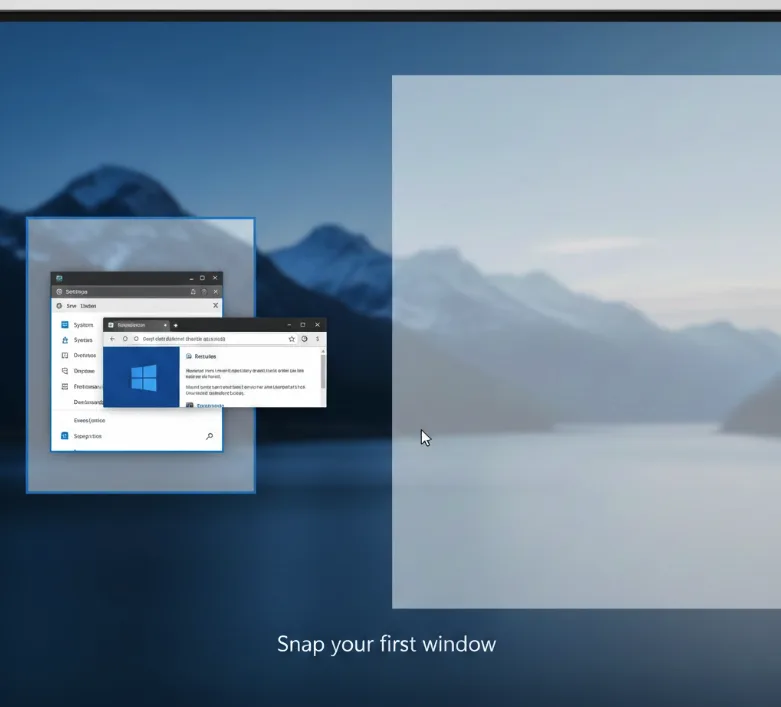
Snap your first window
Drag an open browser window or tab to either the left or right edge of your screen. The window automatically snaps into position and fills half the display.
You can drag the window by its title bar at the top. Release when you see a preview outline showing where the window will snap.
Add your second window
Drag another browser window, tab, or app to the opposite side of the screen. It snaps into the remaining half automatically.
You now have two windows open side-by-side. Each takes up exactly half of your display space.
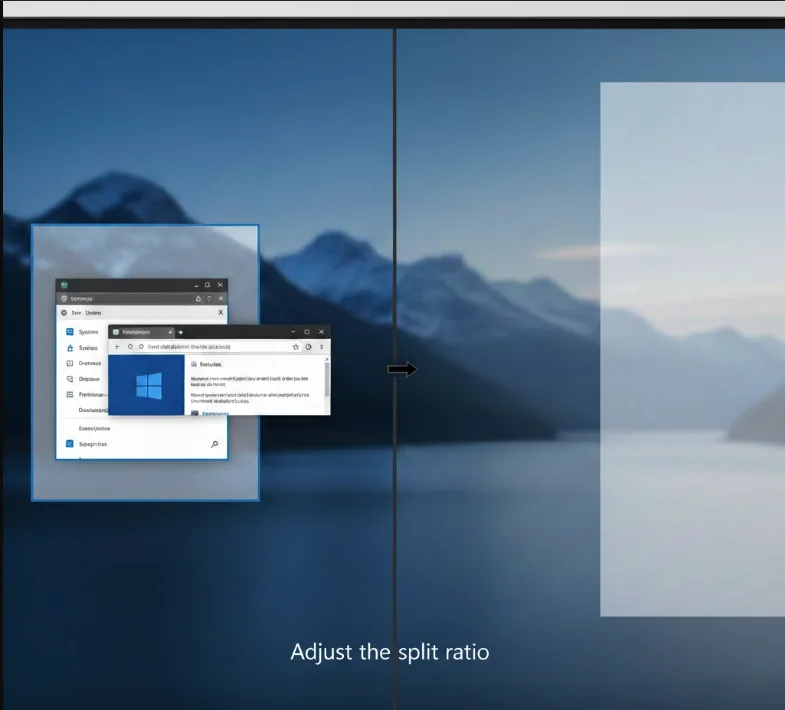
Adjust the split ratio
Hover your cursor over the dividing line between the two windows. After a second, a left-right arrow icon appears.
Click and drag this divider left or right to adjust how much space each window occupies. You can create any split ratio that suits your needs, not just 50-50.
This works for any combination of apps and browser tabs. You could use a text editor on the left and a browser for research on the right, watch a video while working in Google Docs, or compare two spreadsheets.
The feature works identically whether you’re using Chrome browser tabs or separate apps from the Chrome OS app drawer. For users who need even more workspace organization, Virtual Desks let you create separate workspaces for different tasks or projects.
Chrome OS includes many hidden features that boost productivity, and split-screen viewing ranks among the most practical for daily use.
FAQs
Can you split screen on a Chromebook?
Yes, Chromebooks support split-screen viewing. Drag any window to the left or right edge of your screen to snap it into half the display.
How do I open two tabs side-by-side on Chromebook?
Unmaximize your windows, then drag one browser tab to the left screen edge and another to the right. Both tabs snap into split-screen automatically.
Why won’t my Chromebook snap windows?
Your windows are likely maximized. Click the middle icon in the top-right corner to restore the window, then try dragging it to a screen edge.
Can I adjust the split screen size on Chromebook?
Yes, hover your cursor between the two windows until arrows appear, then drag left or right to change the split ratio between windows.
Does split screen work with Android apps on Chromebook?
Yes, you can use split screen with Android apps, Chrome browser tabs, or any combination of apps installed on your Chromebook.
