


If Safari doesn’t meet your needs—whether due to recurring problems, a preference for another mobile browser, or a desire to explore other options—you can switch to a third-party browser.
Since the release of iOS 14, iPhone users can choose an alternative to Apple’s default browser.
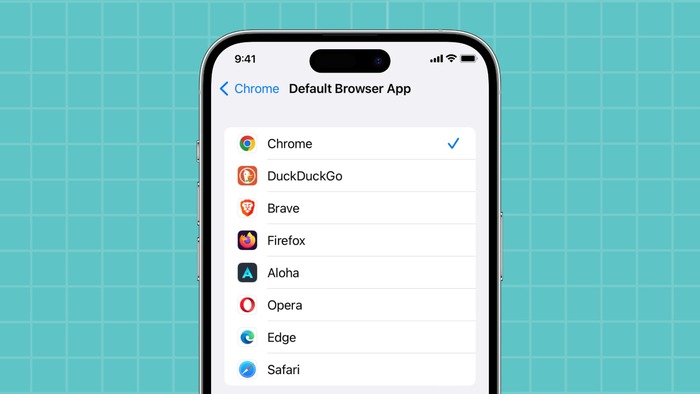
To change the default web browser on an iPhone, update iOS to prevent any compatibility issues. After updating, follow these steps:
- Install your preferred browser from the App Store.
- Open Settings.
- Scroll down and select the newly installed browser.
- Tap the option to set it as the default.
- Choose your preferred browser from the available list.
Your device designates the selected browser as the default once a checkmark appears beside it. Links will now open in this browser automatically.
When a newly installed app does not appear in the list of default browser options, it likely does not support that feature.
For example, some third-party web browsers may not be selectable as the default. However, you can still open and use them by tapping their icon.
These steps also apply when changing the default web browser on an iPad.
Can you uninstall the default browser from your device?
Completely removing the default browser isn’t possible since it’s a pre-installed app. However, using a different browser won’t be an issue.
To hide it from your home screen, press and hold its icon, tap “Remove App,” then select “Remove from Home Screen.” The app will remain accessible in the app library.
Restricting access to the default web browser on your device involves adjusting parental control settings. Follow these steps:
- Open Settings.
- Access the section for screen time or parental controls.
- Enable content and privacy restrictions.
- Enter the passcode when prompted.
- Find the list of allowed applications.
- Turn off the toggle for the web browser.
These steps remove the browser from the home screen and app list, preventing access. To restore it, repeat the process and switch the toggle back on.
How to Set Safari Back as Your Default Browser
Reverting Safari as your default browser on an iPhone is straightforward. First, check that Safari is visible in your settings, especially if you’ve hidden it using Screen Time restrictions.
Next, remove the third-party browser currently set as the default. Long-press the app icon and delete the app.
This action will automatically reset Safari as the default. Alternatively, follow these steps:
- Open the Settings app.
- Scroll to locate any compatible browser app.
- Tap on the app.
- Select Default Browser App.
- Choose “Safari” from the list.
If you can’t find the Default Browser App option, try opening the settings through a different browser app.
Once Safari is selected, it will become your iPhone’s default browser again.
