


Chromebook users who switch between software channels will appreciate upcoming changes to ChromeOS. Google is working on features that display channel information directly on the login screen and in the system tray. Currently, users must navigate through Settings to find which ChromeOS channel they’re running.
These updates matter for anyone who tests beta features or wants quick access to their channel status. The four available channels—Canary, Dev, Beta, and Stable—each offer different levels of software stability. Most users stick with Stable, but developers and tech enthusiasts often switch to preview upcoming features.
The new display options eliminate the need to dig through menus every time you want to confirm your current channel.
How To See ChromeOS Channel on a Chromebook?
You can check your ChromeOS channel through Settings or by using a simple Chrome URL. Both methods take just seconds.
Access Settings and Navigate to About ChromeOS
Click the Settings icon in your Chromebook’s system tray. Select “About ChromeOS” from the left sidebar menu.
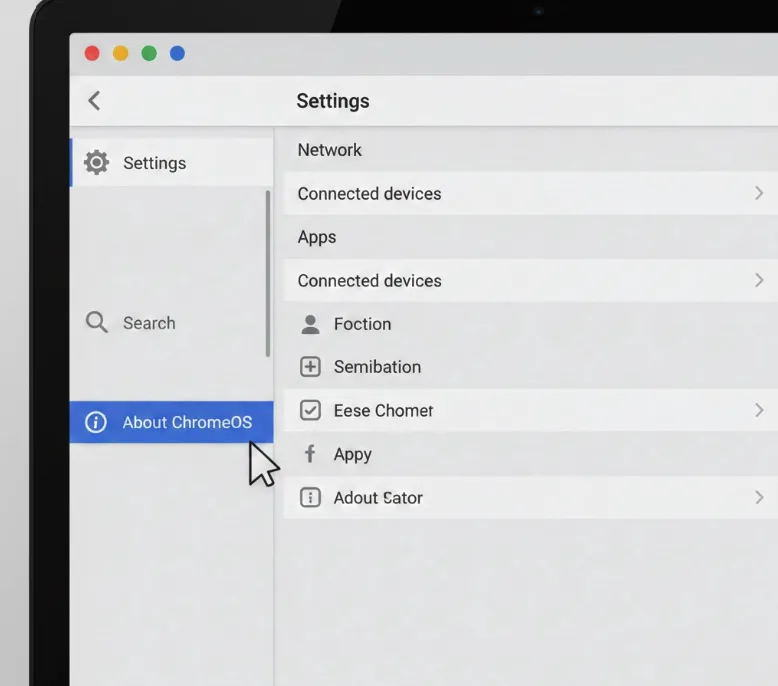
Open Additional Details
Click “Additional Details” on the About ChromeOS page. Your screen will display the channel information along with other system details.
You’ll see which channel you’re running—whether Canary, Dev, Beta, or Stable. This section also shows your ChromeOS version number and other technical specifications.
Use the Chrome Version Page
Type chrome://version/ in your browser’s address bar. Press Enter to load the page.
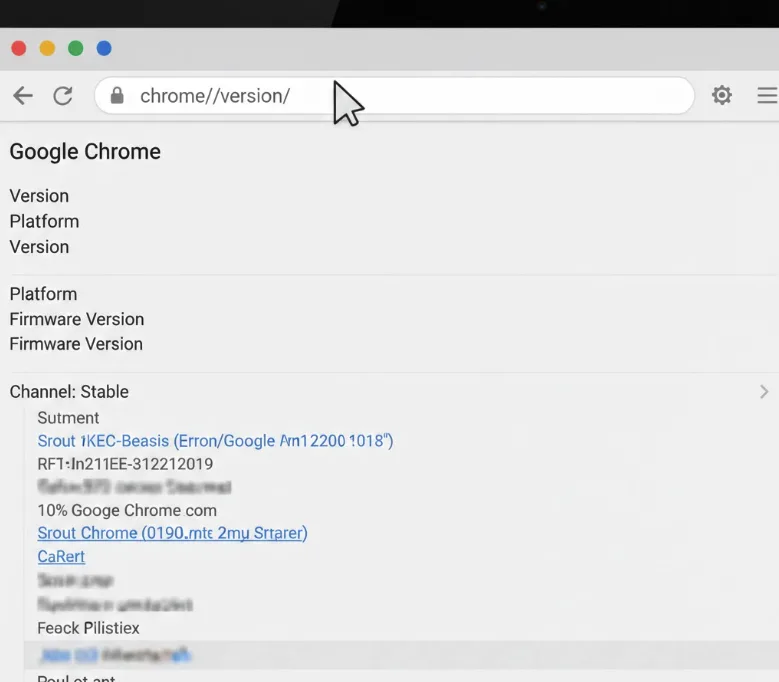
This method displays the same channel information without navigating through Settings. The version page shows your channel name at the top of the technical details.
Upcoming Features Will Make This Easier
Google is developing two new ways to see your ChromeOS channel. The login screen will display channel name and icon when you boot your Chromebook. On subsequent logins, only the icon appears until the next reboot.
The Quick View area in the system tray will also show channel and version information. This feature places an icon near the time, Wi-Fi, and battery indicators. Hovering over the icon reveals detailed version numbers.
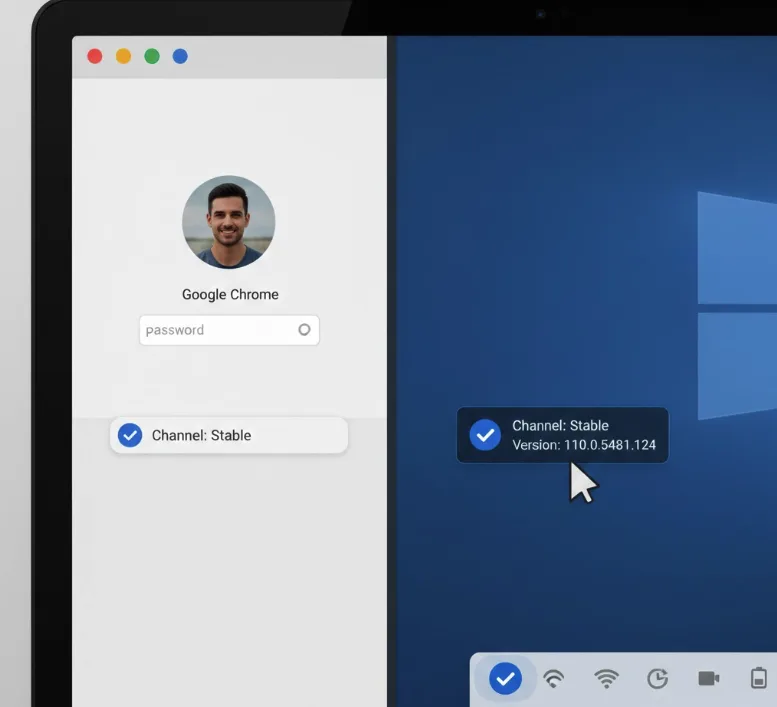
These changes help users who frequently switch between channels. You won’t need to open Settings or remember the chrome://version/ URL anymore. You can track ChromeOS versions across all channels using online resources if you want to compare version numbers.
FAQs
What are the four ChromeOS channels?
The four ChromeOS channels are Stable, Beta, Dev, and Canary. Stable offers the most reliable experience, while Canary contains experimental features that may cause issues.
Should I stay on the Stable channel?
Yes, you should stay on Stable unless you want to test pre-release features. Stable provides the most reliable performance and fewest bugs for daily use.
How do I change my ChromeOS channel?
Go to Settings, select About ChromeOS, click Additional Details, then choose “Change channel.” Select your preferred channel and restart your Chromebook to apply changes.
Will the new channel indicators work on all Chromebooks?
The new channel display features will roll out to all compatible Chromebooks once Google releases them. Older devices may need to update to the latest ChromeOS version.
Where will the channel icon appear in the system tray?
The channel icon will appear in the Quick View area near your time, notifications, Wi-Fi status, and battery indicator for easy access at any time.
