


Chromebooks let you set your wallpaper to rotate through an entire Google Photos album instead of displaying just one static image. This feature automatically cycles through your favorite album photos, giving your desktop a fresh look regularly.
You might want to use this if you have a collection of vacation photos, family pictures, or any album you’d like to see throughout your day. The feature works seamlessly with Material You, which adjusts your Chromebook’s accent colors to match each new wallpaper image.
Setting this up takes just a few clicks through the wallpaper settings menu.
How to set your Chromebook wallpaper to a Google Photos album
The process requires accessing your wallpaper settings and selecting an album from your Google Photos library. You can customize how often images change and whether ChromeOS automatically picks accent colors.
Access the wallpaper settings menu
Right-click anywhere on your Chromebook desktop. A menu appears with several options.
Click “Set wallpaper & style” to open the customization interface.
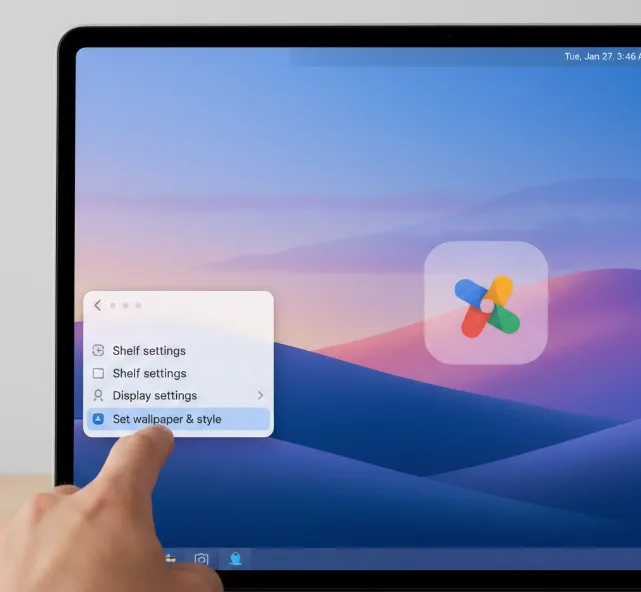
Open the wallpaper selection screen
You’ll see the current wallpaper settings and screen saver options.
Click on the displayed wallpaper thumbnail to access all available wallpaper choices.
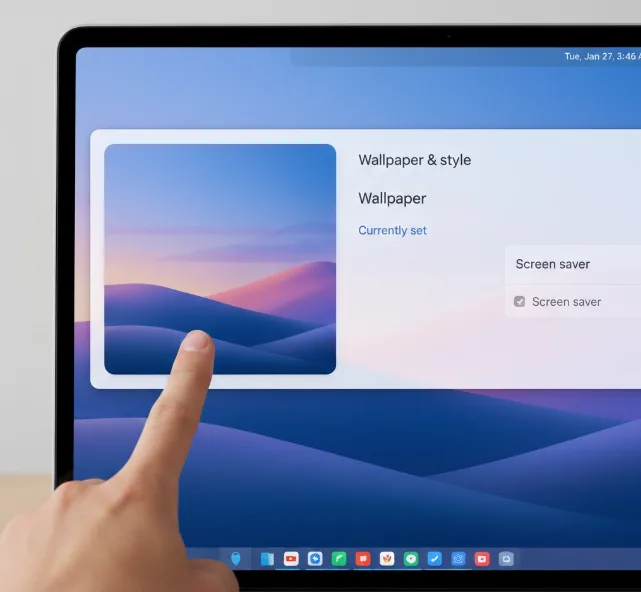
Navigate to Google Photos
The interface shows default wallpaper collections. Scroll through the options until you find “Google Photos” and click it.
Your entire Google Photos library appears by default.
Switch to album view
Look above the photo grid for a button labeled “Albums”. Click this to view your organized Google Photos albums instead of individual images.
All your created albums display here.
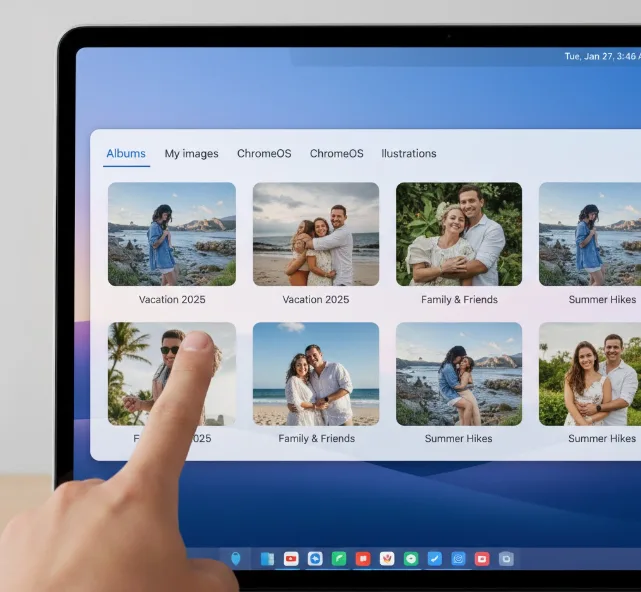
Select your preferred album
Browse through your available albums and click the one you want to use for your wallpaper rotation.
The album opens showing its contents and additional settings.
Configure rotation settings
Two options appear after selecting an album. The first lets you change the wallpaper daily with a different image from the album.
The second refreshes the current image immediately and picks a new one. Check or uncheck these based on your preference.
If you enable daily rotation, your Chromebook automatically displays a new photo from the selected album each day. You can manually refresh at any time using the second option.
Adjust Material You accent colors
Material You automatically generates four color schemes that complement your current wallpaper. ChromeOS presents these options below the wallpaper preview.
Click any of the four color sets to apply it.
If you prefer choosing your own colors instead, uncheck “Use color sets that match your wallpaper”. This gives you manual control over the accent colors used throughout your interface.
Close the settings window when finished. Your Chromebook wallpaper now rotates through your chosen album.
The Material You feature, available since ChromeOS 117, updates accent colors automatically when your wallpaper changes. This keeps your interface coordinated with your current background image.
FAQs
Can I use multiple Google Photos albums for my Chromebook wallpaper?
No, you can only select one album at a time for wallpaper rotation. Switch albums anytime through the wallpaper settings menu.
How often does the wallpaper change when using a Google Photos album?
The wallpaper changes daily by default if you enable that option. You can manually refresh it anytime for an immediate change.
Do I need internet access for the Google Photos album wallpaper to work?
Yes, your Chromebook needs internet access to pull images from Google Photos. The images aren’t stored locally on your device.
Can I disable the automatic accent color changes with Material You?
Yes, uncheck “Use color sets that match your wallpaper” in the settings. This lets you manually select and keep specific accent colors.
Will using a Google Photos album drain my Chromebook’s battery faster?
No, the feature doesn’t significantly impact battery life. Images download once daily and don’t continuously sync in the background.
