


Your iPhone screen rotates automatically when you tilt the device. But what if you want to change the orientation without moving it? Apple’s AssistiveTouch feature makes this possible. Whether your phone sits on a stand or you find it inconvenient to tilt the device, you can rotate the screen with just a few taps. This guide walks you through exactly how to do it.
How to Rotate Screen on iPhone?
Step 1: Open Settings
Launch the Settings app on your iPhone and scroll down to find the Accessibility section. Tap it to open.
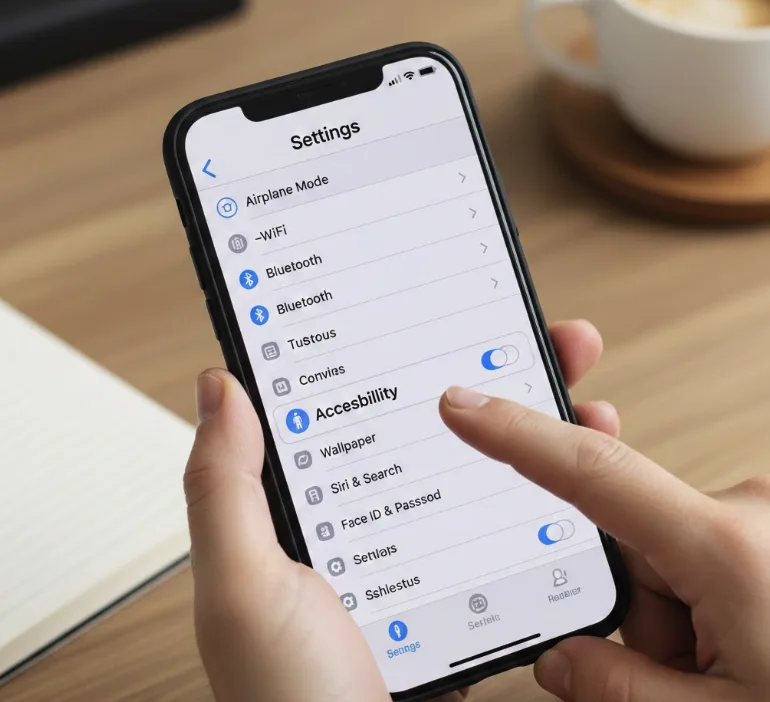
Step 2: Enable AssistiveTouch
Inside Accessibility, tap Touch, then select AssistiveTouch. Toggle it on.
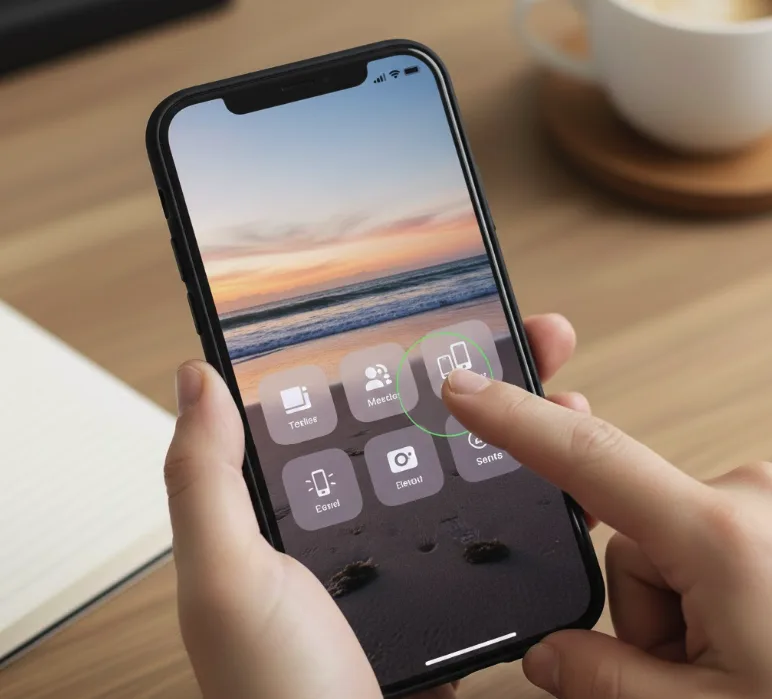
A floating button appears on your screen. This is your AssistiveTouch overlay, and it stays visible across all apps.
Step 3: Rotate the Screen
Open the app where you want to change the orientation. Tap the AssistiveTouch button, select Device from the menu, then tap Rotate Screen. Choose from four orientation options.
To switch back, repeat the same steps and pick a different direction.
Step 4 (Optional): Add a Shortcut
If you rotate the screen often, set up a shortcut. Go to Settings, then Accessibility, then Touch, then AssistiveTouch. Under Custom Actions, assign Rotate Screen to a single tap, double tap, or long press. This saves you from digging through menus each time.
The same concept applies if you want to rotate your screen on a Chromebook — each platform has its own built-in method for managing display orientation.
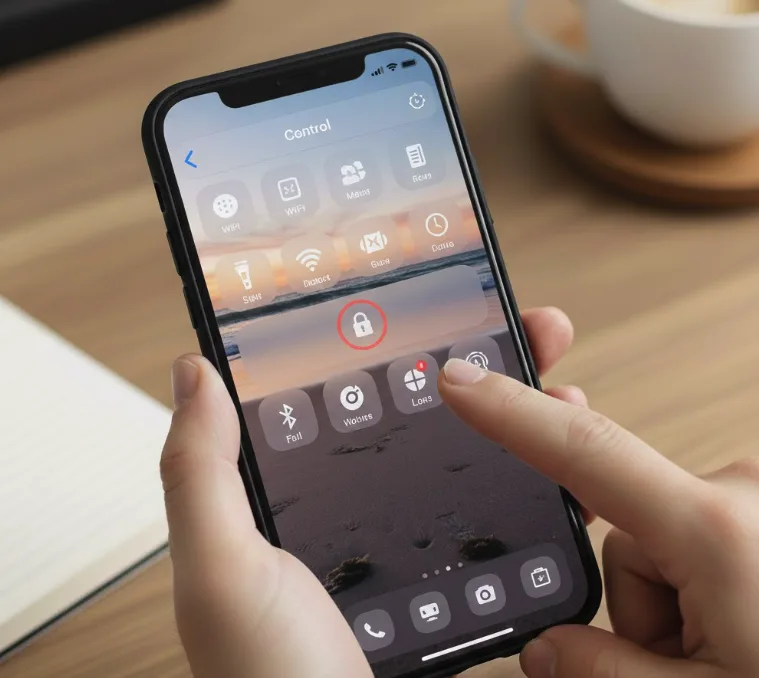
Lock Screen Rotation
If you want the screen to stay fixed in one position, use the rotation lock. Swipe down from the top-right corner of your screen to open Control Center. Tap the lock icon with a circular arrow. The screen stays in its current orientation until you turn the lock off.
If you work across multiple devices and screens, learning how to view apps side by side on a Chromebook follows similar display-control logic and can improve how you manage your workspace.
FAQs
How do I rotate my iPhone screen without tilting the phone?
Enable AssistiveTouch under Settings, then Accessibility, then Touch. Tap the floating button, select Device, then Rotate Screen, and choose your preferred orientation.
Why won’t my iPhone screen rotate?
Screen rotation lock is likely on. Open Control Center and tap the rotation lock icon to turn it off.
Where is AssistiveTouch on iPhone?
Go to Settings, then Accessibility, then Touch, then AssistiveTouch. Toggle it on to activate the floating on-screen button.
Can I lock my iPhone screen in landscape mode?
Yes. Rotate the screen to landscape using AssistiveTouch, then enable rotation lock from Control Center to keep it fixed. For users who regularly use a Chromebook with an iPhone, managing display settings across both devices works in a similar way.
Does rotating the screen without moving the iPhone work on all apps?
Most apps support it, but some are designed for portrait only and won’t respond to manual rotation through AssistiveTouch. If you also use a laptop alongside your iPhone, you can transfer photos from your iPhone to a Chromebook without any extra apps.
