

Close Menu
    Facebook X (Twitter) Instagram
    • About
    • Privacy Policy
    • Write For Us
    • Newsletter
    • Contact
    Instagram
    About ChromebooksAbout Chromebooks
    • Linux
    • News
      • Stats
      • Reviews
    • AI
    • How to
      • DevOps
      • IP Address
    • Apps
    • Business
    • Q&A
      • Opinion
    • Gaming
      • Google Games
    • Blog
    • Podcast
    • Contact
    About ChromebooksAbout Chromebooks
    How to

    How To Rotate Screen On Chromebook?

    Dominic ReignsBy Dominic ReignsNovember 5, 2024Updated:August 28, 2025No Comments2 Mins Read

    Do you need to switch your Chromebook screen to a vertical view? It’s easy to rotate your screen with a simple keyboard shortcut or by adjusting a few settings.

    Here’s a guide to rotating your Chromebook screen using either method.

    How Can I Rotate the Screen Using a Keyboard Shortcut?

    Press and Hold Ctrl + Shift + Refresh

    Locate the Ctrl and Shift keys on each side of the keyboard and the Refresh key (a circular arrow above the numbers 3 and 4).
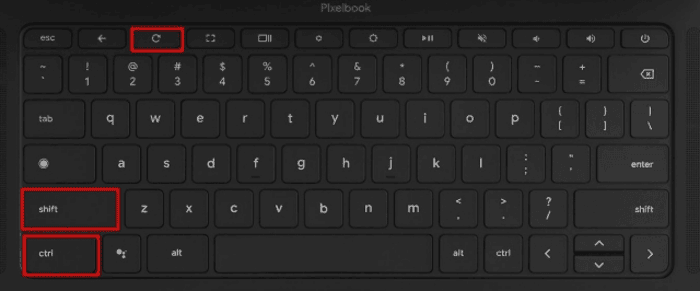
    Press and Hold Ctrl + Shift + Refresh

    Confirm the Rotation

    After pressing the keys, a prompt will appear asking you to confirm the screen rotation. Click Continue, and the screen will rotate 90 degrees clockwise.

    Note: If the shortcut doesn’t work, enable function keys by going to Settings > Device > Keyboard and turning on Treat top-row as function keys.

    How Can I Change the Screen Orientation in Settings?

    • Open Chromebook Settings: Access Settings by clicking the display time in the corner and selecting the gear icon.
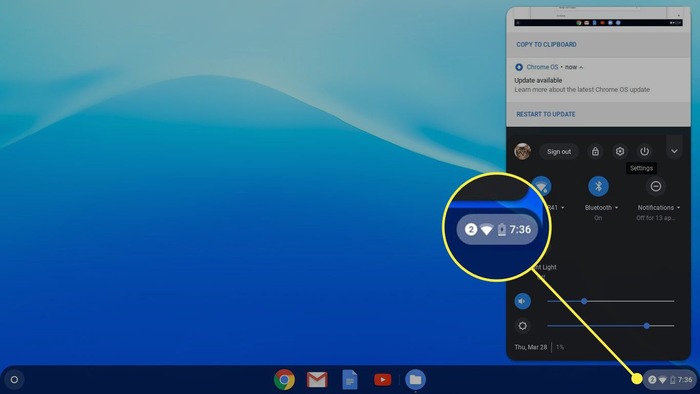
    Open Chromebook Settings
    • Go to Device Options: In the menu on the left, click Device (marked by a laptop icon).
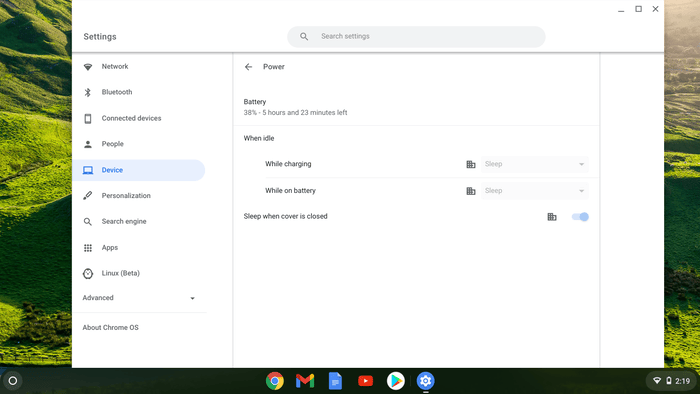
    Go to Device Options
    • Select Display Settings: Choose Displays from the Device menu on the right side.
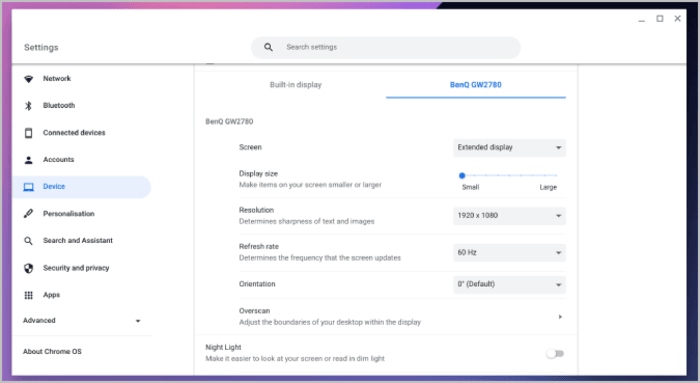
    Select Display Settings
    • Choose a Screen Rotation: Under Orientation, use the dropdown to select your preferred screen rotation.
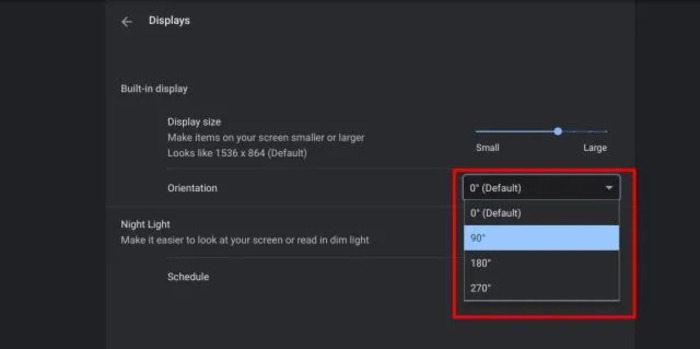
    Choose a Screen Rotation

    Keep in Mind: Rotating the screen also changes the way your trackpad works, and it may affect touchscreen response if you’re using a touchscreen Chromebook.

    The screen rotation setting will stay in place even after restarting, but you can press Ctrl + Shift + Refresh anytime to reset the screen or capture full webpage views in your new orientation.

    Dominic Reigns
    • Website
    • Instagram

    As a senior analyst, I benchmark and review gadgets and PC components, including desktop processors, GPUs, monitors, and storage solutions on Aboutchromebooks.com. Outside of work, I enjoy skating and putting my culinary training to use by cooking for friends.

    Best of AI

    Google Bard Statistics And User Data 2026

    April 10, 2026

    Azure OpenAI Explained

    April 10, 2026

    Whisper AI Review 2026

    April 9, 2026

    Openai Codex -The AI Code Editor

    April 9, 2026

    Character AI Features And Reviews

    April 8, 2026
    Trending Stats

    Chromebook Upgrade VS Replacement Statistics 2026

    April 15, 2026

    Average RAM Usage On ChromeOS Statistics 2026

    April 14, 2026

    ChromeOS Security Incidents VS Other OS Statistics 2026

    April 13, 2026

    Chrome Lighthouse Statistics 2026

    March 26, 2026

    Chrome Incognito Mode Statistics 2026

    February 10, 2026
    • About
    • Tech Guest Post
    • Contact
    • Privacy Policy
    • Sitemap
    © 2026 About Chrome Books. All rights reserved.

    Type above and press Enter to search. Press Esc to cancel.