


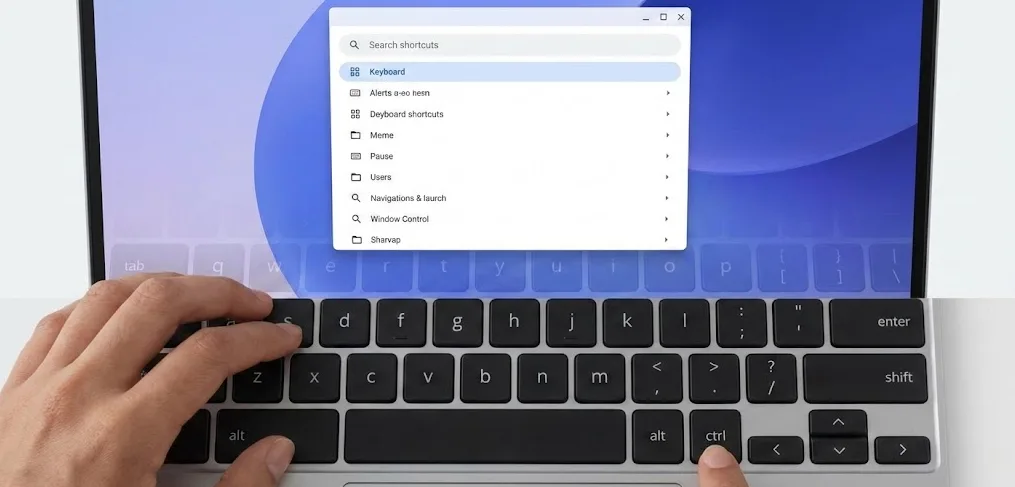
Google recently changed the keyboard shortcuts display on Chrome OS, replacing the visual overlay with a searchable interface. The new version appears when you press ctrl + alt + / on your Chromebook.
The original overlay showed a virtual keyboard that changed dynamically when you pressed modifier keys like shift, ctrl, or alt. While the new searchable format helps beginners find specific shortcuts, many users prefer the visual approach.
You can still access the old keyboard shortcuts overlay through a direct URL or by adjusting Chrome OS settings. These methods work on all current Chromebooks running Chrome OS.
How to get the old on-screen Chrome OS keyboard shortcuts back?
The old keyboard shortcuts interface remains accessible through two methods. You can use a direct browser URL for quick access or change a system setting for permanent restoration.
Access the overlay directly through Chrome
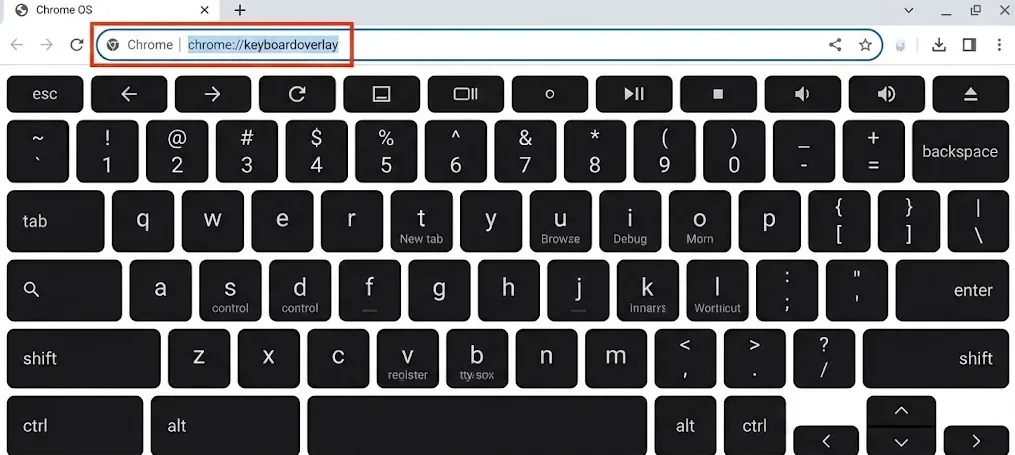
Type chrome://keyboardoverlay in your browser’s address bar and press Enter. The original keyboard shortcuts display appears immediately, showing the full virtual keyboard layout.
The overlay includes all standard shortcuts and updates dynamically when you press modifier keys. You can test this by holding shift, ctrl, or alt while the overlay is open.
Bookmark this URL if you want quick access without typing it repeatedly. The bookmark works like any other saved page in Chrome.
Enable the overlay permanently through flags
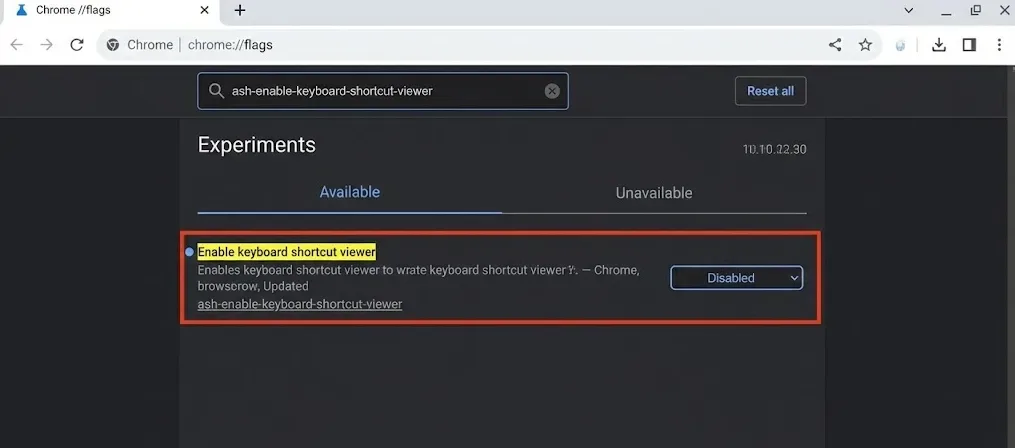
Navigate to chrome://flags#ash-enable-keyboard-shortcut-viewer in your browser. This takes you directly to the relevant flag in Chrome OS settings.
Click the dropdown menu next to the flag name and select “Disabled”. This tells Chrome OS to use the original shortcuts viewer instead of the new version.
Press the blue “Relaunch” button that appears at the bottom of your screen. Chrome restarts and applies the change automatically.
After restarting, pressing ctrl + alt + / shows the old keyboard overlay by default. The setting persists across restarts and updates.
Switch back to the new interface
Return to chrome://flags#ash-enable-keyboard-shortcut-viewer if you want the searchable interface again. Change the setting to “Enabled” or “Default” in the dropdown menu.
Relaunch Chrome when prompted. The new shortcuts viewer replaces the old overlay immediately.
Chrome flags let you customize many hidden Chrome OS features beyond just keyboard shortcuts. You can also modify specific keyboard shortcuts to match your workflow preferences.
The keyboard overlay works alongside other Chrome OS productivity tools. Try combining it with window management shortcuts to speed up your workflow.
Learning how to view keyboard shortcuts helps you discover time-saving combinations you might not know exist. The visual overlay makes it easier to memorize frequently used shortcuts.
FAQs
Will the old keyboard shortcuts overlay work on all Chromebooks?
Yes, the chrome://keyboardoverlay URL works on any Chromebook running current Chrome OS versions. The flag method also functions across all devices.
Does disabling the new viewer affect other Chrome OS settings?
No, changing this flag only affects the keyboard shortcuts display. All other Chrome OS features and settings remain unchanged.
Can I use both the old and new shortcuts viewers?
You can switch between them using the flag setting, but only one displays when you press ctrl + alt + /. Bookmark the direct URL for quick access to the old version.
Will Chrome OS remove the old keyboard overlay permanently?
Google may remove it in future updates since it exists as an experimental feature. Using Chrome flags always carries this risk with deprecated features.
Does the old overlay show custom keyboard shortcuts?
No, the old overlay displays only default Chrome OS shortcuts. Custom shortcuts appear in Settings under Device and Keyboard.
