

Close Menu
    Facebook X (Twitter) Instagram
    • About
    • Privacy Policy
    • Write For Us
    • Newsletter
    • Contact
    Instagram
    About ChromebooksAbout Chromebooks
    • News
      • Stats
    • AI
    • How to
      • DevOps
      • IP Address
    • Apps
    • Business
    • Q&A
      • Opinion
    • Gaming
      • Google Games
    • Blog
    • Podcast
    • Contact
    About ChromebooksAbout Chromebooks
    News

    Proposed Chrome OS 78 change will use the Files app to restore Linux containers on Chromebooks

    Kevin TofelBy Kevin TofelJune 13, 2019Updated:September 22, 2025No Comments2 Mins Read
    Share
    Facebook Twitter LinkedIn Pinterest

    Chrome OS 74 brought the ability to backup and restore Linux containers on a Chromebook. It’s handy and it works. However, to use it, you have to go to the Linux settings in Chrome OS, which isn’t ideal.

    Linux backup and restore in Chrome OS

    That may be changing in Chrome OS 78 with a more intuitive place to find previously backed up containers and then restore them.

    I noticed a bug report that’s currently tagged with a Chrome OS 78 target and it suggests using the native Files app for the Linux container restore process:

    Use file format chromeos-linux-YYYY-MM-DD.tini for crostini backup images.

    Associate this file type in FilesApp with a dedicated icon and action to start the restore process.

    Essentially, this sounds similar to the method used to install Debian packages in the Files app: For that, you right click on the package and see an “Install with Linux” option.

    The difference here is that an option would be made available either in a contextual menu or the “dedicated icon” attached to the container backup so you can begin your restore.
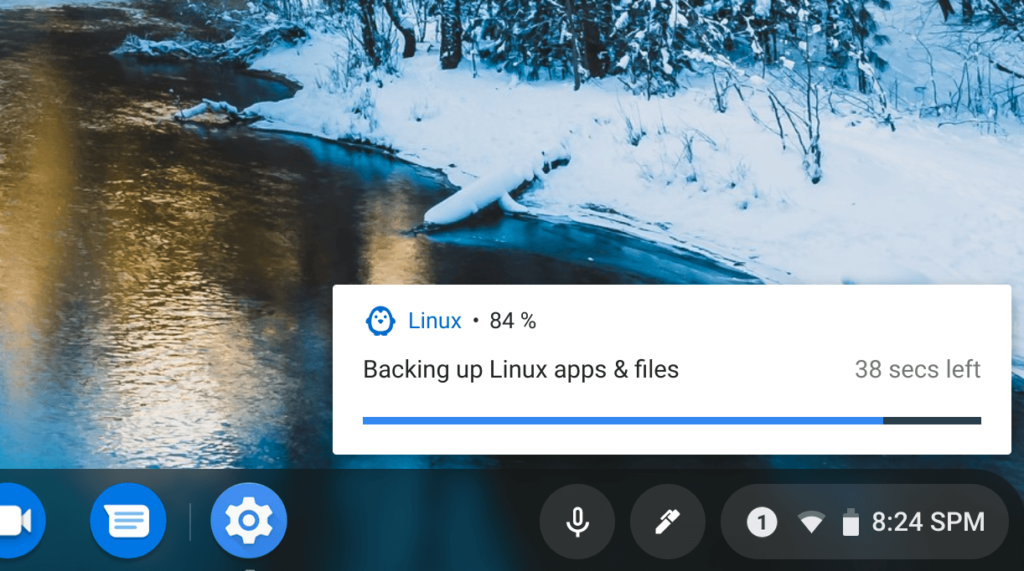
    There are two other bugs and changes that may hold this functionality up at the moment; the developer suggests waiting for mounting .tgz files and viewing their contents first. So it’s worth keeping an eye on progress for those efforts – which will also be handy features – before this improved user experience for container restorations is implemented.

    Of course, it may never be implemented, which is part of the challenge when viewing Chrome OS bugs and feature requests. Unless there’s a technical reason that holds this up, however, I’d expect it to move along and eventually arrive in the Stable Channel. Anything Google can do to improve the Linux experience on a Chromebook is a win in my book.

    Backup Chrome OS Chrome OS 74 Chrome OS 78 Crostini Files app Linux Project Crostini Restore
    Share. Facebook Twitter Pinterest LinkedIn Tumblr
    Kevin Tofel
    • Website

    After spending 15 years in IT at Fortune 100 companies, Kevin turned a hobby into a career and began covering mobile technology in 2003. He writes daily on the industry and has co-hosted the weekly MobileTechRoundup podcast since 2006. His writing has appeared in print (The New York Times, PC Magazine and PC World) and he has been featured on NBC News in Philadelphia.

    Related Posts

    Auto DraftStarbucks Partner Hours: Manual to Managing Work Schedules

    January 26, 2026

    Anon Vault For Private Cloud Storage

    January 23, 2026

    GitHub Copilot Statistics [2026]

    January 7, 2026

    Comments are closed.

    Best of AI

    VALL-E Statistics 2026

    January 28, 2026

    StarCoder Statistics And User Trends 2026

    January 27, 2026

    BLIP-2 Statistics 2026

    January 23, 2026

    AI mode Usage Statistics 2026

    January 22, 2026

    Code Llama Statistics 2026

    January 22, 2026
    Trending Stats

    Most searched keywords on Google

    January 27, 2026

    Ahrefs Search Engine Statistics 2026

    January 19, 2026

    Pay Per Click Advertising Statistics 2026

    January 16, 2026

    Google Ads Revenue 2025

    November 29, 2025

    Statistical Analysis Programs for Chromebook 2025

    November 22, 2025
    • About
    • Write For Us
    • Contact
    • Privacy Policy
    • Sitemap
    © 2026 About Chrome Books. All rights reserved.

    Type above and press Enter to search. Press Esc to cancel.