

Close Menu
    Facebook X (Twitter) Instagram
    • About
    • Privacy Policy
    • Write For Us
    • Newsletter
    • Contact
    Instagram
    About ChromebooksAbout Chromebooks
    • Linux
    • News
      • Stats
      • Reviews
    • AI
    • How to
      • DevOps
      • IP Address
    • Apps
    • Business
    • Q&A
      • Opinion
    • Gaming
      • Google Games
    • Blog
    • Podcast
    • Contact
    About ChromebooksAbout Chromebooks
    Q&A

    How To Allow Pop-Ups On iPhone?

    Dominic ReignsBy Dominic ReignsApril 29, 2025Updated:June 27, 2025No Comments2 Mins Read
    • You can enable temporary windows on your mobile device using default or alternative browsers.

    • To enable temporary windows in the default browser, navigate to the browser settings in the device’s menu.

    • In the alternative browser, access the menu to adjust content preferences and manage temporary windows.

    Although many users find temporary windows disruptive, some legitimate websites use them for essential functions, especially on sites where you need to turn on JavaScript on iPhone for interactive elements to work properly.

    For instance, specific platforms use them for customer support interactions, which some browsers might block by default.

    Your device’s browsing tools prevent temporary windows by default, but the default and alternative browsers provide options to modify this setting.

    Here’s how to enable temporary windows in your mobile device’s default and alternative browsers.

    How to Enable Pop-ups in Safari on Your iPhone
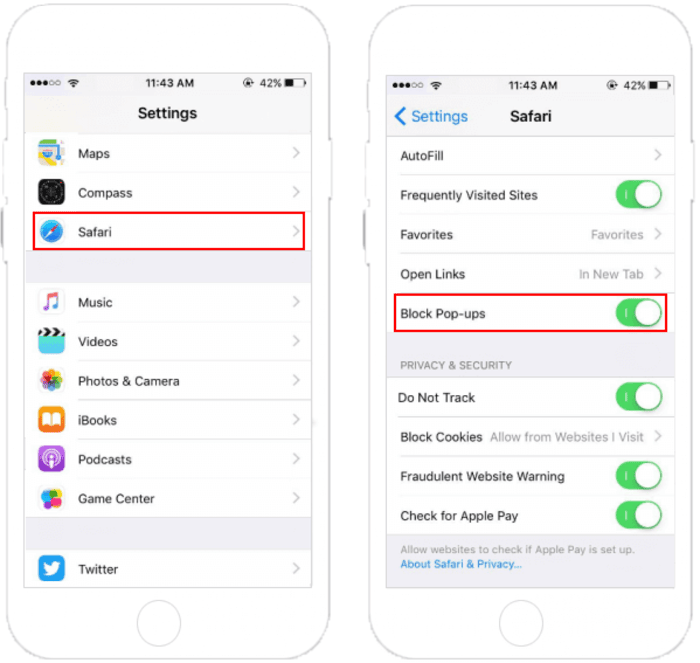
    How to Enable Pop-ups in Safari on Your iPhone

    Safari is your iPhone’s default browser; you’ll use the Settings app to adjust its settings. For other quick tweaks like adding a bookmark on iPhone, the process is just as simple.

    1. Access the Settings app, scroll down, and choose Safari.
    2. Under the General section, switch off the setting that blocks pop-ups, which will deactivate the option.

    Steps to Allow Pop-ups on an iPhone Using Chrome

    1. Launch Chrome and tap the menu icon at the bottom right.
    2. Go to the Settings section.
    3. Scroll down and select the Content Settings option.
    4. Disable the pop-up blocker by turning off the toggle next to “Block Pop-ups.”
    5. Save your changes by tapping Done in the top-right corner.
    Dominic Reigns
    • Website
    • Instagram

    As a senior analyst, I benchmark and review gadgets and PC components, including desktop processors, GPUs, monitors, and storage solutions on Aboutchromebooks.com. Outside of work, I enjoy skating and putting my culinary training to use by cooking for friends.

    Best of AI

    Imagen AI: The Best Photo Editing AI In 2026

    April 21, 2026

    Alphafold AI from Google Deepmind 2026

    April 21, 2026

    Agentic AI Pindrop Anonybit: The Future of Secure Identity Verification

    April 17, 2026

    Google Bard Statistics And User Data 2026

    April 10, 2026

    Azure OpenAI Explained

    April 10, 2026
    Trending Stats

    ChromeOS Accessibility Feature Usage Statistics 2026

    April 28, 2026

    Chromebook Resale Value Depreciation Statistics 2026

    April 27, 2026

    ChromeOS App Ecosystem Growth Statistics 2026

    April 25, 2026

    Chromebook vs Tablet Usage In Education Statistics 2026

    April 23, 2026

    ChromeOS Update Frequency Statistics 2026

    April 22, 2026
    • About
    • Tech Guest Post
    • Contact
    • Privacy Policy
    • Sitemap
    © 2026 About Chrome Books. All rights reserved.

    Type above and press Enter to search. Press Esc to cancel.