


JavaScript is a scripting language that is crucial in enabling interactive website features.
If it is turned off on an iPhone, web pages may not display correctly in Safari, leading to missing elements or broken functionality.
To ensure a seamless browsing experience, it is essential to keep JavaScript enabled.
Steps to Activate JavaScript on an iPhone
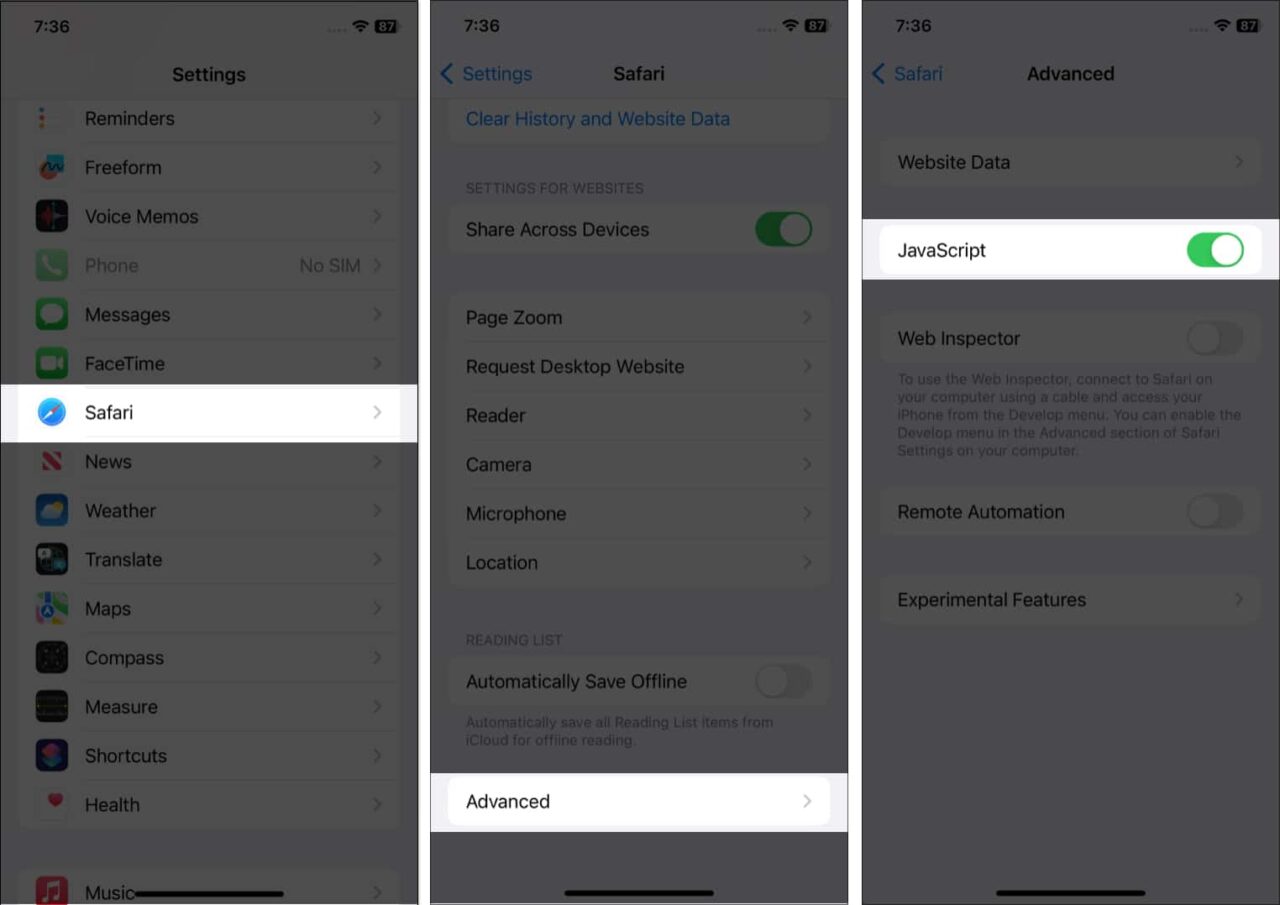
If you find that websites are not functioning as expected, follow these instructions to turn on JavaScript on your iPhone:
- Open the Settings application.
- Scroll down and tap on Safari.
- Keep scrolling until you find the Advanced option.
- Tap on Advanced and switch the JavaScript toggle to the “on” position.
Once these steps are completed, JavaScript will be active, allowing websites to function correctly.
How to Enable Both JavaScript and Cookies on an iPhone
For an optimized web experience, you may also need to enable cookies and JavaScript. Here’s how you can do both:
| Feature | Steps to Enable |
| JavaScript | Open Settings > Tap Safari > Scroll to Advanced > Switch on JavaScript |
| Cookies | Open Settings > Tap Safari > Go to Privacy & Security > Disable “Block All Cookies” & “Prevent Cross-Site Tracking” |
Cookies help websites store session data, while JavaScript ensures dynamic content functions properly.
Enabling JavaScript on Various Browsers
Different browsers have different ways of handling JavaScript settings. Below are instructions for enabling JavaScript in popular browsers.
Google Chrome
- Open the Chrome app.
- Tap the three-dot menu in the top-right corner.
- Choose Settings from the dropdown.
- Scroll to Privacy and Security.
- Select Site Settings.
- Locate JavaScript and ensure it is switched on.
Activating JavaScript in Chrome will allow web pages to load dynamic and interactive elements properly.
Activating JavaScript on an Android Device
If you use an Android phone and need to turn on JavaScript, follow these steps:
- Open the browser’s Settings.
- Go to Privacy and Security.
- Select Site Settings.
- Look for JavaScript and toggle it to “on.”
Once enabled, web pages on your Android device will function without issues related to disabled scripts.

Mozilla Firefox
- Open Firefox and tap on the menu icon (three horizontal lines).
- Select Settings.
- Go to Privacy & Security.
- Scroll down to Permissions.
- Enable JavaScript by selecting the appropriate checkbox.
Turning JavaScript on in Firefox will allow the browser to execute scripts essential for modern website functionality.
Microsoft Edge
- Click the three-dot menu at the upper-right corner.
- Choose Settings from the list.
- Select Cookies and Site Permissions.
- Find the JavaScript option.
- Toggle the switch to “Allowed.”
After activating JavaScript in Edge, websites will load and function smoothly with all interactive features.
Why JavaScript May Not Work in an HTML Document
There are several reasons why JavaScript might not execute correctly within an HTML page. Below are some common causes and their possible solutions:
| Issue | Possible Cause |
| Incorrect Code | Syntax errors within JavaScript functions |
| Improper Placement | The <script> tag is inserted in the wrong section of the HTML file |
| Browser Restrictions | Specific browsers disable JavaScript due to security settings |
| Extensions Conflicts | Installed add-ons might block JavaScript execution |
Checking for mistakes and adjusting the script’s placement within the HTML document can often resolve these problems.
How to Troubleshoot JavaScript Errors in Chrome?
If you encounter JavaScript-related issues in Chrome, try the following troubleshooting steps:
- Double-check the JavaScript syntax in your code.
- Open the Developer Console in Chrome by pressing Ctrl + Shift + J (Windows) or Cmd + Option + J (Mac).
- Look for error messages that indicate script failures.
- Ensure Chrome is updated to the latest version.
- Clear browsing data, including cached files and cookies.
- Disable browser extensions that might be interfering with JavaScript execution.
- Search online forums for similar issues and their fixes.
Applying these steps should help diagnose and resolve most JavaScript-related errors in Chrome.
Final Thoughts
JavaScript is an essential tool for modern web browsing. If disabled, many websites will not function properly, causing issues with dynamic elements, forms, and other interactive features.
By following the instructions outlined above, you can quickly enable JavaScript on your iPhone and other devices, ensuring an improved browsing experience across various platforms.
Keeping JavaScript active will allow you to use all online functionalities without disruptions fully.
