


Knowing how to check the battery health of a Chromebook helps you monitor your device’s performance over time. Battery health shows how much charge your battery can hold compared to when it was new.
This information matters whether you’ve owned your device for years or plan to buy a used Chromebook. A battery at 80% health holds only 80% of its original capacity. You can access this data through terminal commands or the built-in Diagnostics app. Both methods take just a few minutes and provide accurate readings of your battery’s condition and cycle count.
How to check the battery health of a Chromebook?
You can monitor your battery’s condition using two straightforward methods. The crosh terminal provides detailed health data and cycle counts. The Diagnostics app offers a simpler interface with the same essential information.
Open the crosh terminal
Press Ctrl + Alt + T on your keyboard simultaneously. A new browser tab opens with a black terminal window displaying the crosh prompt. This Chrome Shell terminal gives you direct access to system commands.
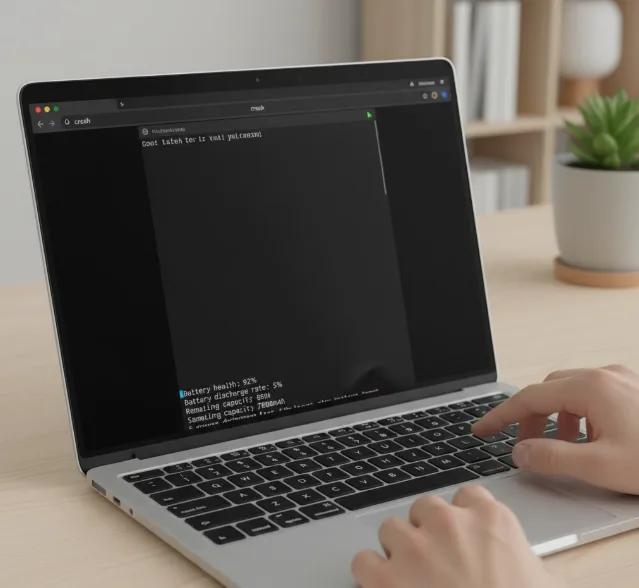
Run the battery test command
Type battery_test and press Enter. The terminal displays your battery health as a percentage. A reading of 100% means your battery accepts its full designed capacity.
This command also runs a five-minute discharge test automatically. You can specify a different duration by adding the number of seconds after the command. Without a specified time, the test runs for 300 seconds.
Check your battery cycle count
Type battery_firmware info and press Enter while still in the crosh terminal. Look for the cycle count in the displayed information. Most Chromebook batteries handle 300 to 500 cycles before capacity degrades noticeably.
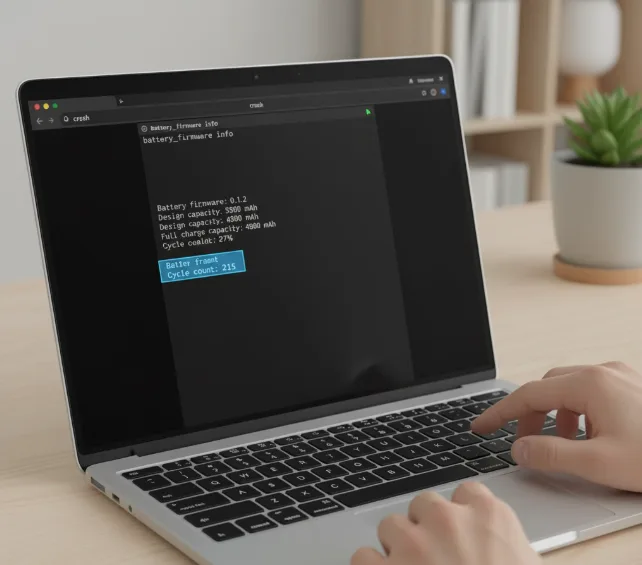
Each cycle represents one complete charge from 0% to 100%. Average Chromebook battery life varies by model, but tracking cycles helps predict when replacement becomes necessary.
Use the alternative command if needed
Some devices don’t support the battery_firmware info command. Type chrome://system in your browser’s address bar instead. Find and expand the power_supply_sysfs field to see cycle count and additional battery details.
Access the Diagnostics app
Open your Chromebook’s app Launcher and search for “Diagnostics.” Click the app to view battery information through a visual interface. This method works well if you prefer not to use terminal commands.
The app displays battery health, cycle count, and current charge status. It also shows CPU and memory information if you need to check other hardware components.
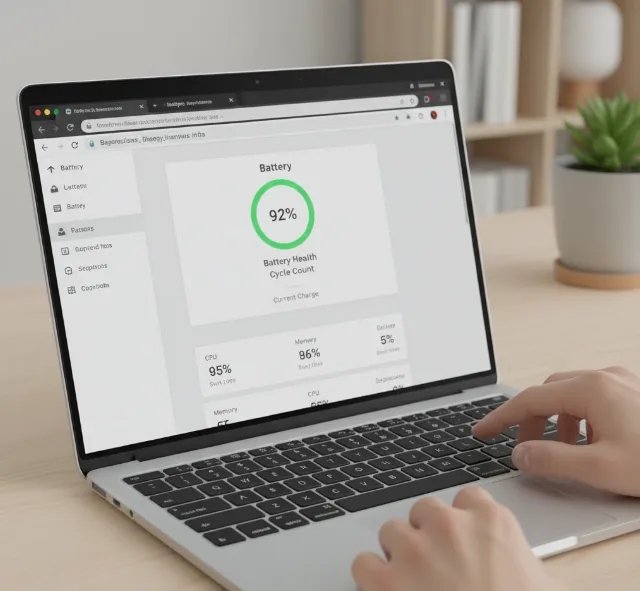
When buying a used Chromebook, ask sellers to run these commands and share screenshots. Batteries with cycle counts above 200-250 may have reduced capacity. A health percentage below 80% means the device holds significantly less charge than when new.
FAQs
What does 80% battery health mean?
Your battery holds 80% of its original capacity. If your Chromebook originally lasted 10 hours, you now get around 8 hours per charge.
How many battery cycles should I expect?
Most Chromebook batteries last 300 to 500 cycles. After this range, capacity degradation becomes more noticeable and affects daily usage.
Can I improve my battery health percentage?
Battery health naturally decreases with use. You can’t restore it, but proper charging habits slow degradation and extend overall lifespan.
Is battery health important when buying used?
Yes. High cycle counts and low health percentages indicate reduced battery life. Check these metrics before purchasing to avoid devices needing immediate battery replacement.
What if battery_firmware info doesn’t work?
Use the chrome://system method or open the Diagnostics app instead. Both alternatives provide the same cycle count and health information.
