

Close Menu
    Facebook X (Twitter) Instagram
    • About
    • Privacy Policy
    • Write For Us
    • Newsletter
    • Contact
    Instagram
    About ChromebooksAbout Chromebooks
    • Linux
    • News
      • Stats
      • Reviews
    • AI
    • How to
      • DevOps
      • IP Address
    • Apps
    • Business
    • Q&A
      • Opinion
    • Gaming
      • Google Games
    • Blog
    • Podcast
    • Contact
    About ChromebooksAbout Chromebooks
    News

    Check out the new Chromebook Diagnostics app in Chrome OS 89

    Kevin TofelBy Kevin TofelMarch 18, 2021Updated:September 9, 2025No Comments2 Mins Read

    Although it’s not completed yet, the Chromebook Diagnostics app in Chrome OS 89 is much improved. This is still an experimental feature, so you’ll have to enable a flag to see it. Once you do, you’ll see different functionality and a nicer user experience than when I last looked at it.

    Gaining access to the app, which includes a dedicated Diagnostics icon in your Launcher, navigate to chrome://flags#diagnostics-app, enable it, and restart your browser.

    Once you do, you can search for the app, open it, and see information about your Chromebook’s battery, CPU, and memory. You’ll also find your Chromebook model, the board name, and Chrome OS version at the top of the application.

    Here’s a view from my Acer Chromebook Spin 13, which indicates that after nearly 18 months of use, my battery has lost some of its charging capacity. That’s a little concerning but expected given how much I use this device.
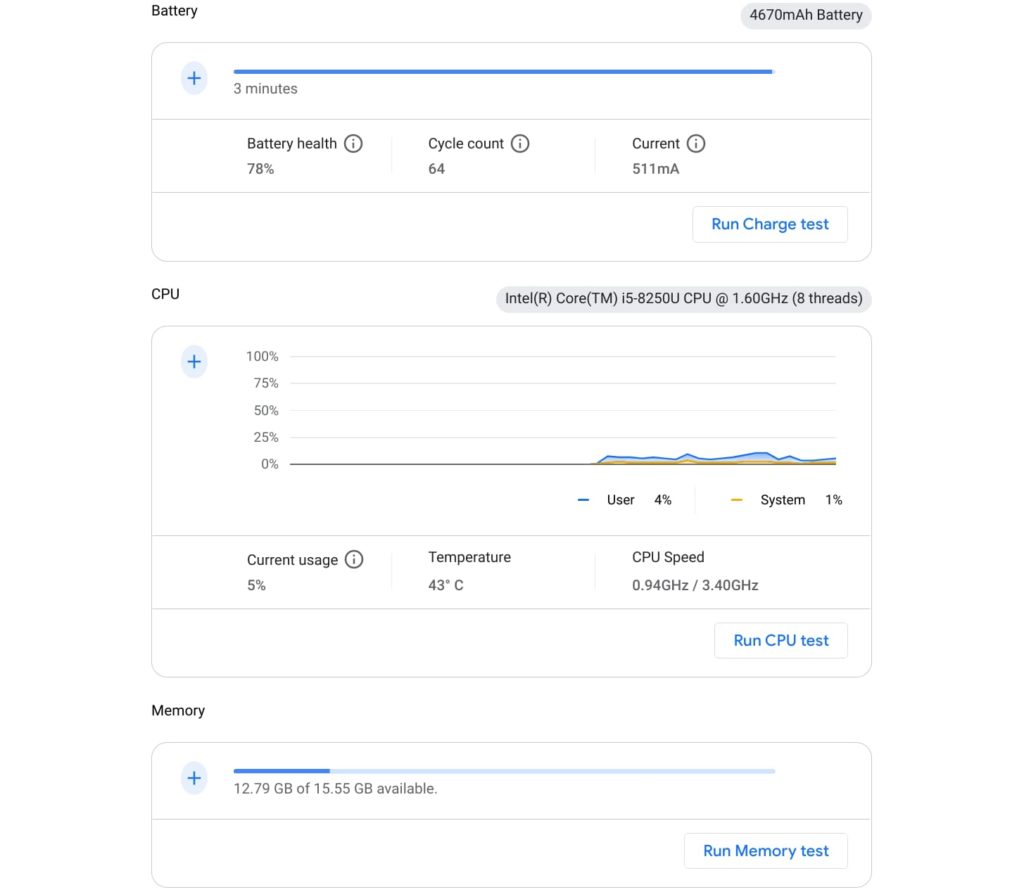
    Chromebook Diagnostics app in Chrome OS 89

    You can also see real-time CPU and memory usage as well as the current CPU temperature and speed.

    Currently, the “plus” icons don’t work. I anticipate in the coming weeks that tapping those will expand their respective data views. For example, you’d see CPU usage by each individual core and perhaps information about what processes are using the most memory.

    The trio of hardware tests are working with this version.
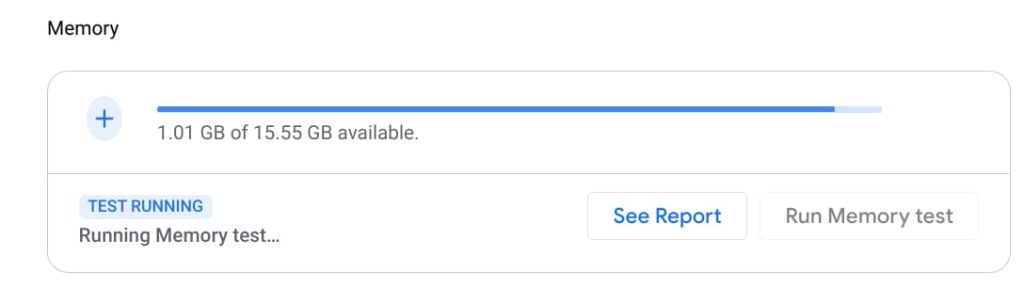
    Chromebook Diagnostics app memory test

    Click the respective test and the Diagnostics app will run various tests depending on the hardware type. These aren’t going to provide benchmark numbers; they’re specifically meant to validate that your Chromebook doesn’t have a hardware problem. Or if there is a problem with the battery, CPU, or memory, the app would indicate an issue.

    I wouldn’t expect people to use the Diagnostics app on a regular basis, even after it’s fully functional. However, if your Chromebook is acting strange or there’s some unexplained problem, this app would be a good place to start troubleshooting.

    Kevin Tofel
    • Website

    After spending 15 years in IT at Fortune 100 companies, Kevin turned a hobby into a career and began covering mobile technology in 2003. He writes daily on the industry and has co-hosted the weekly MobileTechRoundup podcast since 2006. His writing has appeared in print (The New York Times, PC Magazine and PC World) and he has been featured on NBC News in Philadelphia.

    Best of AI

    What Does Adobe Firefly AI Do?

    June 16, 2026

    Is Joyland AI Safe For Kids?

    June 12, 2026

    LMArena AI: Chatbot Ranking Platform 2026

    May 27, 2026

    Will AI Take Over the World

    May 25, 2026

    AI21 Jurassic Statistics 2026: Model Size, Usage and AI Performance Trends

    May 19, 2026
    Trending Stats

    Chromebook Storage Usage Statistics 2026: Device Storage Consumption Trends

    June 18, 2026

    Conversational AI Market Statistics 2026: Chatbot Usage And Enterprise Deployment

    June 17, 2026

    Chromebook Gaming Usage Statistics 2026: Player Engagement And Usage Reports

    June 17, 2026

    Chromebook Battery Degradation Statistics 2026: Lifecycle Performance Testing Data

    June 15, 2026

    Chromebook Touchscreen vs Non-Touchscreen Usage Statistics 2026: Device Interaction and Form Factor Data

    June 11, 2026
    • About
    • Tech Guest Post
    • Contact
    • Privacy Policy
    • Sitemap
    © 2026 About Chrome Books. All rights reserved.

    Type above and press Enter to search. Press Esc to cancel.