


Chromebook users rely heavily on Google’s ecosystem for productivity, storage, and file management. But sharing your data with Google isn’t mandatory. You can create a private alternative using NextCloud, a free and open-source software suite that puts you in control of your documents, photos, calendars, and files.
NextCloud provides the same functionality as Google Docs, Drive, and Photos, but with one crucial difference: you own and manage the data. The entire suite runs through your browser, making it perfect for Chromebooks. You can also access it through mobile apps on Android and iOS.
Setting up your private cloud requires choosing between two approaches: running NextCloud on local hardware like a Raspberry Pi or mini PC, or hosting it on a cloud server. Both options eliminate Google’s access to your personal information while maintaining the convenience of cloud-based services. If you’re concerned about data privacy on your Chromebook, this solution offers significant improvements.
How to create a private replacement for Google services on Chromebooks?
Install NextCloud on a Raspberry Pi
Download the Raspberry Pi OS image from the official Raspberry Pi website. Flash it to your SD card and boot up the device.
Open the Terminal application once your Pi is running. Enter this command: curl -sSL https://raw.githubusercontent.com/nextcloud/nextcloudpi/master/install.sh | sudo bash
The installation process downloads and configures the NextCloud server software automatically. Wait for the process to complete before proceeding.
A Raspberry Pi handles light to moderate use effectively as a NextCloud server. This approach works well for individual users or small households.
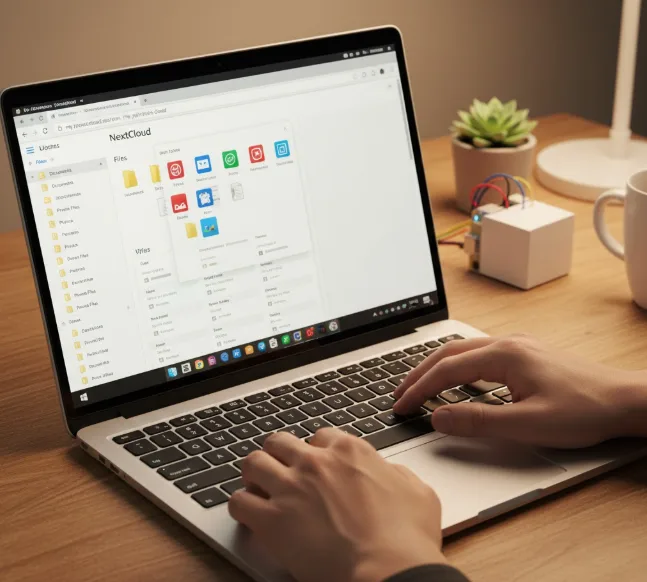
Set up NextCloud on a cloud server
Choose a cloud hosting provider that supports NextCloud installation. Providers like Linode offer one-click marketplace installations.
Select your server specifications based on your needs. A basic shared server with 1 GB RAM and 25 GB storage costs around $5 monthly and handles single-user or small family use.
Navigate to the marketplace and select NextCloud. Enter the required configuration details including admin passwords and your preferred server region. Choose the region closest to your location for better performance.
Complete the installation by following the on-screen prompts. The entire process takes just a few minutes.
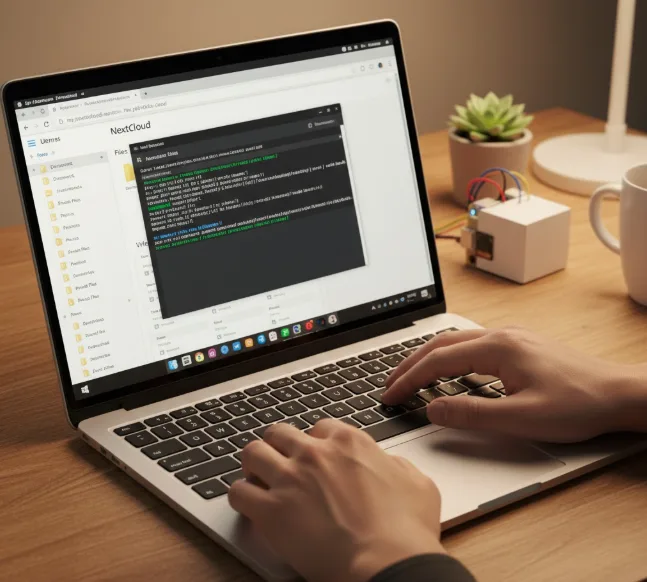
Access NextCloud from your Chromebook
Locate your NextCloud server’s IP address from your hosting dashboard or Raspberry Pi configuration.
Open your Chromebook browser and enter the IP address in the address bar. You’ll reach the NextCloud login screen.
Enter your administrator credentials that you configured during setup. You now have full access to your private cloud services.
For easier access, you can point a custom domain or subdomain to your NextCloud IP address. This allows you to use a memorable URL instead of numbers.
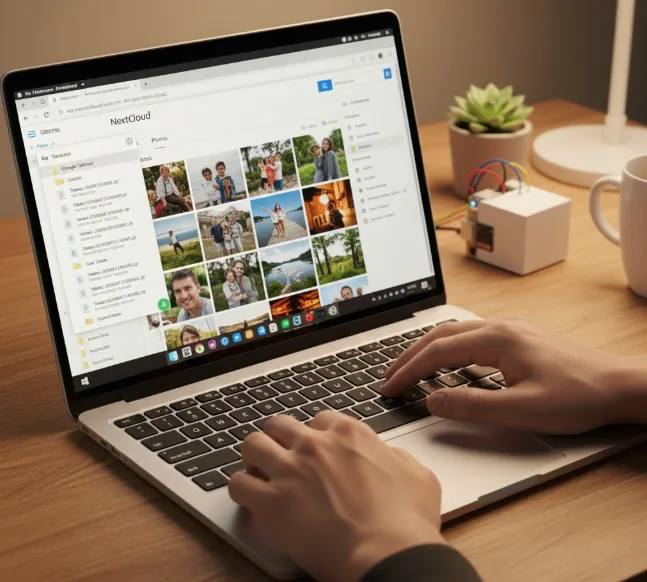
Configure NextCloud apps and services
Log into your NextCloud dashboard. You’ll see a home screen similar to other cloud services with various app options.
Click the Files app to upload documents and photos from your Chromebook. Drag and drop files directly into the browser interface.
Set up the Calendar app to manage your schedule independently from Google Calendar. Import existing calendar files if needed.
Install the NextCloud mobile app on your phone to enable automatic photo backup to your private server.
Import existing data from Google services
Export your Google Photos, Docs, and Calendar data using Google Takeout. Download the exported files to your Chromebook.
Upload the exported files to your NextCloud instance through the web interface. Photos appear in the Photos app while documents go to Files.
For RSS feeds, export them from your current reader as an OPML file. Import this file into NextCloud’s built-in feed reader.
Your data now resides on your private server instead of Google’s infrastructure. This represents a significant step toward protecting your Chromebook privacy.
FAQs
Can NextCloud replace all Google services on a Chromebook?
NextCloud provides alternatives for Docs, Drive, Photos, Calendar, and Contacts. It handles most productivity needs but lacks some Google-specific features like Gmail integration.
Do I need technical knowledge to run NextCloud?
Basic command-line familiarity helps for Raspberry Pi setup. Cloud hosting with one-click installation requires minimal technical knowledge and offers simpler maintenance.
How much does running a private NextCloud server cost?
A Raspberry Pi costs around $100 initially with no ongoing fees. Cloud hosting starts at $5 monthly for basic plans suitable for individual users.
Is NextCloud secure for storing personal data?
Yes, NextCloud uses encryption and you control all security settings. Your data stays on your server rather than third-party company infrastructure.
Can multiple users access the same NextCloud server?
Yes, NextCloud supports multiple user accounts with individual storage spaces and permissions. Family members can each have separate logins on one server.
