


Chrome OS 88 introduces an experimental screen recording feature that lets you capture video of your Chromebook display. This native tool saves recordings as .webm files without requiring third-party extensions.
The screen recording function works alongside existing screenshot capabilities. You can record your full screen, a selected portion, or a specific window.
This feature benefits users who create tutorials, demonstrate software issues, or share coding projects. Students and educators find it particularly useful for creating instructional content directly from their Chromebooks.
While still experimental, the screen recorder provides a straightforward solution for video capture needs. You’ll need Chrome OS 88 or later to access this functionality.
How to enable the experimental Screen Recording function on your Chromebook with Chrome OS 88
Activating the screen recording feature requires enabling a specific flag in Chrome OS settings. The process takes just a few minutes and adds a new capture button to your Quick Settings panel.
Access the Chrome flags page
Open your Chrome browser and type chrome://flags#screen-capture into the address bar. Press Enter to navigate directly to the screen capture flag setting. If you’re new to using Chrome flags, these experimental settings allow you to test features before they become official.
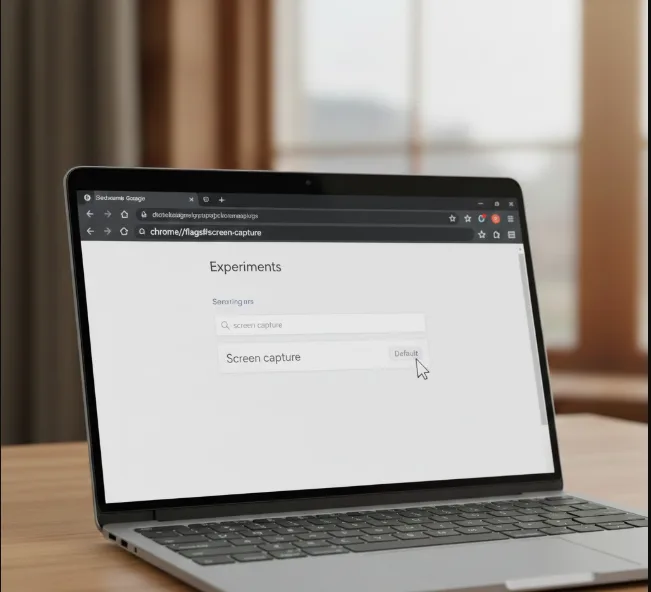
Enable the screen capture flag
Locate the screen recorder test flag on the page. Click the dropdown menu next to it and select “Enabled” from the available options.
Restart your Chromebook
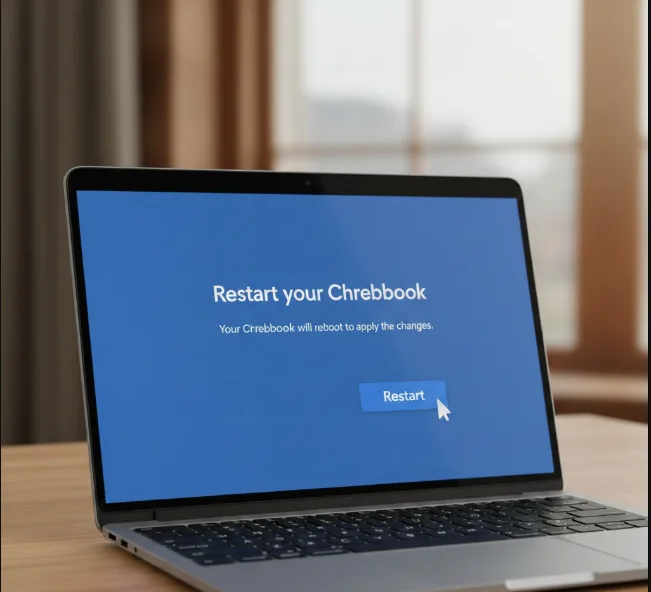
Click the blue “Restart” button that appears at the bottom of your screen. Your Chromebook will reboot to apply the changes.
Locate the Screen Capture button
After restart, click the system tray in the bottom-right corner. You’ll see a new Screen Capture button among your Quick Settings options.
Select your recording mode
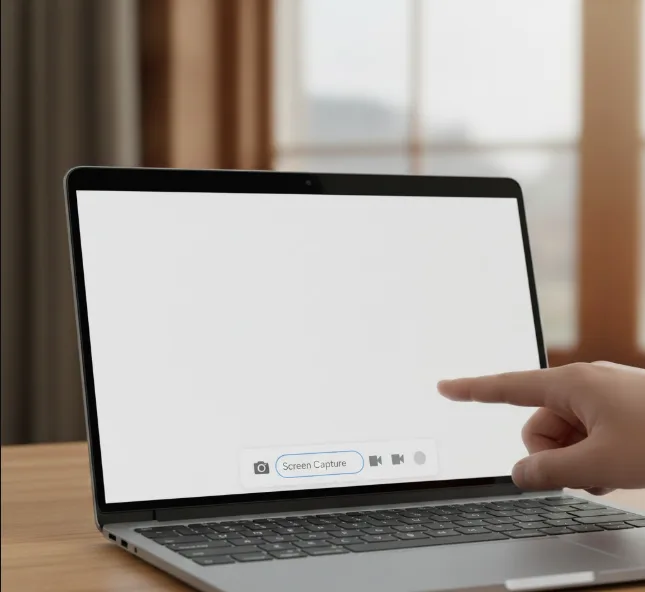
Tap the Screen Capture button to open the controls at the bottom of your display. Switch the first slider from the camera icon to the video camera icon to activate recording mode.
Choose your capture area
Pick one of three recording options: full screen captures everything, partial screen lets you select a specific area, and window mode records a single application window. The same options exist for taking screenshots on Chromebooks.
Start and stop recording
Click your chosen option to begin recording immediately. When finished, click the stop button in the control panel. Your recording saves automatically as a .webm file in your Downloads folder.
The feature also captures system audio and keyboard sounds during recording. This makes it suitable for creating narrated tutorials or demonstrations with audio feedback.
You can convert .webm files to .mp4 format using online converters for broader compatibility across different platforms and browsers. This becomes especially helpful when sharing recordings of Linux apps on your Chromebook or coding projects.
FAQs
What is the experimental Screen Recording function in Chrome OS 88?
It’s a native video capture tool that records your Chromebook screen as a .webm file without requiring third-party extensions or applications.
Do I need special software to use screen recording on Chromebook?
No additional software is needed. The feature works natively after enabling the flag at chrome://flags#screen-capture and restarting your device.
Can I record just part of my screen?
Yes, you can choose between full screen, partial screen, or window recording modes through the Screen Capture controls panel.
Does the screen recorder capture audio on Chromebook?
Yes, the feature captures system audio and microphone input, including keyboard sounds and any narration you provide during recording.
Is the Chrome OS 88 screen recording feature reliable?
Since it’s experimental, stability isn’t guaranteed. The feature works for basic recordings but shouldn’t be relied upon for critical video capture needs.
