


Chrome OS doesn’t natively support Android widgets on the desktop, but you can add them using a free app called Taskbar. This workaround lets you place functional Android widgets directly on your Chromebook’s desktop, giving you quick access to information and controls without opening apps.
You might want this feature if you frequently check weather updates, control music playback, or monitor calendar events. Widgets provide at-a-glance information that saves time compared to launching full applications.
The process involves installing Taskbar from the Google Play Store and configuring it to act as a secondary launcher for your Android apps. While not perfect, this method works on Chromebooks running Android 9 Pie or later.
Setting up widgets takes just a few minutes and requires no technical expertise.
How to install Android widgets on a Chromebook
You can add Android widgets to your Chromebook desktop through the Taskbar app. This creates a widget panel that displays your chosen Android widgets alongside your regular Chrome OS desktop.
Download and install the Taskbar app
Open the Google Play Store on your Chromebook and search for “Taskbar.” Install the free app developed by Braden Farmer. Launch the app once installation completes.
If you need help accessing the Play Store, check out how to install Android apps on your Chromebook for detailed instructions.
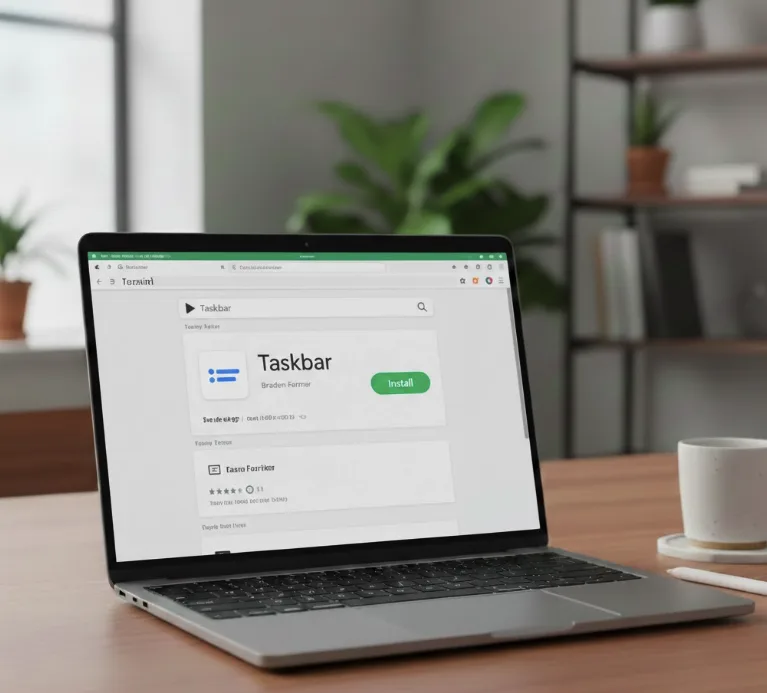
Configure Taskbar’s appearance settings
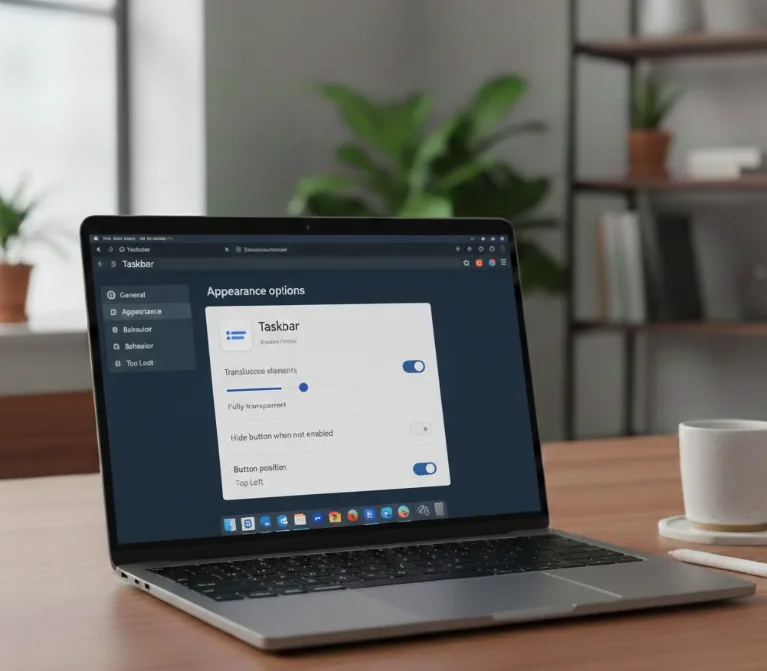
Navigate to the general settings and appearance options within Taskbar. Change translucent elements to fully transparent for a cleaner look. This makes the widgets blend better with your desktop background.
Hide the launcher button when not in use by enabling “hide button when not enabled” in the settings. Position the button in your preferred corner, with top left being a common choice that keeps it accessible but unobtrusive.
Enable widget functionality
Go to advanced settings within the Taskbar app. Toggle on “replace home screen” and “enable widget support.” These options activate the widget features and allow you to add widgets to your desktop.
Install your preferred widgets
Open the Google Play Store and download widget apps you want to use. Popular options include weather widgets, calendar widgets, music control widgets, and custom widget packs like KWGT or Pixxy KWGT.
Add widgets to your desktop
Tap the widgets button next to the Taskbar launcher on your desktop. Select widgets from your installed apps and arrange them on the panel. Each widget occupies a section of your display that you can resize and reposition.
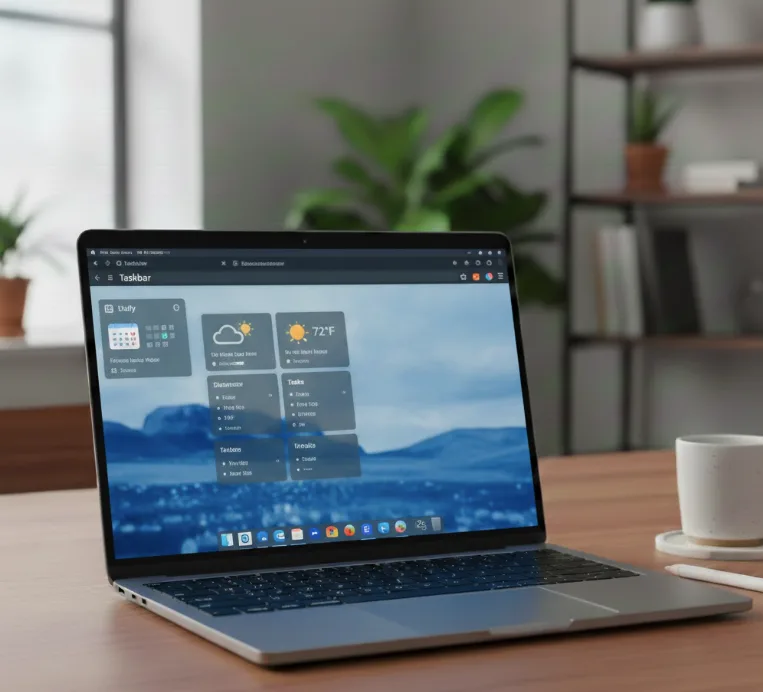
The widgets appear when you activate the widget panel by tapping the button. You can move the Taskbar buttons off-screen by tapping the left arrow, then reveal them by moving your cursor to the designated corner.
For the widgets and buttons to remain visible after restarting your Chromebook, ensure Taskbar is running. You can enable automatic startup in the app settings to avoid manually launching it after each reboot.
FAQs
Can I use Android widgets natively on Chrome OS?
Chrome OS doesn’t currently support native Android widgets on the desktop. You need third-party apps like Taskbar to add widget functionality to your Chromebook.
Do widgets work on all Chromebooks?
Widgets work on Chromebooks running Android 9 Pie or later with Google Play Store access. You can check your Android version to confirm compatibility. Older Chromebooks without Android app support cannot use this feature.
Why don’t my widgets appear after restarting?
Taskbar must be running for widgets to display. Launch the app manually after reboots or enable the “start on boot” option in Taskbar’s settings.
Can I customize widget sizes and positions?
Yes, you can resize and reposition widgets within the Taskbar panel. Custom widget apps like KWGT offer additional styling and layout options for further personalization.
Do widgets affect Chromebook performance?
Running multiple widgets may consume additional system resources. Limit the number of active widgets if you notice slower performance on older or less powerful Chromebooks.
