


Installing Linux applications on a Chromebook opens up powerful productivity tools like LibreOffice. However, when you download LibreOffice as a tar.gz file, the installation process differs from standard .deb files.
A tar.gz file is a compressed archive that contains the installation files you need. The “tar” portion indicates it’s an archive of files, while “gz” means it’s compressed using GZip.
This guide walks you through extracting and installing LibreOffice from a tar.gz download. You’ll use the Linux terminal on your Chromebook to unpack the archive and install the office suite.
The process takes just a few minutes once you understand the commands. While it involves terminal commands, each step is straightforward and doesn’t require advanced technical knowledge.
How to install LibreOffice for Linux on a Chromebook after downloading it as a tar.gz file
Before you begin the installation, you need to ensure the downloaded file is in the correct location. Your Chromebook stores Linux files separately from Chrome OS files.
Move the downloaded file to Linux files
Open the Files app on your Chromebook. Locate the LibreOffice tar.gz file in your Downloads folder.
Drag and drop the file from Downloads to the Linux files section. This transfers the file to your Linux container where you can access it through the terminal.
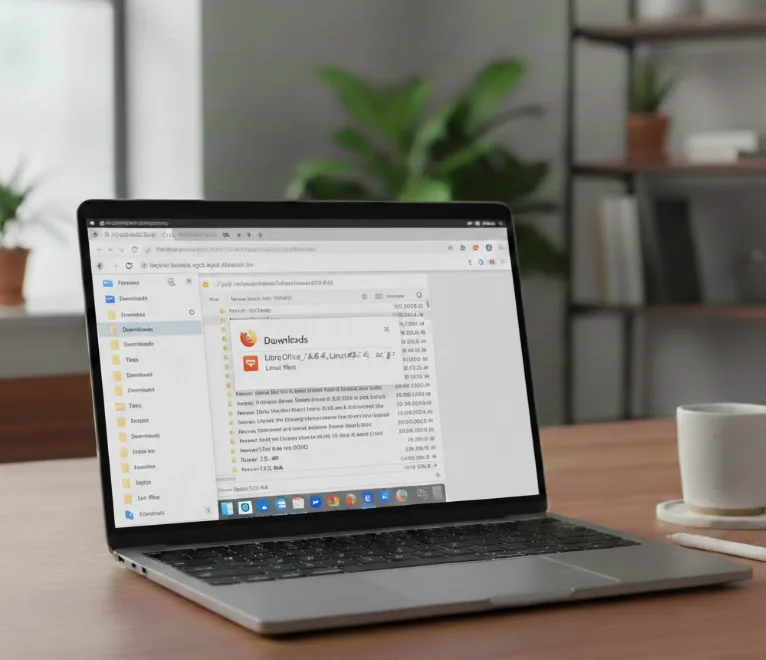
Open the terminal and verify the file location
Launch the Terminal app from your Chrome OS app launcher. Type “ls” and press Enter to list all files in the current directory.
You should see the LibreOffice tar.gz file listed. This confirms the file is in the right place for extraction. The “ls” command is one of the basic Terminal commands you’ll use frequently when working with Linux on your Chromebook.
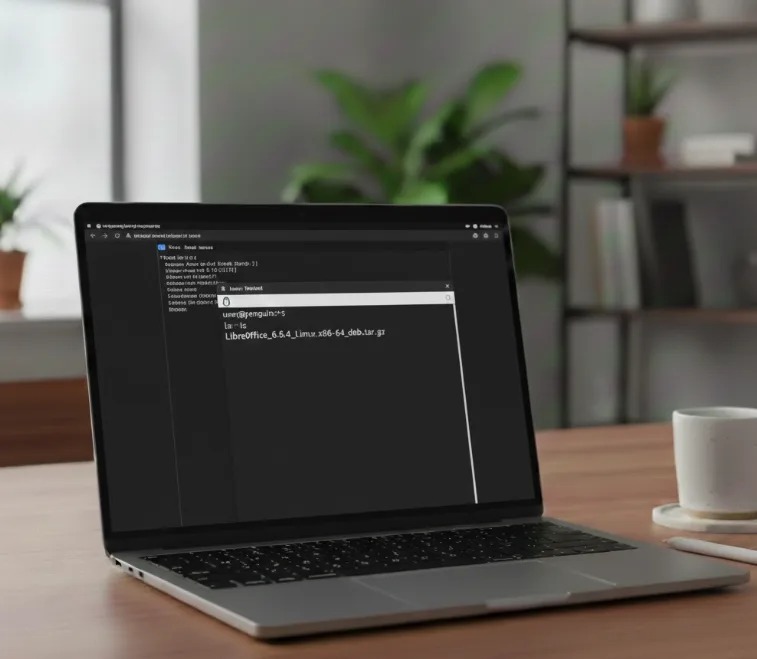
Extract the tar.gz file
Type “sudo tar -xf” followed by the filename. For LibreOffice, the command looks like: “sudo tar -xf LibreOffice_6.3.5_Linux_x86-64_deb.tar.gz”
Press Tab after typing the first few characters of the filename to auto-complete it. This prevents typing errors.
Press Enter to execute the command. The terminal will extract all files from the archive.
If you want to extract files to a specific directory, add “-C /path/to/directory” before the filename. For example: “sudo tar -xf LibreOffice_6.3.5_Linux_x86-64_deb.tar.gz -C /usr/local”
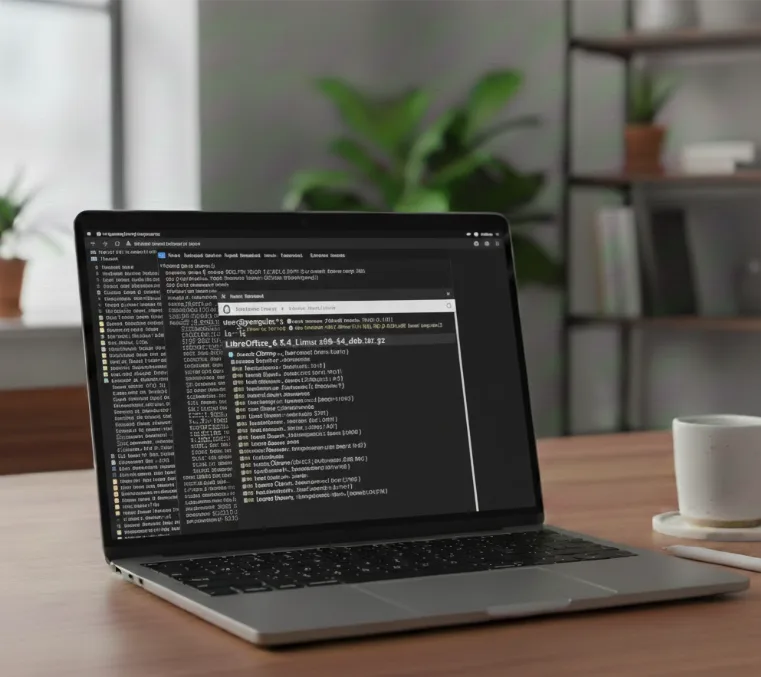
Navigate to the extracted files
Type “cd” followed by the LibreOffice folder name. The exact name depends on your version.
Type “ls” to view the folder contents. You should see two folders: DEBS and readmes.
Access the installation files
Type “cd DEBS” to enter the folder containing the installation packages. This folder holds all the .deb files needed for installation.
Install LibreOffice
Type “sudo dpkg -i *.deb” and press Enter. This command installs all .deb files in the DEBS folder simultaneously.
The terminal will display installation progress for multiple files. Wait for the process to complete without interrupting it.
Once finished, LibreOffice is installed on your Chromebook. You can find it by searching in the Chrome OS Launcher or browsing the Linux apps folder.
The entire suite includes Writer, Calc, Impress, and other LibreOffice applications. Each appears as a separate app in your launcher. If you prefer easier methods to install Linux apps, you can download .deb files directly and use the Install with Linux option in the Files app.
FAQs
Can I install other tar.gz files using this method?
Yes, this process works for most Linux applications packaged as tar.gz files. The extraction command remains the same, though installation steps may vary depending on the application.
Do I need to enable Linux on my Chromebook first?
You must enable Linux (Beta) in your Chromebook settings before installing any Linux applications. Navigate to Settings > Advanced > Developers to turn it on.
What if the tar.gz file doesn’t contain .deb files?
Some tar.gz archives contain executables or source code instead of .deb packages. Check the readme file for specific installation instructions provided by the developer.
Can I delete the tar.gz file after installation?
Yes, you can safely delete the original tar.gz file and the extracted folders after successful installation. The installed application doesn’t need these files.
Why use tar.gz instead of the regular .deb file?
LibreOffice packages multiple .deb files together in a tar.gz archive for distribution. This bundles the entire suite and dependencies into one download for convenience.
