


Chrome OS includes a feature that lets you install Linux applications directly from the Files app without using the terminal. This capability exists for programs packaged as .deb files, which are standard Linux installation packages.
Many Chromebook users avoid Linux apps because they assume command-line knowledge is required. This assumption creates an unnecessary barrier.
The native installation method removes that barrier completely. You can install compatible Linux programs with a few clicks, just like installing Chrome extensions or Android apps.
This process works on any Chromebook with Linux (Beta) enabled in settings. The feature has existed since August 2018, though many users remain unaware of it.
Understanding this installation method expands what you can do with your Chromebook. You gain access to professional tools, development environments, and specialized software that aren’t available in the Chrome Web Store or Google Play Store.
How to install Linux apps on a Chromebook without ever touching Linux?
This installation method only works with programs available as .deb files. You’ll need to find and download the appropriate .deb package before starting.
Enable Linux (Beta) on your Chromebook
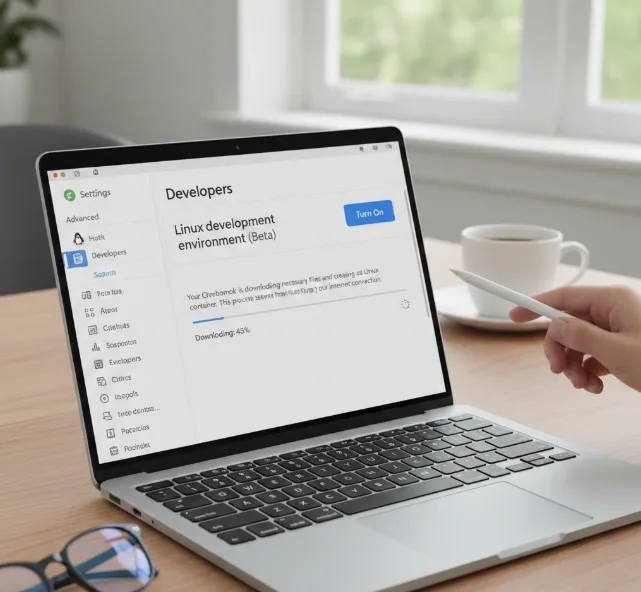
Open Settings and navigate to the Advanced section. Find “Developers” in the left sidebar.
Click “Linux development environment” and select “Turn On.” Follow the setup prompts to install Linux support.
Your Chromebook will download necessary files and create a Linux container. This process takes several minutes depending on your internet connection.
Download the .deb file you want to install
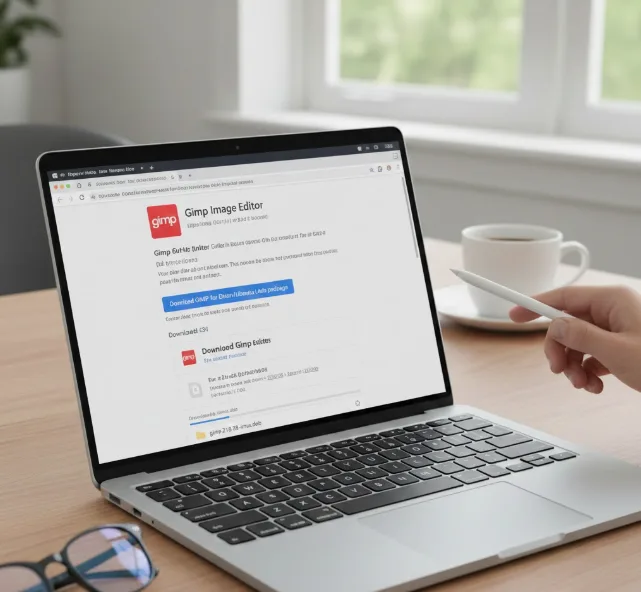
Visit the software’s official website or repository. Look for a download section that offers .deb packages.
Some sites provide multiple versions. Choose the package labeled for Debian or Ubuntu, as Chrome OS uses a Debian-based Linux environment.
Save the file to your Downloads folder. Chrome OS will handle this automatically when you click the download link.
Locate the downloaded file in the Files app
Open the Files app from your shelf or app launcher. Navigate to the Downloads folder.
You’ll see the .deb file listed with other downloads. The file extension should clearly show .deb at the end.
Right-click the .deb file
Click the file once with two fingers on your trackpad, or right-click if using a mouse. A context menu appears with several options.
Look for “Install with Linux (beta)” in the menu. This option only appears when Linux support is enabled and you’ve selected a valid .deb file.
Review the installation information
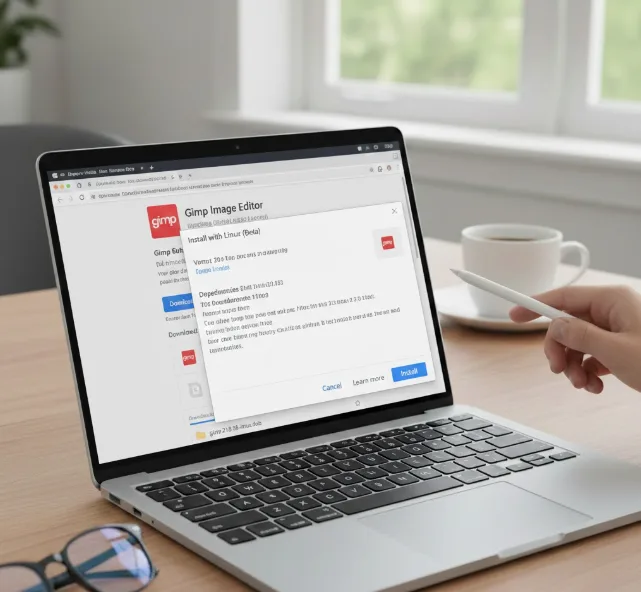
Click “Install with Linux (beta)” to open an installation dialog. Chrome OS displays details about the application, including its name and version.
The dialog shows what will be installed on your system. Review this information to confirm you’re installing the correct program.
Complete the installation
Click the “Install” button in the dialog box. Chrome OS begins installing the application immediately.
You’ll see notification messages showing installation progress. The process typically takes 30 seconds to a few minutes depending on the application size.
Once complete, you’ll receive a notification confirming successful installation. The application appears in your Launcher under the Linux apps folder.
You can now launch the program like any other Chromebook app. No terminal commands were needed during this entire process.
Some applications may require additional setup after installation. These configurations typically happen within the app itself, not through command-line interfaces.
If you’re interested in exploring popular Linux applications for your Chromebook, consider installing LibreOffice for document editing or checking out other useful Linux apps for productivity. For those who want to learn more about what’s possible with Linux on Chrome OS, this guide on how and why to use Linux on your Chromebook provides excellent use case examples.
FAQs
Can I install any Linux app without using the terminal?
Only apps available as .deb files can be installed through the Files app. Other formats require terminal commands to install properly.
Do I need to enable Developer Mode?
No, Developer Mode is not required. You only need to enable Linux (Beta) from Settings, which is available on standard Chromebooks.
What happens if the installation fails?
Chrome OS will display an error message explaining what went wrong. Common issues include incompatible packages or missing dependencies that require terminal installation.
Can I uninstall Linux apps the same way?
No, uninstalling requires opening the Linux terminal. Right-click the app in your Launcher and select “Uninstall” to remove it through the interface.
Will these apps update automatically?
Linux apps don’t update automatically like Chrome or Android apps. You’ll need to download and install newer .deb files manually when updates are released.
