


Old Chromebooks can find new life as Linux machines. Converting a Chromebook Pixel to run Ubuntu natively requires firmware modifications and operating system installation. This process bypasses Chrome OS entirely, allowing full Linux functionality.
The transformation involves removing hardware write-protection, enabling Developer Mode, and flashing custom firmware. You’ll need basic technical skills and willingness to open your device.
This guide works for 2013 Chromebook Pixel models no longer receiving Chrome OS updates. The hardware remains capable despite outdated software. Running Ubuntu extends the device’s usability for development, learning, or everyday tasks.
Converting your Chromebook eliminates Chrome OS limitations. You gain access to native Linux applications and development tools without dual-booting constraints.
How to turn an old Chromebook Pixel into native Linux Ubuntu laptop?
This process replaces Chrome OS with Ubuntu completely. The Chromebook Pixel becomes a standard Linux laptop after firmware replacement.
Disable write-protection
Turn your Chromebook Pixel upside down. Carefully remove the four rubber feet that hide the screws underneath.
The feet attach with light adhesive and peel off easily. Remove the four screws securing the bottom panel to the chassis.
Lift off the bottom cover to expose the motherboard. Locate the write-protect screw near the USB Type-A ports.
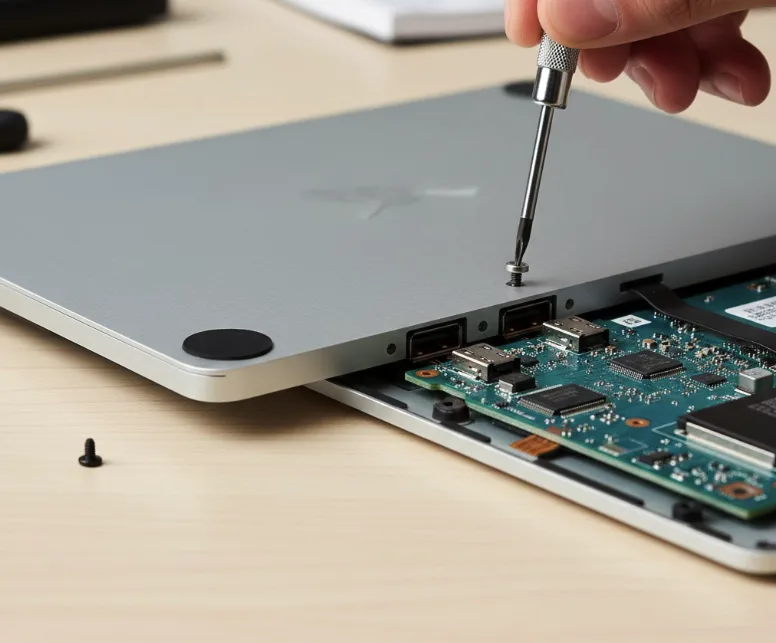
Remove this screw completely. Some screws fit tightly, so use appropriate force with your screwdriver.
Replace the bottom cover and reattach the four screws. Press the rubber feet back into place.
Enable Developer Mode
Power on your Chromebook Pixel. Press Esc + Refresh + Power to enter Recovery Mode.
Press Ctrl + D when prompted. Confirm you want to enable Developer Mode.
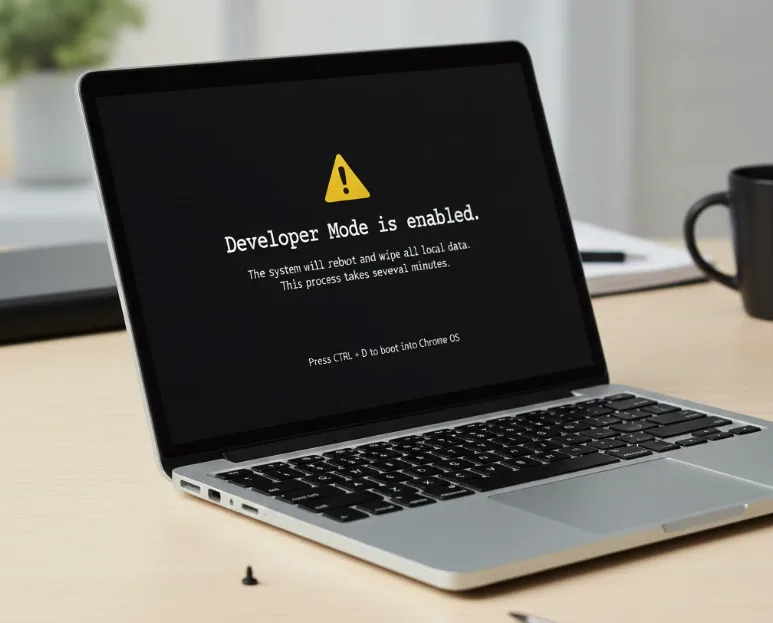
The system will reboot and wipe all local data. This process takes several minutes.
Wait for the warning screen showing Developer Mode is enabled. Press Ctrl + D to boot into Chrome OS. Note that Developer Mode is different from the Dev Channel of Chrome OS.
Download and upgrade the firmware
Log into Chrome OS after Developer Mode boots. Press Ctrl + Alt + T to open the crosh shell.
Type “shell” and press Enter to access the full terminal. Copy and paste this command:
cd; curl -LO https://mrchromebox.tech/firmware-util.sh && sudo bash firmware-util.sh
The Chrome OS Utility Script downloads and launches automatically. Select option 3 to install full UEFI firmware.
The script asks if you want to back up your Chrome OS image. Choose yes to save a recovery option.
The firmware installation completes in a few minutes. Reboot your device when prompted.
Install Ubuntu
Download the latest Ubuntu LTS image on another computer. Write the image to a USB drive or SD card.
Insert the bootable media into your Chromebook Pixel. Access the BIOS settings when the device starts.
Change the boot device priority to your USB drive or SD card. Save changes and restart.
The Ubuntu installer loads from your bootable media. Follow the standard Ubuntu installation steps.
Select your language, keyboard layout, and installation type. Choose to erase the disk and install Ubuntu.
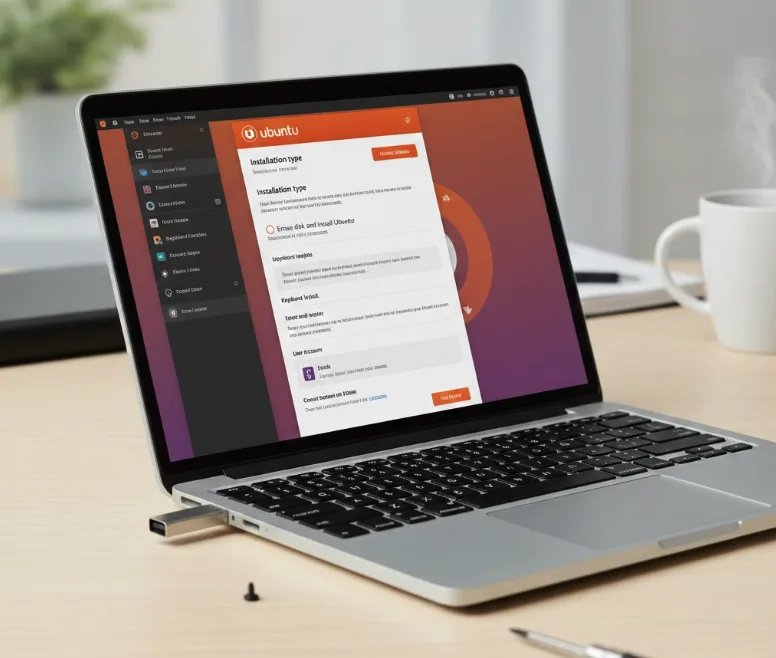
Create your user account and set your password. Wait for the installation to complete.
Remove the installation media when prompted. Restart your device to boot into Ubuntu.
Your Chromebook Pixel now runs Ubuntu natively. The device functions like any standard Linux laptop. If you prefer to run Linux on your Chromebook without replacing Chrome OS entirely, consider the built-in Linux development environment available on newer models.
FAQs
Can I return to Chrome OS after installing Ubuntu?
Yes, you can restore Chrome OS using a recovery USB drive if you backed up your firmware during installation. Otherwise, you’ll need to reflash the original firmware.
Does this process void my Chromebook warranty?
Opening the device and removing the write-protect screw typically voids manufacturer warranties. Most 2013 Chromebook Pixels are already out of warranty coverage.
Will all hardware features work on Ubuntu?
Most hardware works including keyboard, trackpad, WiFi, and display. Some features like special Chrome OS keys may require remapping for full Ubuntu functionality.
What’s the performance difference between Chrome OS and Ubuntu?
The 2013 Chromebook Pixel with 4GB RAM and third-gen Intel Core i5 runs Ubuntu adequately for basic tasks but won’t match modern laptop performance.
Do I need technical expertise to complete this conversion?
You need basic computer skills including comfortable opening hardware, using command line interfaces, and following technical instructions carefully to avoid mistakes.
