


Chromebooks work fine without internet despite common myths. While some features need connectivity, proper setup lets you stay productive offline.
Working offline with a Chromebook requires planning. You need to enable offline access for apps and download content beforehand.
This guide shows you how to prepare your Chromebook for offline work and which tools work best without internet.
How to work offline effectively with a Chromebook?
Enable offline mode for Google Docs, Sheets, and Slides
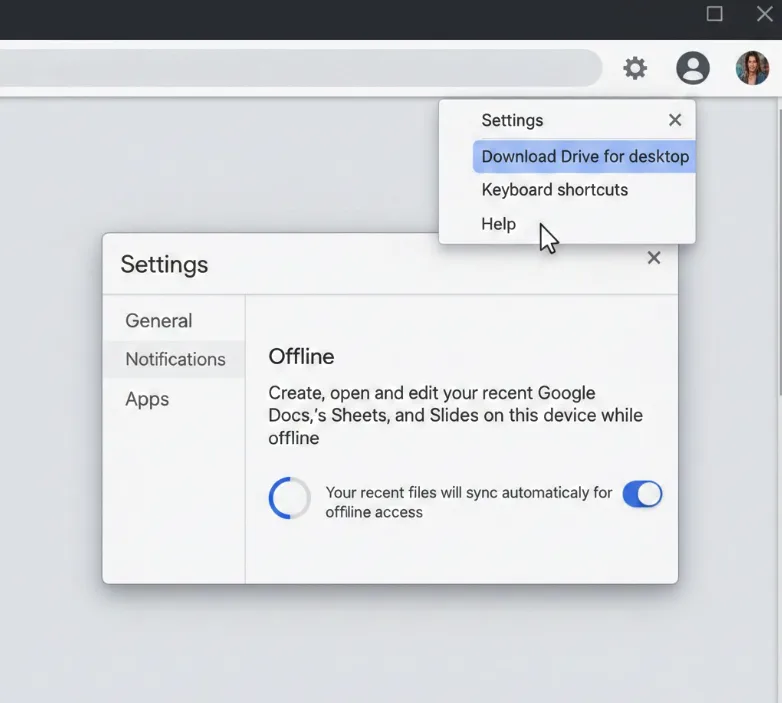
Open Google Drive in your browser. Click the settings gear icon in the top right corner.
Select “Settings” from the dropdown menu. Find the “Offline” section in the settings panel.
Toggle on “Create, open and edit your recent Google Docs, Sheets, and Slides files on this device while offline.” Your recent files will sync automatically for offline access.
Mark specific Google Drive files for offline use
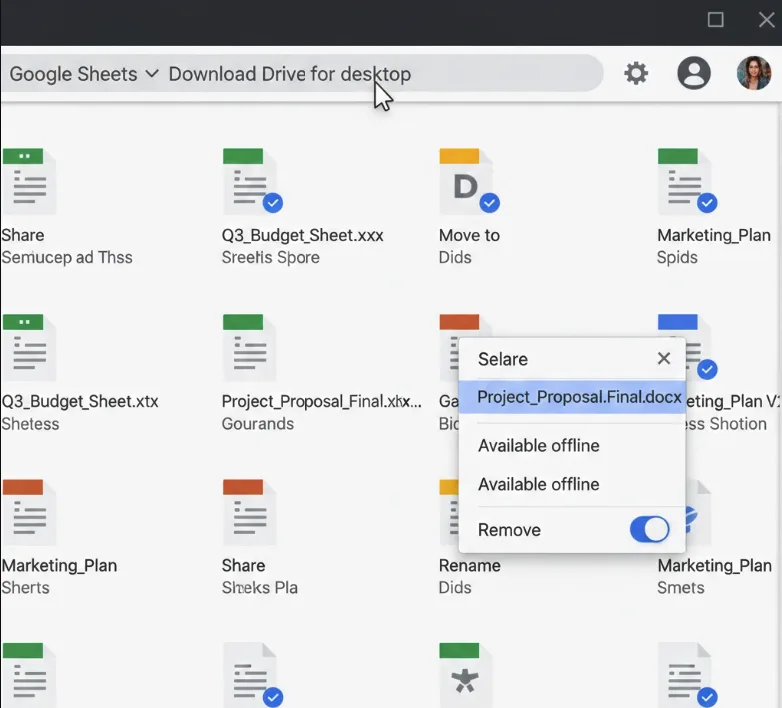
Navigate to Google Drive. Right-click any file or folder you want available offline.
Select “Available offline” from the menu. A checkmark icon appears next to the file when synced.
Repeat this process for all files you need. Chromebooks store these locally for access without internet. You can also change your Downloads folder to Google Drive for automatic backup.
Download content for offline reading
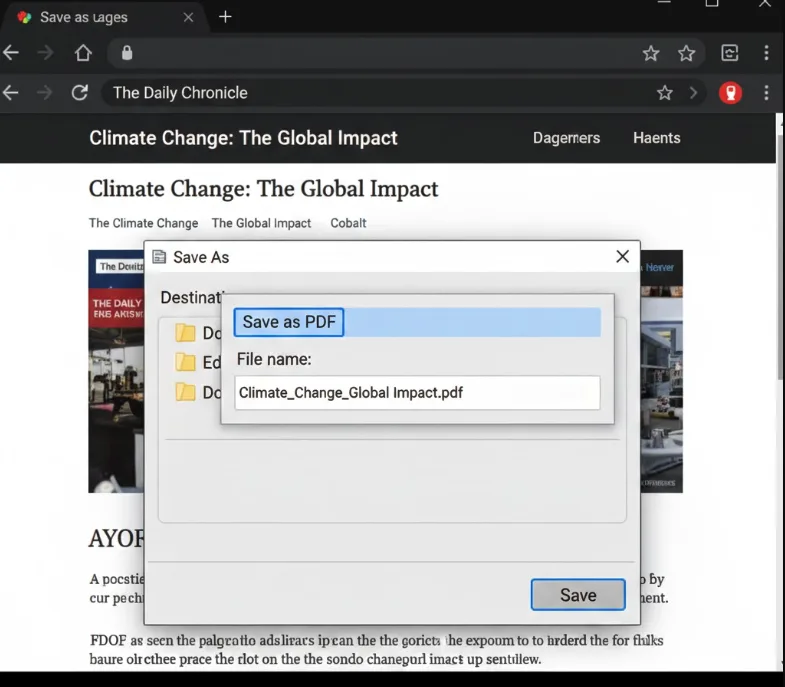
Open articles, documents, or web pages you want to save. Press Ctrl + S on your keyboard.
Choose “Save as PDF” from the destination dropdown. Select your Downloads folder or another location.
The page saves as a PDF file you can open anytime. This works for news articles, research papers, and reference materials.
Set up Android apps with offline functionality
Open the Google Play Store. Search for apps that explicitly mention offline support in their descriptions.
Install apps like Spotify (with Premium), Netflix, or Microsoft Office. Open each app while online and enable offline mode in their settings.
Download content within each app for offline access. Most media apps let you save content directly to your device. Learn more about what you can do with a Chromebook including Android app capabilities.
Install Linux apps for offline work
Enable Linux on your Chromebook through Settings > Advanced > Developers. Wait for the Linux installation to complete.
Open the Linux terminal. Install desktop applications using commands like “sudo apt install gimp” for photo editing or “sudo apt install libreoffice” for document work.
These Linux applications run completely offline once installed. You can edit files, code, or run software without internet. Check out our detailed guide on how to install Linux apps on Chromebook for more information.
Share Google Drive with Linux for offline file access
Open the Files app on your Chromebook. Locate “Google Drive” in the left sidebar.
Right-click on “Google Drive” and select “Share with Linux.” Your offline Google Drive files become accessible in Linux apps at /mnt/chromeos/GoogleDrive.
This lets you edit cloud files using full Linux applications while offline. For more tips, read about how to use Linux on a Chromebook.
Plan ahead by downloading files and enabling offline modes before you lose connectivity. Most productivity tasks work fine once properly configured.
FAQs
Can I use Google Docs offline on a Chromebook?
Yes. Enable offline mode in Google Drive settings, and your recent documents automatically sync for offline editing. Changes save locally and upload when you reconnect.
Which apps work offline on Chromebooks?
Google Docs, Sheets, Slides, Gmail (read only), Keep, Calendar, and many Android apps work offline. Check each app’s settings to enable offline mode beforehand.
How much storage do I need for offline files?
It depends on your files. Documents use minimal space, but videos and large media require gigabytes. Check available storage in Settings > Device > Storage management.
Do Linux apps work offline on Chromebooks?
Yes. Linux apps run completely offline once installed. They work independently of your internet connection, making them reliable for offline productivity and creative work.
Can I watch Netflix offline on a Chromebook?
Yes. Install the Netflix Android app from Google Play Store, download shows or movies while online, and watch them offline anytime. This requires a Netflix subscription.
