


Picture-in-Picture lets you watch videos in a floating window while you work on other tasks. This feature keeps your content visible on top of other windows, making it perfect for multitasking.
You can resize and move the window anywhere on your screen. This means you can watch tutorials while taking notes, follow live streams during work, or catch up on shows while browsing.
The feature works with YouTube, streaming services, and most video websites. You can enable it through native ChromeOS settings, browser extensions, or platform-specific controls.
Understanding how to activate Picture-in-Picture improves your productivity and entertainment experience on a Chromebook.
How to enable Picture-in-Picture on a Chromebook (updated)?
ChromeOS offers multiple ways to use Picture-in-Picture depending on your needs. The methods range from simple one-click options to system-wide implementations.
Use YouTube’s built-in mini-player
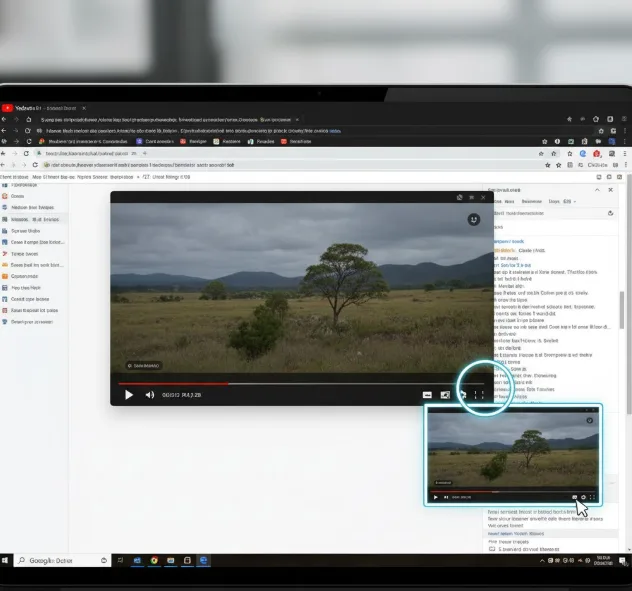
YouTube provides the easiest Picture-in-Picture access. Start playing any video on YouTube.
Press the “i” key on your keyboard. The video immediately pops out into a floating window.
You can also click the mini-player button in the YouTube video controls. This button appears in the lower-right corner of the player.
The window stays within your Chrome browser tab. You cannot resize it with this method, but it works instantly without any setup.
Enable the Chrome flag for system-wide access
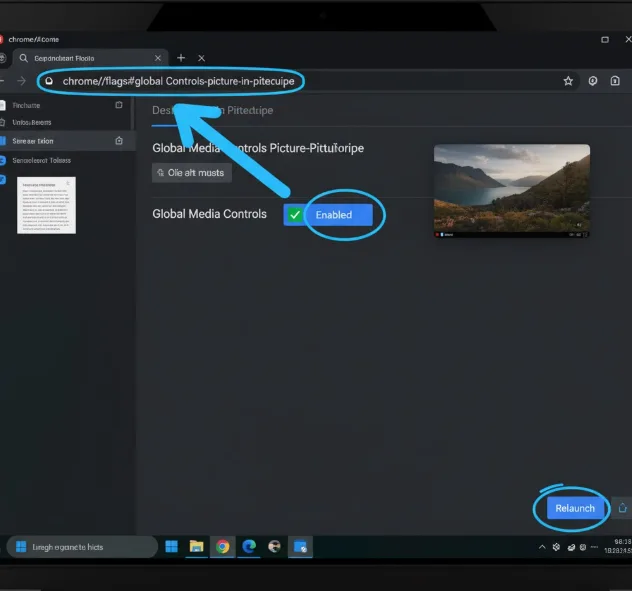
The most powerful option uses ChromeOS’s native Picture-in-Picture controls. Type chrome://flags/#global-media-controls-picture-in-picture in your browser address bar.
Set the flag to “Enabled” and click the blue restart button. Your browser will reopen with the new setting active.
Play any video from a supported website. Look at your system tray in the bottom-right corner of your screen.
You’ll see a media control card appear above your system settings. Click the Picture-in-Picture button in this card.
The video breaks out into a floating window. You can drag it anywhere on your desktop and resize it by grabbing the corners. This window stays on top even when you switch between apps or open new tabs, making it ideal for multitasking on your Chromebook.
Install the Picture-in-Picture extension
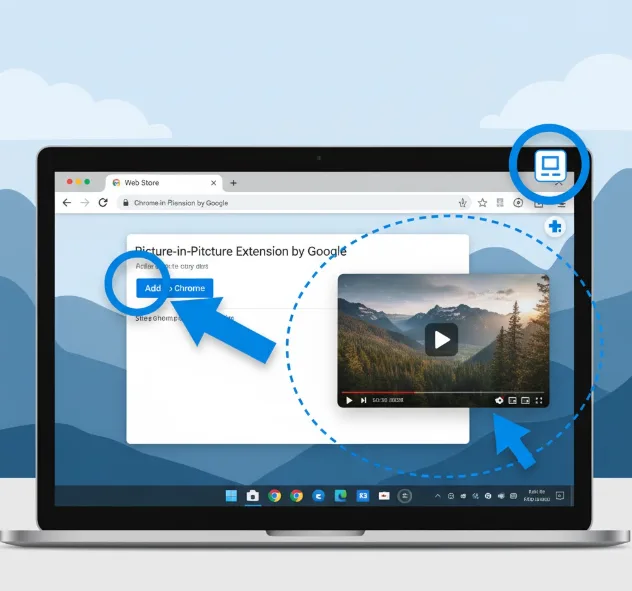
Visit the Chrome Web Store and search for “Picture-in-Picture Extension by Google”. Click “Add to Chrome” to install it.
Pin the extension to your toolbar by clicking the puzzle icon and selecting the pin next to Picture-in-Picture. The extension icon appears in your browser toolbar.
Navigate to any website with video content. Start playing your video and click the extension icon.
The video instantly opens in a Picture-in-Picture window. This method works across all websites and gives you full control over window size and position, which helps optimize your Chromebook experience.
Enable Picture-in-Picture for Android apps
Long-press any Android app icon on your shelf or in your app drawer. Select “App info” from the menu that appears.
Tap “More Settings and permissions” to open the full settings page. Choose “Advanced” to reveal additional options.
Find the “Picture-in-Picture” setting and ensure the toggle is enabled. Most apps have this feature allowed by default.
Open the app and start playing a video. Switch to another app by pressing the circular Launcher key and selecting a different application.
The video automatically appears in a floating window. This works particularly well with streaming services on your Chromebook.
Use the right-click method
This method works primarily on YouTube and select streaming sites. Start playing your video in the Chrome browser.
Right-click anywhere on the video player. The browser context menu appears first.
Move your cursor off the menu and right-click the video again. The video player’s native context menu now appears.
Select “Picture in picture” from the options. The video pops out into a floating window.
This technique requires two separate right-clicks to access the correct menu. While less intuitive than other methods, it works without any setup or extensions, similar to other hidden ChromeOS features.
FAQs
Can I use Picture-in-Picture on all websites?
Most video streaming sites support Picture-in-Picture through the extension method or Chrome flags. Native support varies by website implementation.
Does Picture-in-Picture work offline?
Yes, Picture-in-Picture works with locally stored videos when you use the Files app video player or Chrome’s built-in media player.
How do I close a Picture-in-Picture window?
Click the X button in the corner of the floating window. You can also drag it to the top or bottom screen edge to close it.
Can I watch multiple videos in Picture-in-Picture simultaneously?
ChromeOS supports only one Picture-in-Picture window at a time. Opening a new one closes the previous floating video automatically.
Will Picture-in-Picture drain my Chromebook’s battery faster?
Video playback uses battery regardless of the display method. Picture-in-Picture itself doesn’t significantly impact battery life compared to standard streaming.
