


Chromebooks make printing simple once you know the process. Whether you need to print a document for work, a school assignment, or a personal project, your Chromebook handles the task with ease.
Printing from a Chromebook works much like printing from any other computer. You can connect to printers wirelessly over Wi-Fi or directly through a USB cable.
Google discontinued its Cloud Print service in 2021. However, ChromeOS now supports direct printer connections without needing that service.
This guide walks you through the exact steps to print on your Chromebook. You’ll learn how to connect your printer, add it to your device, and start printing in minutes.
How To Print On Your Chromebook?
Before you print, you need to connect your Chromebook to a printer. The connection method depends on your printer type.
Connect Your Printer to Your Chromebook
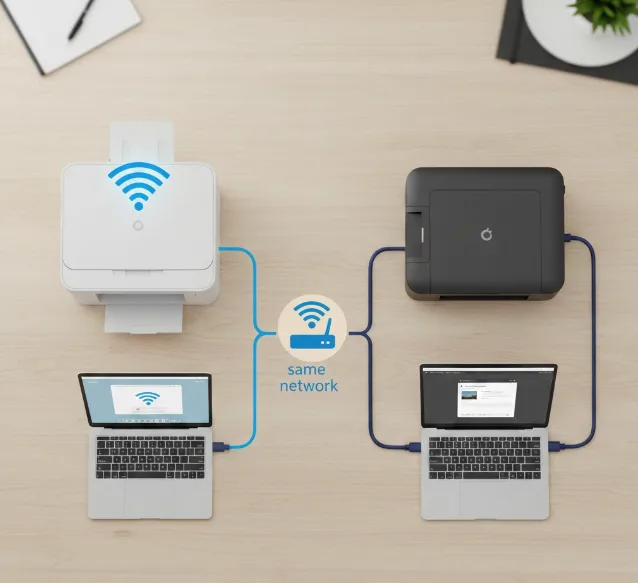
For wireless printers, your Chromebook and printer must share the same Wi-Fi network. Turn on your printer and connect it to your network following the manufacturer’s instructions.
Sign into your Chromebook and connect it to the same network. Your device should now see the printer.
For USB printers, plug the cable into your printer and connect the other end to your Chromebook. The device recognizes the printer automatically.
Add the Printer to Your Settings
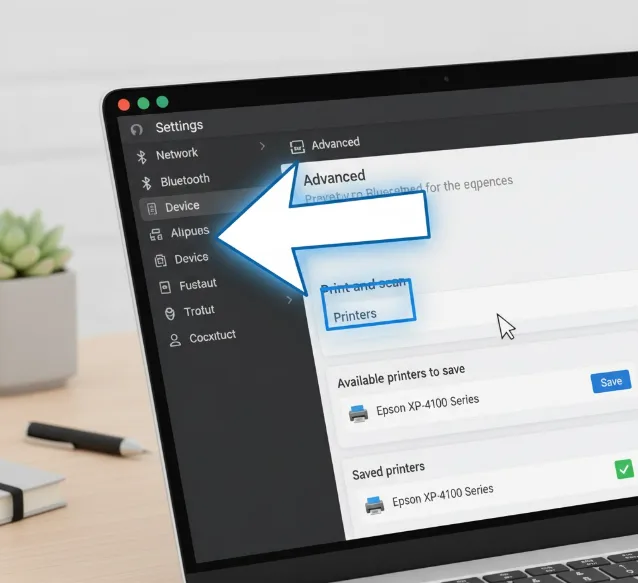
Click the time display in the bottom right corner of your screen. Select Settings from the menu that appears.
Scroll down and click Advanced to expand more options. Find “Print and scan” and click on Printers.
Look for your printer under “Available printers to save” and click Save. Your printer now appears under “Saved printers” at the top of the list.
If your printer doesn’t show up, toggle your Wi-Fi off and back on. This refreshes the connection and often reveals hidden devices.
Add an Older Printer Manually
Some older printers don’t appear automatically. You can add them by hand if needed.
Go to Settings, then Advanced, then Printers. Click “Add printer” and enter your printer’s details including name, address, protocol, and queue.
Click Add to finish. Your printer is now ready for use.
Print Your Document
Open the file, image, or webpage you want to print. Press Ctrl + P on your keyboard to open the print dialog.
Click the down arrow next to “Destination” and select “See more” to view all available printers. Choose your printer from the list.
Adjust any settings like number of copies or page range. Click Print to send your document to the printer.
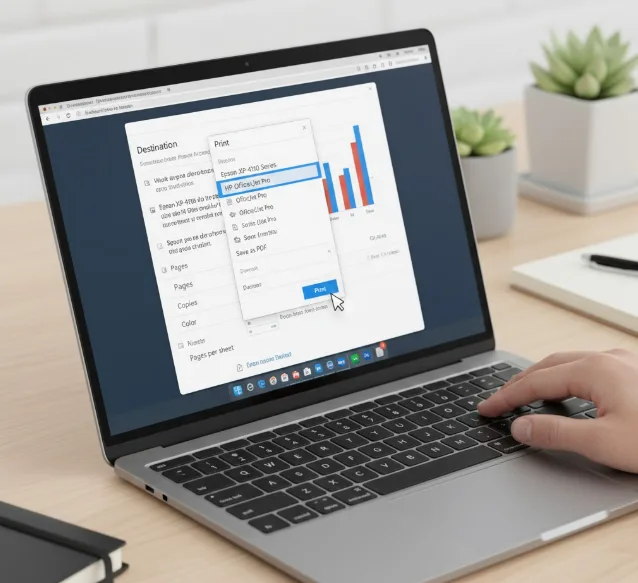
If your printer doesn’t appear, click Manage to access printer settings directly. You can also check common Chromebook printing issues if problems persist.
Some advanced printer features like stapling or hole-punching may not work through ChromeOS. Download your printer manufacturer’s Android app from the Play Store to access all features. Many Chromebook apps extend device functionality this way.
FAQs
Can All Printers Work with Chromebooks?
No. Most modern printers work with Chromebooks, but some older models lack compatibility. Check your printer manufacturer’s website to verify ChromeOS support before attempting to connect.
Do I Need an Internet Connection to Print?
You need Wi-Fi for wireless printing. However, USB-connected printers work without internet access. Both your Chromebook and wireless printer must share the same network.
Why Isn’t My Printer Showing Up?
Your printer may be on a different network or powered off. Toggle your Chromebook’s Wi-Fi off and on. You can also add the printer manually through Settings.
Is Printing from a Chromebook Secure?
Yes. Chromebooks feature automatic updates, sandboxed browser tabs, and document encryption. Keep your printer firmware updated to maintain security across your network.
Can I Scan Documents with My Chromebook?
Yes. If your printer supports scanning, use the Scan feature in ChromeOS settings. You can also use your Chromebook’s camera to scan documents through the Camera app.
