


School Chromebooks help students complete assignments but often restrict access to certain websites. Schools block sites to maintain focus and security, but these restrictions can sometimes limit legitimate research and educational resources. Students may need to access blocked content for projects, studies, or other valid purposes.
Understanding how to unblock websites on school Chromebook devices requires knowing the different methods available. The effectiveness depends on your school’s security settings and whether you have administrative access. Some techniques work better than others based on how your school implements restrictions.
Before attempting any method, consider your school’s acceptable use policy. Violating school rules can lead to consequences including loss of device privileges. Always prioritize educational needs and respect the guidelines your school has established for Chromebook use.
How To Unblock Websites On School Chromebook?
Schools typically block websites through network-level restrictions or device-specific settings. The method you choose depends on what access level you have and how the blocks are implemented.
Use a VPN Connection
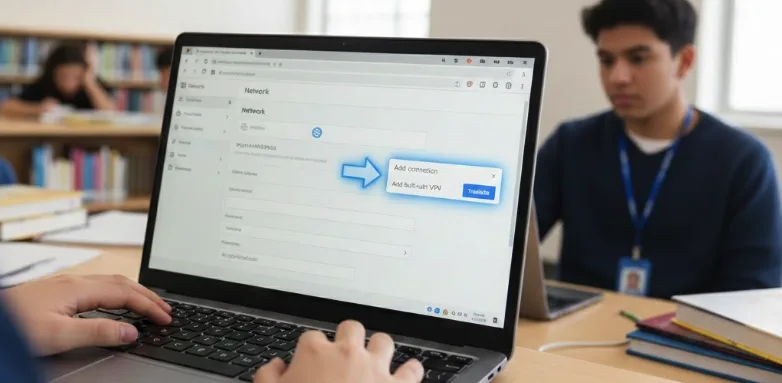
A VPN reroutes your internet traffic through a private server, bypassing network restrictions. Open your Chromebook Settings and navigate to Network. Select Add connection, then choose Add built-in VPN. Enter the VPN provider information including server address, username, and password. Click Connect to establish the connection.
Some VPN providers offer dedicated Chromebook apps that simplify setup. These apps typically require downloading from the Chrome Web Store if your school permits app installations.
Configure a Proxy Server
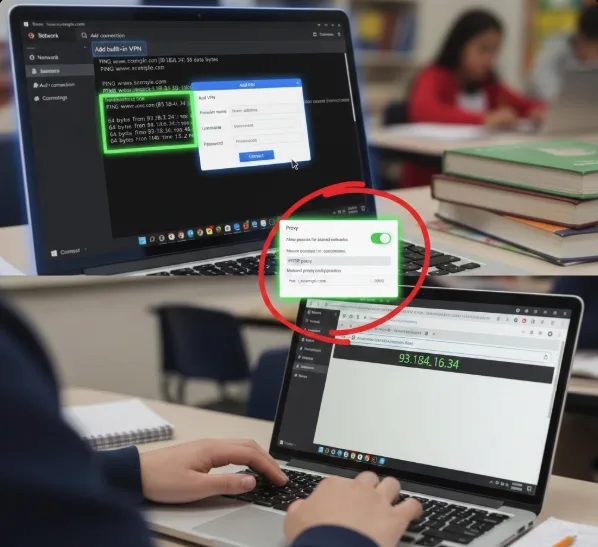
Proxies redirect your connection through an intermediary server. Go to Settings and select Network. Choose your Wi-Fi network and locate the Proxy section. Toggle on Allow proxies for shared networks. Under Connection type, select Manual proxy configuration and input the proxy details including address and port number.
Proxies don’t encrypt data like VPNs do, making them less secure but potentially easier to configure.
Access Through IP Address
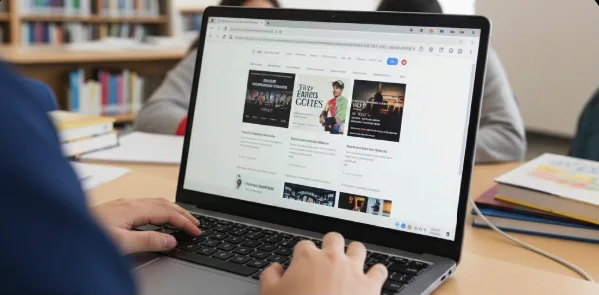
Schools sometimes block domain names but overlook IP addresses. Press Ctrl + Alt + T to open the Chromebook terminal. Type PING followed by the website URL, such as PING www.example.com. The results display the site’s IP address. Copy this IP address and paste it directly into your browser’s address bar.
This method works only if your school blocks by domain rather than implementing comprehensive content filtering.
Try Google Translate
Google Translate can act as a proxy service. Visit Google Translate and select the Websites option. Enter the blocked site’s URL in the translation box. Click Translate to view the site through Google’s translation service.
This workaround may not work for sites requiring login credentials or complex functionality.
Use Mobile Hotspot
If restrictions are network-based, switch to a personal mobile hotspot. Enable the hotspot on your phone and connect your Chromebook to it. This bypasses school network restrictions entirely but uses your cellular data. Monitor your data usage to avoid exceeding plan limits.
Modify Site Permissions
If you have admin access, you can adjust site permissions directly. Open Chrome Settings and navigate to Privacy and security. Select Site settings, then find Insecure content. Locate blocked sites in the list, click the three-dot menu, and choose Remove. Add sites manually under Allowed to show insecure content if needed.
This method only works if restrictions are set at the device level rather than network level.
FAQs
Can I play games on a school Chromebook?
Yes, if your school permits it. Download games from Google Play Store if enabled, or access web-based games on unblocked sites. Check your school’s acceptable use policy first.
What happens if the school Chromebook gets damaged?
Students or families typically pay for repairs, replacements, or associated costs. Some schools offer insurance programs to cover accidental damage at reduced rates.
Can schools track what I do on my Chromebook?
Yes, schools monitor activity, app usage, browsing history, and device location through administrative controls. Assume all activity on school-owned Chromebooks is visible to administrators.
Are Chromebooks safe from viruses?
Chromebooks have strong built-in security against traditional viruses. However, they remain vulnerable to phishing attacks and malware. Practice safe browsing habits and avoid suspicious links.
Will using a VPN get me in trouble at school?
Using a VPN may violate your school’s acceptable use policy. Review your school’s rules before attempting to bypass restrictions, as violations can result in disciplinary action.
