


Temu is a popular shopping app that lets you browse and buy millions of affordable products directly from your Chromebook. Installing Temu on ChromeOS is straightforward since it runs as an Android application through the Google Play Store.
You’ll want to download Temu if you’re looking for budget-friendly deals on everything from clothing to electronics. The app works seamlessly on most Chromebooks released after 2017, giving you full access to browse, shop, and track orders right from your laptop.
Before installing, verify your Chromebook supports Android apps by checking for the Google Play Store icon in your app launcher. Most modern Chromebooks with ChromeOS version 88 or newer can run Temu without any issues.
How To Download Temu for Chromebook?
Access Google Play Store
Click the launcher button in the bottom-left corner of your screen. Locate the Google Play Store icon and open it. Sign in with your Google account if prompted.
Most Chromebooks come with Play Store pre-installed. If you don’t see it, check your system settings to enable Android app support.

Search for Temu
Type “Temu” in the search bar at the top of the Play Store. Press Enter to see results. Look for the official Temu app with millions of downloads.
Verify the publisher is listed as “Temu” before proceeding. This confirms you’re downloading the legitimate app.
Install the Application
Click the green “Install” button next to the Temu app. Review any permission requests that appear. Click “Accept” to start the download.
The installation takes about 2-3 minutes depending on your internet speed. The app requires less than 100MB of storage space.

Launch Temu
Once installation completes, click “Open” from the Play Store. Alternatively, find Temu in your app drawer and double-click to launch it.
You can sign in with an existing account or continue browsing as a guest. The app will ask for location permissions, which you can allow or skip.
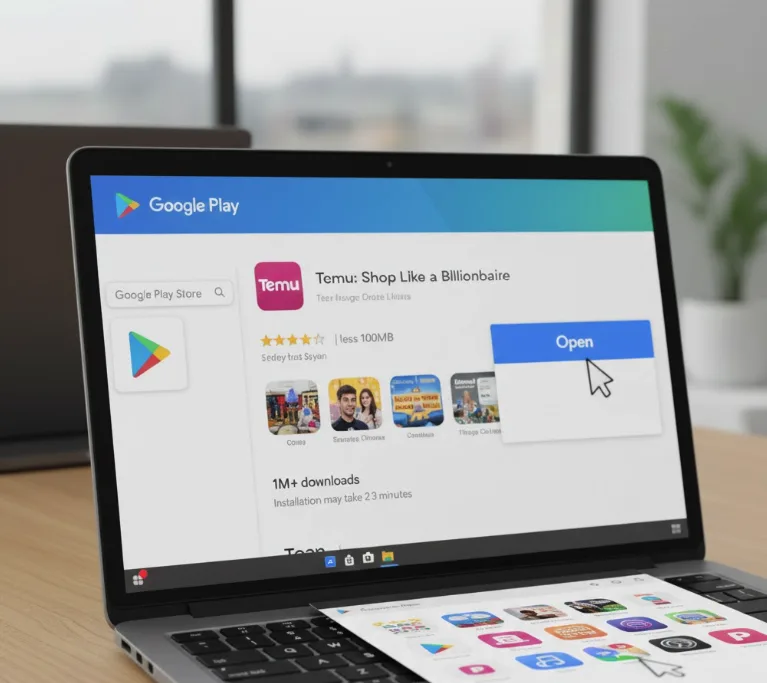
Set Up for Quick Access
Right-click the Temu icon in your shelf and select “Pin to shelf.” This creates a permanent shortcut for faster access. Resize the app window to fit your preferred browsing size.
You can also enable notifications through ChromeOS settings to receive updates about orders and deals.
Your Chromebook needs at least 4GB of RAM and 1GB of free storage for optimal performance. Devices with Android 10 or later support work best with the Temu app.
If you can’t access the Play Store, you can use Temu through the Chrome browser by visiting their website. Create a shortcut by clicking the three-dot menu and selecting “Create shortcut” for easier access.
FAQs
Can I use Temu on older Chromebooks?
Temu works on Chromebooks released after 2017 with Android app support. Check your ChromeOS version in settings to confirm compatibility.
Does Temu work offline on Chromebook?
No, Temu requires an active internet connection to browse products and process orders. You need Wi-Fi or mobile data connectivity.
How do I update Temu on Chromebook?
Open Google Play Store and navigate to “My apps & games.” Find Temu in the list and click “Update” if available.
Can I use Temu without a Google account?
You need a Google account to download apps from Play Store. However, you can browse Temu as a guest without creating a Temu account.
Why is Temu running slowly on my Chromebook?
Close unnecessary apps and restart your device. Clear the app cache in settings or update ChromeOS for better Android app performance.
